Can You Use Mesh WiFi With Starlink?
Yes, you can use mesh WiFi with Starlink through a supported Ethernet connection. Match the router mode to your hardware, then place mesh nodes where they have a strong connection to each other.
On this page (8 sections)
- Can you use mesh WiFi with Starlink?
- How do you connect a mesh system to Starlink?
- Should you use bypass mode with Starlink mesh WiFi?
- What should you check before choosing a mesh system?
- Where should you place mesh nodes with Starlink?
- Will mesh WiFi make Starlink faster?
- Can you use a regular WiFi router with Starlink?
- Can you use mesh WiFi with Starlink in your home?
Yes, you can use mesh WiFi with Starlink by connecting the main mesh unit through a supported Ethernet connection. The mesh then spreads WiFi through your home, while Starlink continues to supply the internet connection.
Buy mesh to fix weak coverage, such as a back bedroom or upstairs office. If the internet drops on every device at once, solve the Starlink connection problem first.
Can you use mesh WiFi with Starlink?
Ethernet-based mesh can work with Starlink, provided your hardware offers a supported wired connection and the router settings match. Don't assume third-party mesh nodes can join Starlink's own WiFi mesh directly.
Your main mesh unit connects by cable, while its satellites extend coverage through wireless links or supported Ethernet connections. You normally connect household devices to the mesh network after setup.
If you're unsure whether you need several units, read whether you need mesh WiFi. The complete mesh WiFi system guide explains how the main router and satellites work together.
How do you connect a mesh system to Starlink?
Confirm your connection and router mode first, then configure the main mesh unit before placing satellites. Hardware versions differ, so use the instructions for your exact Starlink equipment.
- Confirm that Starlink works before adding anything.
- Identify its supported Ethernet output and whether your hardware needs an adapter.
- Connect that output to the mesh unit's designated internet or WAN port.
- Follow the mesh setup steps and select the routing arrangement described below.
- Add satellites near the main unit, then move them to their planned locations.
- Check browsing and video calls near each node.
Keep the current network details and recovery instructions available before changing modes. If you reuse your old WiFi name and password, switch off the old WiFi once the replacement network works to avoid confusing overlapping networks.
Use Starlink's support instructions for hardware-specific connection and bypass steps. Avoid ordering an adapter based only on the shape of a port or an older setup guide.
Should you use bypass mode with Starlink mesh WiFi?
Use one device as the main router whenever your equipment supports that arrangement. This gives you one place to manage network addresses, guest access, and routing settings.
There are 3 common arrangements:
- Starlink bypass plus mesh router mode: The mesh handles routing and WiFi, while supported Starlink hardware passes the connection through.
- Starlink router plus mesh access point or bridge mode: Starlink handles routing, and the mesh provides WiFi if that mesh system supports the mode.
- Both devices in router mode: This can provide internet access, but creates double NAT and adds complexity.
Double NAT may affect some games, VPN connections, and port forwarding. It is separate from any address restrictions on the Starlink service, so bypass mode does not promise a public IP address.
Turning off Starlink WiFi alone does not disable its routing role. Also check which mesh features remain available in bridge or access point mode before choosing that approach.
What should you check before choosing a mesh system?
Choose around your home's layout and wiring, then compare features. A faster WiFi label cannot overcome a weak connection between nodes or a poor location for the main unit.
Check these points before buying:
- Connection: Confirm Ethernet compatibility with your Starlink hardware.
- Coverage shape: Long homes, several floors, and thick walls may need different node positions.
- Wired links: If you have Ethernet between rooms, confirm that the chosen system supports wired backhaul.
- Ports: Count connections needed for the Starlink feed, wired devices, and any satellite links.
- Features: Check subscriptions and which controls work in your chosen router mode.
Coverage figures are brand estimates, not promises for every building. Don't buy a larger kit just because its maximum device count is higher than another model's.
For a fuller checklist, see how to choose a mesh WiFi system.
Which mesh WiFi should you use with Starlink?
Choose eero for an existing eero network, Orbi for guided expansion, or ASUS when one router may suffice. These are equipment options to compare after confirming the Starlink connection and supported modes.
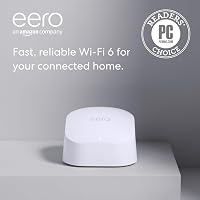
The eero 7 three-pack suits homes with several weak-signal areas and buyers who want to keep compatible earlier eero units. Its backward compatibility gives it a clear role in an existing eero setup.
Each unit has two auto-sensing 2.5 GbE ports, so count your wired connections carefully. A port used for the incoming connection is no longer available for another device.
Skip this kit if one central router already covers your home. Also factor in the optional eero Plus subscription if you want its advanced security, ad blocking, or parental controls.
The Orbi 370 three-pack suits households that want a router and two satellites with guided setup in the Orbi app. The app also manages connected devices and guest WiFi.
NETGEAR claims coverage up to 6,000 sq ft, with compatible Orbi 370 satellites available for expansion. Start with useful satellite locations rather than assuming that adding units always improves the network.
Skip this model outside the US, since it is made for US use only. Confirm the Starlink setup separately, and distinguish its automatic firmware updates from the NETGEAR Armor service, which requires a subscription after the trial.
The ASUS RT-BE58U suits buyers who need one WiFi source now and want an extendable router. It offers VPN support, up to three SSIDs through Smart Home Master, and USB support for mobile tethering.
Those controls are useful if you want separate network names for different uses or are considering another internet source. Mobile tethering still depends on a compatible device, service, and correct setup.
Skip the ASUS alone if you already know several locations need coverage. It is one router, so confirm compatible mesh equipment and the full equipment cost before planning expansion.
Where should you place mesh nodes with Starlink?
Place wireless nodes before the dead zone, where they still have a strong link to the network. A satellite cannot pass along a reliable connection if it barely receives one.
Keep units in open spaces, raised off the floor, and away from metal cabinets or large appliances. A hallway near the stairs may serve two floors better than a node hidden in a distant bedroom.
Start with fewer well-placed nodes and check their connection status in the mesh app. Move a weak node closer before adding another, since extra units can add interference without fixing the weak link.
If supported, Ethernet backhaul can connect nodes across walls that block wireless signals. For wireless spacing, follow how far apart mesh WiFi nodes should be rather than a fixed distance for every house.
Will mesh WiFi make Starlink faster?
Mesh improves local coverage, not Starlink's incoming bandwidth. It can help a distant laptop use more of the connection already available near the main router.
Compare the same device near the main unit and in the problem room, with large downloads paused. Strong performance nearby and poor performance farther away points toward a coverage issue.
If every room slows down together, check the Starlink app, equipment status, and possible obstructions. Buying a faster mesh kit will not remove a dish obstruction or restore interrupted satellite service.
For ongoing care, keep router firmware current and leave ventilation space around each unit. After moving furniture or adding a large appliance, recheck any nearby node whose connection has weakened.
Can you use a regular WiFi router with Starlink?
A regular router can work through a supported Ethernet connection, and it may be enough for a smaller home. Mesh becomes useful when one sensible router location cannot reach the rooms you use.
Before buying a kit, consider whether a longer Ethernet cable could put one router in a better central location. That can solve a placement problem without adding satellites.
Compare mesh WiFi and extenders for dead zones if only one area needs help. Our guide to whether a WiFi router is the same as a modem explains why a new router does not replace Starlink's internet equipment.
Can you use mesh WiFi with Starlink in your home?
Use mesh WiFi with Starlink when coverage is the problem and you have workable locations for linked nodes. Confirm the Ethernet connection and routing arrangement before choosing equipment.
Pick eero 7 if compatibility with existing eero equipment matters. Choose Orbi 370 for its guided app setup and matching satellite expansion, or ASUS RT-BE58U when one router and more network controls fit your needs.
Avoid buying all three units' worth of coverage for a problem that moving one router can solve. If you're also setting up another property with cable internet, see how eero works with Xfinity for that separate connection process.
Frequently asked questions
Can you connect any mesh system to Starlink?
Many Ethernet-based mesh systems can work with Starlink, but you need a supported connection and suitable router settings. Check your exact Starlink hardware, any required adapter, and the mesh system's supported modes before buying; a WiFi generation or coverage figure alone does not establish compatibility.
Do you need to put the Starlink router in bypass mode?
No, bypass mode is not required for every arrangement; use it when supported and the mesh router will manage your network, or use a supported access point or bridge arrangement behind Starlink. Leaving both devices routing can create double NAT, which may complicate gaming, VPNs, or port forwarding.
Where should you place mesh nodes with Starlink?
Place each wireless node where it still receives a strong connection from the mesh network, usually before the weak-signal room. Keep units out in the open rather than inside cabinets or behind large appliances; check connection quality in the mesh app and move nodes before adding more equipment.
Will mesh WiFi make Starlink internet faster?
Mesh can improve speeds in rooms where weak WiFi is the limit, but it cannot increase the bandwidth Starlink delivers. Compare performance near the main router with performance in distant rooms; if both are slow at the same time, investigate the Starlink connection before buying more mesh units.