Mesh WiFi Systems: The Complete Home Guide
A mesh WiFi system connects a main router and extra nodes to spread one network across your home. Choose one when WiFi works near your router but fades in rooms you use, then match its nodes, ports and controls to your layout.
On this page (14 sections)
- What is a mesh WiFi system?
- How does mesh WiFi work around a home?
- When should you use a mesh WiFi system?
- When is a single router or extender enough?
- How do you choose a mesh WiFi system?
- Which mesh WiFi systems fit common home needs?
- Where should you place mesh WiFi nodes?
- Is mesh WiFi compatible with your modem and internet provider?
- How do you set up a mesh WiFi system?
- What can slow down a mesh WiFi system?
- What is the difference between mesh WiFi and WiFi 7?
- How do you keep mesh WiFi reliable after setup?
- How much should you spend on a mesh WiFi system?
- Which mesh WiFi system should you choose?
A mesh WiFi system spreads one home network through a main router and extra nodes, making it useful when WiFi works near your router but fades elsewhere. Choose the kit around your home's layout, available wiring and controls, rather than the largest coverage number.
Start by checking where the connection fails. Slow WiFi in one bedroom points toward a coverage problem; slow internet beside the router calls for a different fix.
For a shorter buy-or-skip decision, read whether a mesh WiFi system is worth it.
What is a mesh WiFi system?
A mesh WiFi system is a coordinated group of WiFi units that share one home network. The main router connects to your modem or provider equipment, while other units, often called nodes or satellites, extend coverage.
Your phone or laptop connects to a nearby unit, which carries its traffic back toward the internet connection. Devices help decide when to change access points, so moving between rooms does not always cause an immediate switch.
A mesh kit differs from a basic extender because its units are designed to work together. That coordination can simplify setup and network management, but good placement still determines whether a distant node has a useful connection.
Mesh also does not replace your internet service. You still need the provider equipment required for your connection, such as a modem for cable service.
How does mesh WiFi work around a home?
Mesh works by giving devices a closer connection point, while linking that point back to the main router. That link between units is called backhaul, and it matters as much as the signal shown on your phone.
A phone can show a strong signal beside a node even when the node has a weak link to the router. In that case, moving closer to the node will not solve the slow connection.
Wireless backhaul carries traffic over radio links. Ethernet backhaul uses network cable between compatible units, which can help when floors or dense walls obstruct wireless paths.
Some systems connect nodes directly to the router; others can relay traffic through another node. Each wireless relay adds another link that can limit capacity, so a shorter, stronger path is preferable when your layout allows it.
When should you use a mesh WiFi system?
Consider mesh when one router cannot reliably cover the rooms you use, even after you improve its position. Multiple floors, long hallways and a connection point at one end of the home are common reasons to choose it.
Useful signs include:
- Video calls work near the router but break up in a home office.
- Upstairs bedrooms lose their connection while downstairs rooms work.
- Several separate areas have weak WiFi.
- You need coverage along a long layout with few central placement options.
Before buying, compare the same phone or laptop near the router and in the problem room. Pause large downloads so a busy connection does not confuse the result.
If every device slows down everywhere, investigate the provider connection or main router first. If only one device struggles, check that device before replacing the whole network.
Our guide to deciding whether you need mesh WiFi helps separate coverage gaps from problems that extra nodes will not fix.
When is a single router or extender enough?
A single router is enough when one open, central location reaches your important rooms. Mesh adds little value if your existing WiFi already supports your calls, streaming and other daily tasks throughout the home.
Try moving a router out of a cabinet or away from the floor before replacing it. If the internet connection enters at the edge of your home, a longer Ethernet cable may allow a better router location.
A newer standalone router can make sense when the old unit is the main limitation and coverage needs are modest. Compare options in our guide to WiFi routers for large homes.
An extender can suit one isolated weak spot, especially if you do not need to replace the rest of your network. Read mesh WiFi vs an extender if you are choosing between a small repair and a coordinated system.
For a desktop in one distant office, running Ethernet may solve the problem more directly. You do not need whole-home mesh just to improve one wired device.
How do you choose a mesh WiFi system?
Choose a mesh WiFi system by matching layout, backhaul, ports and controls to your actual needs. Decide where units can go before comparing headline speeds.
How much mesh WiFi coverage do you need?
Plan around the rooms that need reliable service, including the office, bedrooms and any regularly used outdoor seating area. An unused corner does not need the same attention as a room where you take daily calls.
Draw a rough floor plan with the modem location, thick walls, floors and available outlets. Mark possible node positions along open routes toward weak areas.
Advertised coverage helps compare kit sizes, but it does not describe how signals will cross your particular walls. A compact home with dense construction can be harder to cover than a larger open space.
How many units should you start with?
Count the main router as part of the kit: a three-pack normally means one router location and two additional coverage locations. Do not plan for three extra nodes.
A two-unit kit suits a layout with one clear extension path. A three-unit kit provides another placement option when weak rooms lie in different directions or on different floors.
Choose the smallest kit that can cover the needed areas with strong links. Expansion support matters if you expect to add rooms later, but compatible models vary by brand and generation.
Which speed numbers matter?
Separate internet-plan support, wireless rates and Ethernet speed when comparing systems. They describe different parts of the connection.
A maximum wireless rate is not a promised download speed for one laptop. Radio conditions, device capabilities, shared traffic and backhaul all affect the result.
For multi-gigabit internet, check the full wired path from provider equipment to router and onward to any wired computer. A slower port anywhere along that path can limit that connection.
For ordinary calls and streaming, reliable room coverage can matter more than a larger headline rate. Do not upgrade your internet plan solely because a mesh kit advertises a faster wireless connection.
Which ports and controls do you need?
Count wired devices and the ports used to connect the system itself. With a two-port router, connecting the internet feed uses one port, leaving one for another device or a suitable switch.
Also decide whether you need guest WiFi, schedules for children, separate smart-home networks or VPN features. Check which controls come with the system and which require a subscription.
eero Plus, for example, is optional and includes Advanced Security, Ad Blocking and Parental Controls. Our guide to whether eero Plus is worth it explains how to weigh those extras.
Which mesh WiFi systems fit common home needs?
Choose eero for an existing eero network, Orbi for guided expansion, Nest Wifi for a two-unit plan, or ASUS for network controls and wired backhaul. These are feature-based fits; your floor plan still determines the placement each needs.
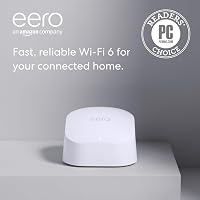
eero 7: for households building on eero
eero 7 suits households that already use eero and want to add WiFi 7 hardware. Its backward compatibility gives existing owners a reason to consider it before switching brands.
eero rates this dual-band three-pack for up to 6,000 sq. ft. and 120+ devices, with wireless speeds up to 1.8 Gbps. Those capacity figures are useful planning limits, not a promise that every device receives the maximum speed.
The system works with previous eero generations and eero Built-in on select Amazon Echo devices. Compatibility lets you reuse supported equipment, though it does not give older hardware every capability of a newer unit.
TrueMesh, TrueRoam and TrueChannel manage network paths, roaming and channel choices. eero also backs its new WiFi 7 routers with a three-year warranty.
Choose it if expanding an eero setup is your priority and its port arrangement fits your wired devices. Skip it if included parental controls are essential, because those controls are part of optional eero Plus.
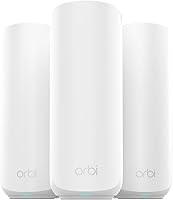
Netgear Orbi 370: for app-guided household expansion
Orbi 370 suits a household that wants a router-and-satellite kit with guided setup and a clear expansion path. It also fits buyers who want guest-network and device management through an app.
NETGEAR rates the kit for up to 6,000 sq. ft. and 70 devices. Its dual-band WiFi 7 design advertises rates up to 5 Gbps, while supported internet plans go up to 2.5 Gbps.
Enhanced Backhaul manages communication between the router and satellites. Do not confuse that feature with a separate dedicated radio band; this is a dual-band system.
The kit works with cable or fiber provider equipment. NETGEAR says an additional Orbi 370 Series satellite can extend coverage by up to 2,000 sq. ft., subject to layout and placement.
Automatic firmware updates and Advanced Router Protection are included. NETGEAR Armor adds a separate security service after its 30-day trial, so decide whether you want that subscription before the trial ends.
Choose Orbi if its app management and matching-satellite expansion fit your plans. Skip this model outside the US, and avoid choosing it solely because its wireless headline is larger than another system's number.
Google Nest Wifi: for a two-unit coverage plan
Google Nest Wifi suits a home that needs two coverage locations and values included guest access, device priority and parental controls. This pack contains two router units, rather than one router and one point.
Google advertises coverage up to 4,400 sq. ft., with expansion through additional Nest Wifi routers or points. Each router has Ethernet ports, giving both locations a wired connection option.
The system is compatible with Google Wifi and automatically updates its software. Its app supports sharing the guest password, prioritizing devices and managing children's online time.
Google's up-to-200-device claim assumes each device uses no more than 1 Mbps. It does not describe a household running 200 demanding streams or downloads at once.
Choose it if two well-placed units fit your home and its controls cover your needs. Skip it if WiFi 7 is a requirement, or if your layout clearly needs three separate coverage locations from the start.
ASUS ZenWiFi BD4: for wired homes and separate networks
ASUS ZenWiFi BD4 suits buyers who want Ethernet backhaul, included network security and more ways to separate household traffic. It is also worth considering if you own a compatible ASUS router that can join AiMesh.
ASUS rates this dual-band WiFi 7 kit for up to 6,500 sq. ft., with wireless rates up to 3.6 Gbps. It supports Ethernet backhaul, which makes it a practical candidate for homes with network cable across difficult walls or floors.
AiProtection Pro network security and parental controls are included without a subscription. Smart Home Master SSIDs provide options for IoT networks and VPN use.
Separate networks are useful when you want smart-home equipment organized apart from everyday devices. They also add settings to manage, so enable the options that solve a real household need.
Choose BD4 if you want those controls or already have suitable cabling. Skip it if you expect wireless placement alone to overcome dense walls, since even a feature-rich kit still needs a good path between units.
Where should you place mesh WiFi nodes?
Place nodes before the signal becomes weak, along an open route toward the room you want to reach. Putting a wireless node inside a dead zone often gives it the same poor connection as the devices already there.
Start with the main router in an open position, as central as the provider wiring allows. Avoid enclosed cabinets, large metal objects and spots directly behind TVs.
For another floor, try an open landing or a position near a stairwell. Signal paths differ by construction, so a location directly above the router is not automatically the best choice.
Keep units upright as intended and leave ventilation space around them. Choose outlets where power adapters will not be switched off accidentally.
Check the app's link-quality guidance when available, then check normal use in the target room. Move one node at a time so you can tell which change helped.
Our guide to how far apart mesh WiFi nodes should be gives more placement help. A small move around an obstruction can be more useful than adding another node.
Is mesh WiFi compatible with your modem and internet provider?
Mesh usually connects to provider equipment through Ethernet, but your gateway's router settings matter. Check whether your current box is a modem, a router or a combined gateway before disconnecting anything.
If both the provider gateway and mesh system route traffic, you can end up with two router layers, often called double NAT. Basic browsing may work, while gaming, remote access or port forwarding can become harder to configure.
Where supported, bridge mode on the provider gateway lets the mesh system handle routing. Access point mode on a mesh system is another approach, although available features can change in that mode.
Check provider instructions before changing a gateway that also supports phone or TV service. Keep the details needed to restore its settings.
Read how to use eero with Xfinity for a provider-specific example. Satellite users can check whether mesh WiFi works with Starlink.
How do you set up a mesh WiFi system?
Connect and confirm the main router first, then add the other units one at a time. This keeps a provider connection problem separate from a node-placement problem.
Use this order:
- Record your current WiFi name, password and any provider settings you need.
- Connect the new router to the correct Ethernet port on the modem or gateway.
- Follow the brand's app instructions, including any required modem restart.
- Set a strong administrator password and WiFi password where requested.
- Allow initial software updates to finish without interrupting power.
- Add each node and confirm its connection before moving to the next.
- Check calls, streaming and browsing in the rooms that previously struggled.
Reusing your old WiFi name and password can help devices reconnect. Some devices may still need manual reconnection if the security settings change.
Once the new network works, switch off the old router's WiFi if it is no longer needed. Two unrelated networks using the same name can make troubleshooting confusing.
Connect printers and smart-home controllers, then confirm that phones can still reach them. Guest-network isolation can prevent devices on different networks from communicating.
If you get stuck with an eero setup, read why an eero may not be working.
What can slow down a mesh WiFi system?
Slow mesh WiFi usually points to the provider connection, a weak node link or a busy device or network. Identify where the slowdown starts before changing several settings.
Use the same device to compare performance beside the main router, beside a node and in the problem room. Keep the activity and time of day similar.
| What you notice | What to check first |
|---|---|
| Every room is slow | Provider service, main router connection and large downloads |
| Only rooms served by one node are slow | That node's link and placement |
| Only one device struggles | Its software, connection and background activity |
| Wired service works but nearby WiFi struggles | Wireless interference and router placement |
| Problems begin during uploads | Cloud backups, cameras and other upload-heavy tasks |
A fast download result does not prove a connection will hold a call reliably. Watch for interruptions during the activities that matter to you.
If an extra node makes things worse, unplug it temporarily and compare normal use. More units can create overlapping coverage without improving the path back to the router.
Avoid repeated factory resets as a first step. Record the symptoms, check connections and restart equipment according to the brand's instructions before erasing your settings.
What is the difference between mesh WiFi and WiFi 7?
Mesh describes the network layout; WiFi 7 describes a wireless generation. You can have a mesh system using an older generation or a single router using WiFi 7.
Newer wireless features require support from the connected devices to deliver their full benefit. Buying a WiFi 7 kit does not turn an older laptop into a WiFi 7 device.
WiFi 7 also does not mean a system has a 6 GHz band. The three WiFi 7 kits covered here are dual-band, so compare the actual design rather than assuming every newer system has the same radios.
Read WiFi 6 vs WiFi 7 to decide whether the generation matters for your devices. If one router would cover your home, consider whether a WiFi 7 router is worth it.
How do you keep mesh WiFi reliable after setup?
Keep mesh reliable with current software, clear ventilation and stable placement. Once coverage works, avoid moving units casually when rearranging furniture.
Enable automatic updates when supported, and check periodically that all units remain connected. Secure the account used to manage the network, including two-step verification when available.
Use guest access for visitors when you want to avoid sharing the main password. Review connected devices occasionally and remove access you no longer need.
After changing an internet plan, adding several cameras or moving an office, check the affected rooms again. New traffic patterns can expose a weak link that was harmless before.
Keep a record of your network name, recovery details and any special settings in a secure place. That makes replacing a phone or restoring the network easier.
How much should you spend on a mesh WiFi system?
Spend on the units and features you will use, including any ongoing subscription. A larger kit is poor value if its extra nodes stay in a drawer.
Compare the full setup: hardware, any needed switch, suitable Ethernet cable and paid controls. Included parental controls may matter more to a family than a higher maximum wireless rate.
For a wired office, consider the cost of running cable alongside the cost of upgrading mesh hardware. Cable can address an obstructed backhaul path that a faster wireless kit still has to cross.
Our guide to how much a WiFi router costs explains the broader spending choices. The best mesh WiFi systems roundup helps narrow product options.
If recurring fees are a concern, compare mesh WiFi systems without a subscription before deciding which controls you need.
Which mesh WiFi system should you choose?
Choose your mesh WiFi system by the constraint you need to solve first: coverage layout, existing equipment, wired links or household controls. Map the node locations before ordering, including an outlet and a usable connection path for each.
- Choose eero 7 if you want WiFi 7 while building on compatible eero equipment, and optional paid controls fit your plans.
- Choose Orbi 370 if you want app-guided setup, matching-satellite expansion and a US-focused router-and-satellite kit.
- Choose Google Nest Wifi if two router units cover your layout and included family controls matter more than WiFi 7.
- Choose ASUS ZenWiFi BD4 if Ethernet backhaul, separate networks and subscription-free security are priorities.
- Keep a single router if repositioning it already gives reliable service in the rooms you use.
Before buying, write down your weak rooms, wired-device count and required controls. Use how to choose a mesh WiFi system to turn that short list into a final choice.
Frequently asked questions
What is a mesh WiFi system?
A mesh WiFi system uses a main router and extra nodes to spread one network through your home; the router connects to your internet equipment, while nodes provide coverage in other areas. Wireless nodes need a strong connection back to the system, so their location matters.
Is mesh WiFi better than a router?
Mesh WiFi is a better fit when one router cannot reach the rooms you use reliably; a standalone router can be enough for a smaller, open home with a central connection point. Choose based on where your signal fails, rather than assuming more units always mean better WiFi.
How many mesh WiFi nodes do I need?
Start with enough units to reach your known weak areas while keeping strong links between them; count the main router as one unit when comparing kits. Floors, thick walls and long layouts matter as much as floor area, and adding unnecessary nodes can complicate placement.
Do mesh WiFi nodes need to be wired?
Mesh nodes can communicate wirelessly, but a system that supports Ethernet backhaul can also link compatible units by cable; wired backhaul is useful across floors or walls that weaken radio signals. Confirm that the exact model supports it, since Ethernet ports alone do not establish how they can be used.
Will a mesh WiFi system make my internet faster?
Mesh can improve usable speeds in rooms where a weak WiFi signal is the problem; it cannot increase the speed delivered by your internet plan. Compare the same device near the main router and in a weak room to decide whether you need better coverage or help with the provider connection.