How to Choose a Mesh WiFi System
To choose a mesh WiFi system, match your home's layout, internet plan and busiest devices. Check where nodes can go, whether Ethernet can connect them and which controls require a subscription.
On this page (11 sections)
- What should you check before choosing a mesh WiFi system?
- How much coverage and how many nodes do you need?
- Which WiFi generation and speed rating fit your plan?
- How many devices will use the network at once?
- Should you choose wired backhaul or Ethernet ports?
- What security, app and subscription features matter?
- Which mesh WiFi system fits your situation?
- How should you set up and care for a mesh network?
- Which mistakes lead to the wrong mesh purchase?
- When should you choose a mesh system instead of an extender?
- How to choose a mesh WiFi system for your home
To learn how to choose a mesh WiFi system, start with your floor plan, internet plan and busiest devices, then check where the nodes can go. Buy for the rooms and connections you need rather than the largest speed or coverage number.
A long hallway, a home office upstairs and a wired desktop create different needs. For the basics of how nodes work together, see our complete mesh WiFi home guide.
What should you check before choosing a mesh WiFi system?
Start by separating a coverage problem from an internet service problem. Mesh helps move your network into more rooms, but it cannot supply bandwidth your internet connection doesn't deliver.
Use the same phone or laptop near your current router and in the problem room. If the connection works near the router but struggles farther away, coverage is a sensible place to focus.
If every room slows down at once, check the provider connection and household activity first. A large download can compete with video calls even when the wireless signal is strong.
Write down the rooms that matter, your plan's download and upload speeds, and where the modem sits. Include outdoor cameras, an office behind thick walls or any room where moving the router isn't practical.
Our guide to whether you need mesh WiFi helps you decide whether several coverage points would solve the problem.
How much coverage and how many nodes do you need?
Choose node count from your home's shape and barriers, with advertised square footage as a rough screening tool. Two homes of equal size can need different layouts.
An open single-floor home gives wireless signals a different path than several small rooms stacked across floors. Brick, concrete and metal can make a short connection harder than a longer path through open space.
Draw a simple floor plan and mark power outlets, your modem and possible node positions. A coverage claim is less useful if the only available outlet puts a satellite inside a cabinet.
Place a wireless satellite before the weak area, where it still receives a usable connection from another node. A node sitting in the dead zone may broadcast a strong local signal while struggling to reach the rest of the network.
More nodes aren't automatically better, since nearby units share wireless airtime and may add little useful coverage. Start with a sensible layout and move units before buying extras.
Read how far apart mesh WiFi nodes should be for placement help. For demanding floor plans, our mesh systems for large homes guide offers another comparison.
Which WiFi generation and speed rating fit your plan?
Choose a WiFi generation that serves your current devices and likely upgrades. A newer standard is useful when your equipment can use its features, but the label alone doesn't justify replacing a suitable network.
Advertised wireless speeds and internet plan speeds measure different things. A system's headline wireless figure can combine capacity across bands rather than describe one laptop's download speed.
The connection also has several possible limits: the internet plan, router port, link between nodes and receiving device. Improving one link won't remove a slower limit elsewhere.
For a plan above gigabit, inspect the Ethernet path from provider equipment through the mesh system. A slower port along that path can limit the connection before it reaches WiFi.
WiFi 7 also doesn't mean every system has the same bands or features. For example, both WiFi 7 systems below are dual-band, so don't assume the generation name includes a 6 GHz band.
Our WiFi 6 vs WiFi 7 guide explains the upgrade choice in more detail.
How many devices will use the network at once?
Size the network for active use during your busiest hour, rather than the number of devices saved in an app. A connected smart bulb and a laptop uploading large files create very different demands.
Count the calls, streams, game downloads and camera uploads that may overlap. Upload capacity deserves attention if several people join calls or send large files while cameras are active.
Treat device counts as capacity guidance, not promises of full speed for every connection. Brands may use different assumptions, so a higher count doesn't prove that one system handles your workload better.
For gaming, consider connection stability as well as download speed. Wiring a stationary console or computer can reduce reliance on a busy wireless link, provided the rest of its path is suitable.
Should you choose wired backhaul or Ethernet ports?
Choose Ethernet backhaul when practical, especially if thick walls interrupt the path between nodes. Backhaul is the connection that carries traffic between a satellite and the main router.
With wireless backhaul, that traffic travels over radio links. With Ethernet backhaul, a cable carries it, allowing node placement to depend less on a clear wireless path.
An Ethernet port and Ethernet backhaul support aren't the same purchase check. Confirm that the exact system supports connecting its nodes by cable, then check which ports remain available for other devices.
Count ports after allowing for the internet connection and any wired links between nodes. A desktop, TV and satellite connection may require more sockets than a compact unit provides, making an Ethernet switch useful.
You can also wire a computer into a wireless satellite, but its traffic still crosses the satellite's wireless backhaul. That cable alone doesn't create an entirely wired route to the main router.
What security, app and subscription features matter?
Choose included controls you will use, then decide whether optional services deserve an ongoing payment. Automatic updates, guest access and household controls solve different needs.
An app should make everyday tasks manageable for whoever looks after the network. Check account requirements, supported phone software and access recovery before setup, especially if several adults need to manage it.
A guest network can keep visitors from needing your main password. Parental controls may help set schedules, but check that their functions match the rules you want to apply.
Distinguish included network protection from a trial of a separate service. Note the trial end date and decide whether you want to continue before any renewal.
If ongoing fees are a deciding factor, compare mesh WiFi systems without a subscription.
Which mesh WiFi system fits your situation?
Choose among these systems by the problem each helps you solve: smart home connections, expandable coverage, a two-unit layout or more network controls. Check the fit before comparing headline speeds.
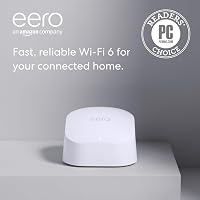
How to choose a mesh WiFi system for a gigabit household: eero 6+
The eero 6+ (3-pack) fits households that want gigabit plan support and compatible smart home connections. Its built-in hub connects supported Thread and Zigbee devices with Alexa, which can remove the need for separate hubs.
This WiFi 6 system supports 160 MHz channels, although the benefit depends on compatible devices and local wireless conditions. eero says its TrueMesh traffic routing helps reduce drop-offs and dead spots.
App-guided setup and remote management suit someone who wants to handle routine tasks from a phone. Automatic updates are included, while online security and extra network management features require a separate subscription.
Buy it if the hub and app management match your household. Skip it if your main goal is support for an internet plan above gigabit, or if the controls you need fall behind a subscription you don't want.
It also supports previous-generation eero devices. Check the exact combination before planning an expansion, since retaining older equipment can affect the capabilities of the resulting network.
Netgear Orbi 370: expandable coverage for larger homes
The Netgear Orbi 370 (3-pack) fits a larger home that needs a router, 2 satellites and a path to expand. It supports internet plans up to 2.5 Gbps and works with cable or fiber provider equipment.
Its dual-band wireless speed is advertised at up to 5 Gbps, with support for up to 70 devices. NETGEAR's Enhanced Backhaul is designed to improve connections between the router and satellites; actual performance still depends on placement.
The Orbi app guides setup and manages guest access and devices. Advanced Router Protection and automatic firmware updates are included, while NETGEAR Armor requires a subscription after its 30-day trial.
Choose it if you expect to extend coverage with Orbi 370 Series satellites. NETGEAR claims each added satellite can provide up to 2,000 sq. ft. of extra coverage, subject to the home's construction and layout.
Skip this package for a compact home that doesn't need several coverage points. It is also made for use in the US only, which rules it out for buyers elsewhere.
Google Nest Wifi: two router units for a simpler layout
The Google Nest Wifi (2-pack) suits a home that needs 2 coverage points with Ethernet at both units. This package contains 2 routers, so don't confuse it with a bundle containing a router and a point.
Google advertises coverage up to 4,400 sq. ft., with layout and building materials affecting the result. Expansion is available through compatible Nest Wifi routers or points, and the system works with Google Wifi.
The connected-device claim needs context: Google's figure of up to 200 assumes each device uses no more than 1 Mbps. It isn't a reason to choose this system for hundreds of demanding connections.
Buy it if you want app setup, parental controls and the ability to prioritize a device during busy periods. Automatic updates help with routine upkeep.
Skip it if WiFi 7 is a firm requirement or your floor plan clearly calls for more coverage points from the start. For an existing Google network, confirm model compatibility before ordering an addition.
ASUS ZenWiFi BD4: wired links and more network controls
The ASUS ZenWiFi BD4 (3-pack) fits households that want Ethernet backhaul, network controls and compatible ASUS expansion. Its dual 2.5G Ethernet ports and wired backhaul support make it worth considering for homes with Ethernet runs.
ASUS advertises coverage up to 6,500 sq. ft. and dual-band wireless speeds up to 3,600 Mbps. It supports MLO and 4K-QAM, with benefits depending on compatible devices and connection conditions.
AiMesh lets you expand with compatible ASUS routers. Check exact model support before treating an older router as part of your planned system.
Choose it if you will use its IoT network, parental controls, VPN features or included security. Separate network names can help organize household devices around different access needs.
Skip it if your home needs only one coverage point and those controls would go unused. Before buying, map the port connections so the number of Ethernet sockets fits your planned wired layout.
How should you set up and care for a mesh network?
Set up the main router first, then add satellites and check connections in the rooms you use. Keep the initial configuration simple so you can identify placement problems before adding more settings.
- Prepare the existing connection. Keep provider login details and the old network settings available, and confirm whether your modem or combined gateway needs a specific setup.
- Choose the routing arrangement. If both the provider gateway and mesh system route traffic, double NAT can complicate some games and remote connections; use supported bridge or access point options where appropriate.
- Connect and update the main unit. Follow the brand's setup order and allow available firmware updates to finish.
- Add satellites within good reach. Use the app's placement guidance where available, then move units toward the rooms they need to serve.
- Check normal household use. Try calls, streaming and file transfers from important locations, including while other people are online.
Keeping the old WiFi name and password can help devices reconnect, but some may need manual attention. Once the mesh works, disable the old gateway's WiFi if it is no longer part of your intended setup.
Keep nodes upright as directed, with space around vents and away from heat or spills. Don't hide them behind a TV or inside furniture just to clear a shelf.
Leave automatic updates enabled where available, protect the management account and review unfamiliar connected devices. Recheck placement after moving furniture or relocating a node, rather than rebooting repeatedly without addressing the cause.
Which mistakes lead to the wrong mesh purchase?
The most common mistakes are buying by coverage claims, ignoring backhaul and paying for unused features. Compare each system against your actual rooms and connection needs.
| Mistake | Better buying check |
|---|---|
| Choosing by square footage alone | Map floors, walls, outlets and node locations |
| Expecting headline speed on every device | Check the plan, ports, backhaul and receiving device |
| Putting a satellite in a dead zone | Place it where it can still reach another node well |
| Buying extra nodes immediately | Improve placement before adding hardware |
| Assuming all same-brand nodes work together | Confirm the exact compatible models |
| Counting a security trial as permanently included | Separate included tools from paid services |
| Ignoring the modem or provider gateway | Confirm the connection and routing arrangement |
Also resist buying only for a possible future plan. Leave room for a likely upgrade, but don't sacrifice the ports, controls or coverage you need today for a speed tier you may never use.
When should you choose a mesh system instead of an extender?
Choose mesh for several weak areas, and consider an extender when one isolated room needs help. First see whether moving your current router would solve the gap without extra hardware.
An extender repeats a signal from the existing router, while mesh nodes work together as a managed system. Both depend on placement, so neither solves a weak incoming wireless connection simply by sitting farther from the router.
For a stationary device, running Ethernet may also be more useful than extending WiFi. Read our mesh WiFi vs extender comparison before choosing between the two wireless approaches.
How to choose a mesh WiFi system for your home
Make the final choice by matching one clear need to one suitable system. Choose eero 6+ for its compatible smart home hub and gigabit household use, or Orbi 370 for an expandable WiFi 7 setup in a larger US home.
Choose the Google Nest Wifi package when 2 router units and its household controls fit your layout. Pick ASUS ZenWiFi BD4 when Ethernet backhaul, AiMesh expansion and included network controls are priorities.
Before ordering, identify the main router location, satellite outlets and any cables you can use. Then compare the suitable options in our best mesh WiFi systems guide.
Frequently asked questions
How do I know if I need a mesh WiFi system?
Choose mesh when one well-placed router still leaves weak coverage across several rooms or floors. First check whether the problem follows your location or affects the whole home, since mesh helps spread your network but cannot repair an internet service fault or increase your plan's speed.
How many mesh nodes do I need?
Choose the smallest compatible set that can reach your important rooms with strong links between nodes. Floor layout, wall materials and available Ethernet wiring matter more than square footage alone, so map possible locations before buying and add another node only when placement changes leave a clear coverage gap.
Should I choose WiFi 6 or WiFi 7 mesh?
Choose WiFi 6 for everyday use when it matches your plan and devices; consider WiFi 7 when compatible equipment or a faster plan gives you a reason to upgrade. Compare wired ports and node connections too, because a newer WiFi label cannot overcome poor placement or a slow upstream connection.
Can I mix mesh nodes from different brands?
Buy nodes that the brand confirms work together as one mesh system. Shared WiFi standards let phones and laptops connect to different routers, but they do not ensure those routers can form a managed mesh together, so check the exact model pair before expanding an existing network.
Does mesh WiFi replace my modem?
Mesh WiFi usually replaces the router's network role while connecting to your existing modem or provider equipment. If you have a combined modem and router, check its bridge mode and the mesh system's access point options, then choose one device to handle routing where the supported setup allows it.