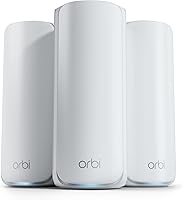
Which eero Should You Buy?
For an eero comparison, start with eero 7 for a Wi-Fi 7 upgrade, eero 6+ for a gigabit household, eero Pro 7 for higher bandwidth needs, or eero 6 for a smaller space. Choose your pack size around your home's layout, then match the model to your internet plan.
On this page (10 sections)
- Eero compare: which model matches your internet plan?
- Is eero 7 the right fit for your home?
- Should you pick eero 6+ for gigabit Wi-Fi?
- When does eero Pro 7 make sense?
- Is a single eero 6 enough?
- How should you compare coverage and node placement?
- What should you check before setting up eero?
- Do eero models need a subscription?
- What mistakes should you avoid after buying?
- How should you make the final eero comparison?
Choose eero 7 for a Wi-Fi 7 upgrade, eero 6+ for a gigabit household, eero Pro 7 for higher bandwidth needs, or a single eero 6 for a smaller space. This eero comparison starts with what you need to connect, where you need coverage and how fast your internet service is.
The right choice isn't always the model with the biggest numbers. A well-placed system that fits your plan can serve you better than a faster system with nodes tucked behind furniture.
If you're still deciding whether a mesh setup fits your home, start with our complete mesh Wi-Fi systems guide. The coverage and device figures below apply to the full pack shown, so compare the single eero 6 with that difference in mind.
Eero compare: which model matches your internet plan?
Choose a model whose supported plan speed meets your service, then check its coverage and connection options. Only pay for extra speed headroom if you expect to use it through a service upgrade or demanding traffic within your home.
| Model | Wi-Fi generation | Supports plans up to | Wireless speed | Coverage and devices |
|---|---|---|---|---|
| eero 7 (3-pack) | Wi-Fi 7, dual-band | 2.5 Gbps | Up to 1.8 Gbps | Up to 6,000 sq. ft.; 120+ devices |
| eero 6+ (3-pack) | Wi-Fi 6 | A gigabit | Up to a gigabit | Up to 4,500 sq. ft.; 75+ devices |
| eero Pro 7 (3-pack) | Wi-Fi 7, tri-band | 5 Gbps | Up to 3.9 Gbps | Up to 6,000 sq. ft.; 600+ devices |
| eero 6 (1-pack) | Wi-Fi 6 | 900 Mbps | Up to 900 Mbps | Up to 1,500 sq. ft.; 75+ devices |
Eero's coverage and speed figures are maximums, not room-by-room promises. Walls, floors, nearby networks and the connection between mesh nodes all affect the result.
Start with the speed on your internet bill. If your service is comfortably below a model's supported limit, moving up a tier won't make the internet connection itself faster.
Eero comparison: plan speed versus device speed
Plan support and wireless speed describe different limits. Your internet plan supplies the home, while the connection to a particular phone or laptop depends on that device, its location and the network path it uses.
A fast plan may serve several busy devices even when no single device reaches the plan's full speed. Conversely, a faster router can't make an older laptop gain newer Wi-Fi features.
Also separate internet use from local use. Moving large files between computers at home can put demands on your network even if your internet service is modest.
Is eero 7 the right fit for your home?
Choose eero 7 (3-pack) if you want Wi-Fi 7 and more room to grow than a gigabit system provides. It fits households replacing older equipment, adding newer devices or planning a faster internet connection.
Each router has 2 auto-sensing 2.5 GbE ports. Those ports matter if you want a wired connection that can carry more than gigabit traffic, provided the other equipment along that path supports it.
The system includes multi-link operation, or MLO, a Wi-Fi 7 feature that can use multiple wireless links with compatible equipment. It also combines eero's TrueMesh, TrueRoam and TrueChannel software to manage connections.
Buy it for the mix of newer Wi-Fi and plan headroom, rather than expecting every existing device to become faster. Older devices retain their own connection limits.
Skip it if your main goal is a gigabit network with the specific smart home hub features offered by eero 6+. Move up to Pro 7 if your service exceeds this model's supported plan speed.
Eero 7 works with all previous eero generations and with eero Built-in on select Amazon Echo devices. That gives existing eero households options for expanding without replacing every compatible device at once.
For the model-by-model trade-offs, read our eero 7 vs eero Pro 7 comparison. We also cover its features in the eero 7 review.
Should you pick eero 6+ for gigabit Wi-Fi?
Choose eero 6+ (3-pack) for a household that wants gigabit Wi-Fi 6 coverage across several rooms. It's a practical match for shared streaming, work calls and everyday connected devices when Wi-Fi 7 isn't a buying priority.
Its support for a 160 MHz radio channel gives compatible devices access to a wider channel. The benefit depends on the client device and local wireless conditions, so don't make this feature your only reason to buy.
The built-in smart home hub connects compatible Thread and Zigbee devices with Alexa. Check your accessories' connection requirements before choosing it to replace separate hubs.
Eero 6+ supports previous-generation eero devices, and TrueMesh routes traffic to help reduce drop-offs and dead spots. Its app guides setup and allows remote network management, while automatic updates help keep the system secure.
This is a strong fit if your current router leaves distant rooms poorly served but your internet plan already meets your household's needs. Adding useful coverage is then the main goal, rather than buying a higher service tier.
Skip eero 6+ if you want support for a multi-gigabit internet plan or have decided your next network should use Wi-Fi 7. Also reconsider a 3-pack if your whole home already gets a strong connection from one central router.
When does eero Pro 7 make sense?
Choose eero Pro 7 (3-pack) for a fast multi-gigabit plan, a large connected-device load or demanding home and small-business network use. Its tri-band Wi-Fi 7 design gives it a different role from the dual-band eero 7.
Each router has 2 auto-sensing 5 GbE ports, making it the stronger choice here for faster wired connections. Your modem or internet handoff, switches, cables and connected devices still need to support the speeds you want.
Pro 7 includes MLO and the same named TrueMesh, TrueRoam and TrueChannel software found on eero 7. Both Wi-Fi 7 models come with a 3-year warranty from eero.
Its device capacity is useful for households or workspaces with many connected accessories. But a smart bulb, an idle tablet and a computer moving large files don't place equal demands on the network.
Buy Pro 7 when you can name the workload that needs its extra capacity. Several users transferring large files or sharing a very fast connection give you a clearer reason than a general wish for “better Wi-Fi.”
Skip it if your main complaint is one weak room on an otherwise adequate network. Placement or a better connection between nodes may address that problem without moving to the highest-capacity model here.
For a fuller look at that higher-capacity model, see our eero Pro 7 review. If you're weighing other premium mesh options, our eero vs Orbi comparison can help frame the choice.
Is a single eero 6 enough?
Choose eero 6 (1-pack) for a smaller home, a limited coverage area or gradual expansion of a compatible eero network. It's the simplest starting point here if you don't need several nodes.
The built-in Zigbee hub connects compatible devices with Alexa. Eero 6 also provides app-guided setup, remote network management and automatic updates.
A single unit can be the right choice for an open apartment with a central internet connection. A similarly sized home with thick walls, a long hallway or a router confined to one corner may need a different arrangement.
Don't treat its coverage figure as a circle you can draw around the router. Building materials and the route to each room matter more than straight-line distance alone.
Its cross-compatible hardware lets you add compatible eero devices as your needs change. Keep in mind that adding a newer model doesn't give the older unit newer radios.
Skip this single pack if you already know you need coverage across separated floors or several weak rooms. Read how to choose a mesh Wi-Fi system before deciding how many units you need.
How should you compare coverage and node placement?
Choose node locations around the home's layout, using square footage as an initial filter. The connection between nodes matters just as much as the distance from a node to your phone.
Put a wireless mesh node where it can still receive a useful signal from the rest of the network. Placing it inside the dead zone asks it to pass along a connection that's already weak.
Keep units in open positions rather than inside cabinets or behind large appliances. Dense walls, metal objects and awkward floor plans can make a larger pack useful even in a home below its stated coverage limit.
Sketch the rooms where you actually need service. Mark the internet entry point, work areas, televisions and any rooms where video calls or streaming currently fail.
Then plan a route between those areas. A hallway or stair landing may be more useful than placing a node at the far edge of the house.
Don't spread all 3 units as far apart as possible simply because they're in the box. Our guide to mesh Wi-Fi distance between nodes explains how to approach spacing.
Remember that eero 7 and Pro 7 have the same stated pack coverage. Choose Pro 7 for its speed and capacity differences, not on the assumption that “Pro” means a larger coverage footprint.
What should you check before setting up eero?
Identify your existing internet equipment and router role before unplugging anything. A modem, a router and a combined modem-router do different jobs, and replacing the wrong piece can interrupt service.
Keep your provider's connection details and account access available. If your service has special setup requirements, confirm those with the provider before replacing its router.
Use this order to keep setup manageable:
- Record your current network name and password. Reusing them can reduce the work of reconnecting devices, although some may still need attention.
- Identify the internet handoff. Find which device supplies the connection to your current router.
- Plan the main router location. Start near that connection, with the unit in an open position.
- Follow the model's setup instructions. Eero 6 and 6+ offer app-guided setup; have your phone and account details ready.
- Add coverage where you need it. Check the main connection before introducing additional nodes.
- Check your everyday devices. Confirm that work calls, streaming and smart home connections work in their normal rooms.
If your provider's box also acts as a router, decide which device should manage the home network. Running 2 routing layers can complicate gaming, port forwarding and access to some services.
Before buying either Wi-Fi 7 model, count your wired connections. The main router needs a port for the internet connection, so its total port count isn't the number left for computers and other equipment.
A compatible Ethernet switch can provide more wired connections if needed. Match the switch and the rest of the wired path to the speeds you intend to use.
Do eero models need a subscription?
Eero Plus is optional for eero 7 and eero Pro 7, so separate the hardware decision from the extra services. Eero 6+ also offers online security and additional network management features through a separate subscription.
For the Wi-Fi 7 models, eero Plus includes Advanced Security, ad blocking, parental controls, Malwarebytes, 1Password and a VPN powered by Guardian. Decide which of those services you'd use before counting them as a reason to choose the system.
Check for overlap with tools you already have. A household with an existing password manager or VPN may value the bundle differently from one starting without those services.
If parental controls are a key reason for switching routers, confirm that the specific controls you need are included in the service you intend to use. See our eero Plus guide for help with that decision.
What mistakes should you avoid after buying?
Fix connection and placement problems before replacing hardware again. A newer Wi-Fi generation won't solve every service outage, weak signal or slow client device.
Don't judge the whole network from a speed check beside one node. Check the rooms you use, and note whether a problem follows a device or stays in a location.
Avoid changing several things at once. Move one node, reconnect and compare the result before moving another, so you can tell which change helped.
Keep units uncovered, dry and away from heat sources. When cleaning, follow eero's care instructions and avoid spraying liquid into openings or connections.
Give automatic updates time to complete on models that provide them. Repeatedly disconnecting power during an update can turn a short interruption into a longer problem.
If the whole home loses internet access, check the provider connection before rearranging the mesh. If only one room struggles, start with that room's network path.
For a focused next step when a connection stops working, use our eero troubleshooting guide. Record which devices and rooms are affected before you begin.
How should you make the final eero comparison?
Pick the lowest model that meets your needs, with room for a realistic upgrade. Finish your eero comparison by writing down your plan speed, weak rooms, wired-device needs and smart home requirements.
- Choose eero 7 for a new Wi-Fi 7 system when you want multi-gigabit plan support without Pro 7's higher capacity.
- Choose eero 6+ for gigabit service across several rooms, especially if its compatible Thread and Zigbee hub features suit your home.
- Choose eero Pro 7 for higher-speed service or a workload that can use its faster ports and larger device capacity.
- Choose eero 6 for a smaller coverage area or a gradual addition to a compatible network.
If you can't identify rooms that need extra coverage, settle the number of units before choosing the model. Our guide to whether mesh Wi-Fi is worth it can help you decide if a multi-node system solves your actual problem.
Frequently asked questions
Which eero is best for most homes?
The eero 7 is a sensible starting point for households buying a new Wi-Fi 7 system, while eero 6+ suits gigabit households that don't need that upgrade. Choose between them by your internet plan and home layout, then check whether you need a full 3-pack.
Is eero Pro 7 worth choosing over eero 7?
Choose eero Pro 7 when you have a plan above eero 7's supported limit, demanding local network use, or a large connected-device load. Its tri-band design and faster Ethernet ports give you more headroom, but ordinary streaming and browsing alone aren't strong reasons to choose it.
Can you mix different eero models?
Yes, eero 7 and eero Pro 7 work with all previous eero generations, and eero 6+ supports previous-generation eero devices. The eero 6 also supports expansion with cross-compatible hardware, but keeping an older unit doesn't give that unit the newer model's radio or port capabilities.
Does eero 6+ have a smart home hub?
Yes, eero 6+ includes a built-in hub for compatible Thread and Zigbee devices with Alexa. The eero 6 includes a Zigbee hub, so check the connection type of your smart home devices before choosing; a built-in hub doesn't mean every smart home accessory will work.
Will a faster eero fix slow internet?
A faster eero can help when your current router is the bottleneck, but it won't increase the speed of your internet plan. Check whether slowdowns affect the whole home or just distant rooms, since service problems, weak node connections and device limits call for different fixes.