eero Pro 7 Review: Worth It? (October 2026)
Our eero Pro 7 review recommends it for busy homes with multi-gig internet and a reason to stay with eero. Choose a simpler system if your current network already covers your home and meets your speed needs.
On this page (8 sections)
- eero Pro 7 review: who should buy it?
- What do the speed and coverage figures mean?
- How does eero Pro 7 compare with alternatives?
- How should you place and set up the eero Pro 7?
- Can you keep older eero equipment?
- Do you need eero Plus?
- What mistakes should you avoid after installation?
- eero Pro 7 review verdict: which system should you choose?
The verdict of this eero Pro 7 review is to buy it for a busy home with multi-gig internet and a clear reason to stay with eero. Skip it if your current router already reaches every room and handles your daily traffic.
Its appeal is the mix of fast wired connections, Wi-Fi 7 and compatibility with earlier eero equipment. Your floor plan, connected devices and need for optional controls should decide whether that mix is useful.
eero Pro 7 review: who should buy it?
The eero Pro 7 is a strong fit for households that need both mesh coverage and multi-gig capacity. It's less compelling when the only goal is improving one weak room or replacing an otherwise capable router.
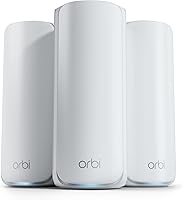
eero Pro 7 (3-pack)

- Tri-band Wi-Fi 7
- Internet plans up to 5 Gbps
- Two auto-sensing 5 GbE ports
- Coverage up to 6,000 sq. ft.
Choose this three-pack for a busy eero household with multi-gig service and rooms spread across several floors. Its fast Ethernet ports also suit wired equipment that can use the extra capacity.
Pros
- Supports internet plans up to 5 Gbps
- Two auto-sensing 5 GbE ports
- eero claims support for 600+ devices across the three-pack
- Works with earlier eero generations
Cons
- A three-pack can be unnecessary in a smaller home
- Advanced Security, ad blocking and parental controls require optional eero Plus
The three-pack uses tri-band Wi-Fi 7, supports internet plans up to 5 Gbps and has two auto-sensing 5 GbE ports. eero claims coverage up to 6,000 sq. ft. and support for 600+ devices across the kit.
Those features suit homes where several people work, stream and move between floors while many smart devices stay connected. The device count describes connection capacity, though, not a promise that hundreds of devices can run demanding downloads at once.
What matters most in this eero Pro 7 review?
The strongest reason to choose the Pro 7 is a network that can use its extra capacity. A fast internet plan, newer wireless devices and multi-gig wired equipment make a stronger case than floor area alone.
eero claims wireless speeds up to 3.9 Gbps, a separate figure from internet plan support. Neither number tells you what a laptop will receive through several walls.
The system supports multi-link operation, or MLO, a Wi-Fi 7 feature that lets compatible devices use multiple links. Older clients can still use the network, but they don't gain Wi-Fi 7 features simply because the router supports them.
If your devices are mostly older models, read whether a Wi-Fi 7 router is worth it before paying for capacity you may use only later.
Who should skip this three-pack?
Skip the three-pack if one well-placed router already covers your home. Extra nodes need useful locations, and adding more hardware won't fix a slow connection from your internet provider.
It's also a poor match if you want parental controls included without a subscription. Those controls sit within optional eero Plus, which changes the long-term buying decision for families.
For an existing Pro 6E household, identify a specific limit before upgrading. A newer Wi-Fi generation alone is a weak reason to replace a system that already supports your work, calls and entertainment.
What do the speed and coverage figures mean?
Read the figures as different limits for different parts of the network. Internet service, Ethernet links, wireless connections and mesh links can each become the slowest step.
A multi-gig plan helps only when the connection from your provider and the equipment along the path support it. A computer with a slower Ethernet adapter cannot use the full capacity of a faster router port.
Wireless speed also depends on the client, distance, interference and walls. A phone beside the main unit and a laptop behind two walls should not be expected to deliver the same result.
The same care applies to coverage claims. A wide, open floor plan is a different job from a narrow home with brick interior walls, even when both have the same floor area.
Count where you need dependable service: the home office, television area, bedrooms and smart doorbell location. Those spots give you a better placement plan than choosing a kit by square footage alone.
How does eero Pro 7 compare with alternatives?
Choose the Pro 7 for multi-gig service within the eero system, Pro 6E for less demanding eero households, ASUS for included controls and Orbi for a sprawling layout. These are different buying priorities, so the highest speed figure shouldn't settle the choice.
| System | Strongest reason to choose it | Main reason to skip it |
|---|---|---|
| eero Pro 7 | Busy eero household with multi-gig needs | Existing equipment already meets your needs |
| eero Pro 6E | Wi-Fi 6E fits your devices and service | You need faster wired connections |
| ASUS ZenWiFi BT6 | Included security and family controls | Keeping an eero network is the priority |
| Netgear Orbi 770 | Broad coverage in a large US home | You need higher internet plan support |
When is eero Pro 6E enough?
Choose the Pro 6E when your current devices and service fit Wi-Fi 6E and you want to keep using eero. It provides 6 GHz access for compatible clients, app-guided setup and automatic updates.
Its speed claims need care: eero describes network speeds up to 2.3 Gbps, including wired speeds up to a gigabit and wireless speeds up to 1.6 Gbps. Having a faster incoming port doesn't mean every outgoing connection runs at that rate.
The two eero three-packs share the same maximum coverage claim, so changing generations isn't a coverage plan by itself. Better node placement may matter more than replacing the units.
For a comparison with the standard model, see eero 7 vs eero Pro 7. To choose across the brand, compare the eero lineup.
When should families choose ASUS ZenWiFi BT6?
Choose ASUS when included security and parental controls are central to your decision. The BT6 includes AiProtection Pro, VPN support and Smart Home Master SSIDs for organizing devices.
ASUS claims coverage up to 7,600 sq. ft. for this three-pack. It supports wired or wireless backhaul and expansion through Smart AiMesh with compatible ASUS routers.
Wired backhaul connects mesh units by Ethernet rather than relying on their wireless link. That can be useful where thick walls make communication between units difficult.
Skip ASUS if retaining your existing eero equipment is the main goal. Its controls are a reason to switch systems, but switching means planning around ASUS compatibility.
When does Netgear Orbi 770 make more sense?
Choose Orbi when covering a sprawling US home matters more than higher internet plan support. NETGEAR claims coverage up to 8,000 sq. ft., with support for plans up to 2.5 Gbps and up to 100 devices.
The kit includes a router and two satellites, and you can expand it with Orbi 770 Series satellites. Its app guides setup and handles guest access and connected devices.
Skip this model outside the US, its intended market, or if your internet plan exceeds its supported ceiling. NETGEAR Armor also requires a separate subscription after its trial.
Read eero Pro 7 vs Orbi 770 if those are your finalists. Focus on the rooms you need to reach and your service plan before comparing headline wireless speeds.
How should you place and set up the eero Pro 7?
Start with a placement plan and your provider's connection details before disconnecting your current router. Keep account information and any required provider settings available so the change doesn't become a search for missing details.
A router doesn't replace the modem or other connection equipment your provider requires. Connect the main mesh unit to that equipment, then follow the current setup instructions.
If your provider's box also acts as a router, check how to use your own router with it. Running two routing layers can complicate gaming, port forwarding and access to devices from outside the home.
Put nodes between good coverage and weak rooms
Place each additional unit where it can still get a strong connection, toward the area you want to reach. A node inside a dead zone may have too little signal to pass along useful service.
Use open shelves or similar clear locations rather than cabinets, floor corners or spots behind large metal objects. Keep units uncovered and allow airflow around them.
For multiple floors, consider the path between nodes as well as the room directly above or below. Dense walls and floor materials can make a slightly different position more useful than a shorter distance.
Our guide to how far apart to place mesh Wi-Fi nodes explains how to adjust spacing. Place units to serve the layout rather than spacing them evenly for appearance.
Check everyday use before moving everything
Check connections in the rooms where you actually use them. Make a video call in the office, stream in the television room and check the far bedroom rather than judging only beside the main unit.
If one room struggles, move the nearest node closer to the main network before adding more hardware. Change one location at a time so you can tell which adjustment helped.
Keep the previous network name and password if you want to reduce the work of reconnecting devices. Use a strong password, and expect some smart home devices to need a fresh connection.
Can you keep older eero equipment?
Yes, the Pro 7 is backward compatible with previous eero generations and works with eero Built-in on select Amazon Echo devices. That makes a gradual upgrade possible instead of requiring every unit to change at once.
Compatibility doesn't make an older node as capable as a new one. A device's experience still depends on the unit it reaches and the path traffic takes through your home.
Use older units where they solve a real coverage need. Adding every available device can make troubleshooting harder without improving the rooms that matter.
Start with the new kit's placement, then add older equipment only where useful. Keep a simple note of which unit serves each area so later changes are easier to judge.
Do you need eero Plus?
You don't need eero Plus for basic network use, but you do need it for the Pro 7's Advanced Security, ad blocking and parental controls. Decide on those features before choosing the hardware.
The optional bundle also includes Malwarebytes, 1Password and a VPN powered by Guardian. Check for overlap with tools your household already uses so you aren't paying twice for the same job.
Our guide to whether eero Plus is worth it helps with that decision. If included controls are essential, compare ASUS or explore mesh systems without a subscription.
What mistakes should you avoid after installation?
Avoid changing several settings or node locations at once when a connection fails. First check whether the problem affects one device, one room or the whole home.
A single-device problem calls for checking that device's connection. A whole-home outage calls for checking the provider connection and main unit before rearranging satellites.
Use our eero connection troubleshooting guide for a more focused next step. Restarting equipment repeatedly without narrowing the cause can hide whether the fault is coverage, a client or the internet service.
Keep vents clear and remove dust with a dry cloth, following the care instructions. Leave units in ventilated locations and avoid stacking other equipment on them.
Review connected devices occasionally and keep account access secure. Guest access is useful for visitors because you don't need to share the main household password.
eero Pro 7 review verdict: which system should you choose?
Choose the Pro 7 when multi-gig capacity and eero compatibility solve a current need. Before ordering, confirm that your service and devices can benefit, identify useful node locations and decide whether subscription controls fit your plans.
Choose Pro 6E for an eero household whose needs fit the older generation. Choose ASUS when included controls lead the decision, or Orbi when its broader coverage claim better matches a sprawling US home.
The practical takeaway from this eero Pro 7 review is to buy for your busiest rooms and devices. Leave room for growth, but don't replace a working network just to raise a headline number.
If you're still deciding whether multiple units suit your layout, use our complete mesh Wi-Fi guide to plan the network before choosing the kit.
Frequently asked questions
Is the eero Pro 7 worth it?
The eero Pro 7 is worth considering for a busy household with multi-gig internet, compatible devices and a reason to keep using eero. Skip the upgrade if your current system already covers your rooms and handles daily use, since extra capacity alone won't improve a slow internet connection.
How much area does the eero Pro 7 cover?
eero claims coverage up to 6,000 sq. ft. for the three-pack. Your layout matters as much as floor area: thick walls, separate floors and limited placement options can reduce useful reach, so map the rooms that need service and leave each node within a strong connection of another.
Can the eero Pro 7 handle a 5 Gbps internet plan?
The eero Pro 7 supports internet plans up to 5 Gbps and has two auto-sensing 5 GbE ports. Its wireless speed claim is up to 3.9 Gbps, so the plan figure doesn't promise that speed to one wireless device; your device, connection and location also affect throughput.
Does eero Pro 7 require an eero Plus subscription?
eero Plus is optional for basic network use. Advanced Security, ad blocking and parental controls are subscription features, along with extras such as Malwarebytes, 1Password and a VPN powered by Guardian, so compare those tools with services you already use before adding another recurring commitment.