Is a Mesh WiFi System Worth It?
A mesh WiFi system is worth it for persistent dead zones in rooms you use, especially when moving your router doesn't help. Keep one router if coverage is already steady, and check your internet service before buying mesh to fix slow speeds everywhere.
On this page (7 sections)
- When is a mesh WiFi system worth it?
- When is a mesh system not worth buying?
- Does mesh WiFi make internet faster?
- How do you choose a mesh system without overbuying?
- How many mesh nodes do you need, and where should they go?
- Is mesh WiFi worth the extra setup and upkeep?
- Is a mesh WiFi system worth it for you?
A mesh WiFi system is worth it for persistent dead zones in rooms you use, especially when moving your router doesn't help. If one router already gives you steady coverage, a multi-unit kit adds equipment without much benefit.
Mesh uses a main router and extra nodes to spread WiFi through your home under one network. Its value comes from reaching the back bedroom, upstairs office, or other weak area, rather than raising your internet plan's speed.
When is a mesh WiFi system worth it?
Mesh is worth buying when several useful rooms have weak WiFi, while the connection near your router works well. Multiple floors, long hallways, and walls that block signals can make extra connection points useful.
Start by checking the same phone or laptop near your router and in each problem room. Repeat at another time so a brief service slowdown doesn't lead you to buy equipment you don't need.
If one device struggles everywhere but others work, look at that device first. If every device struggles only in the back of the house, coverage is the stronger suspect.
Our guide to whether you need mesh WiFi helps separate coverage gaps from other faults. Once you've identified the gap, compare mesh WiFi systems around your layout.
Is mesh WiFi worth it for a large home?
Mesh can be worth it in a large home when you can place nodes between the router and weak rooms. Floor area alone doesn't tell you how many units you'll need.
An open living area lets signals travel differently from several rooms divided by thick walls. Think about the route between units, including floors, rather than choosing only by the largest coverage number.
Google Nest Wifi (2-pack) includes 2 router units, with advertised coverage up to 4,400 square feet. Each router has Ethernet ports, and the system supports expansion with Nest Wifi routers or points and compatibility with Google Wifi.
This pair suits a household that needs 2 connection points and wants guest access, device prioritization, and parental controls in the app. It's also worth considering if you already use compatible Google Wifi equipment.
Skip it if a single router covers your home or if you cannot find a useful location for the second unit. Google notes that walls, materials, and home shape affect coverage, so don't assume the advertised area guarantees a connection in every room.
Is mesh WiFi worth it for a small home?
Usually, one well-placed router is enough for a small home. Consider extra nodes only when a difficult layout or blocked signal leaves a room you regularly use without a steady connection.
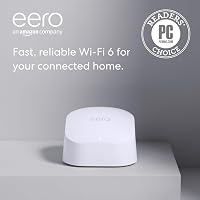
The eero 6 (1-pack) suits someone who wants to start with one router and expand later. It supports plans up to 900 Mbps, has advertised coverage up to 1,500 square feet, and can grow with cross-compatible eero hardware.
Its built-in Zigbee hub can connect compatible smart home devices with Alexa. That matters if you need that hub function, but it isn't a reason to replace a router that already meets your needs.
Skip this single pack if you need coverage from several locations immediately. One unit cannot create a second connection point, even though it belongs to an expandable mesh family.
When is a mesh system not worth buying?
Skip mesh when coverage is already steady, or when slow service affects the whole home. Extra nodes won't repair a provider outage, increase your plan speed, or fix a faulty modem.
Before shopping, move a poorly placed router out of a cabinet and into an open position. A central spot can help, though the modem connection and available outlets may limit your choices.
For one isolated weak room, compare mesh WiFi with a WiFi extender. If only a stationary computer needs a better connection and you can run Ethernet to it, a cable may solve the problem directly.
Mesh also needs usable placement spots and power for its nodes. Buying a larger kit won't help if every spare outlet is deep inside the area where the signal already disappears.
Does mesh WiFi make internet faster?
Mesh can improve speed in a weak-signal room, but it doesn't increase your internet plan's limit. A better local connection helps only when poor WiFi is the bottleneck.
Wireless nodes must pass traffic back toward the main router. Walls and weak links between units can limit that path, even when your phone shows a strong connection to the nearest node.
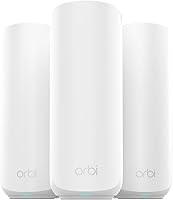
The eero 6+ (3-pack) suits homes that need several connection points and have a plan up to a gigabit. It offers advertised coverage up to 4,500 square feet and WiFi 6 with 160 MHz channel support for additional bandwidth on compatible devices.
Its built-in hub supports compatible Thread and Zigbee devices with Alexa. Choose it when both the multi-unit coverage and those smart home connections fit your household.
Skip the 3-pack if your home needs only one connection point or your main problem is slow service beside the router. The wider channel support also doesn't mean every device will reach gigabit speeds.
How do you choose a mesh system without overbuying?
Choose by layout, connection needs, and useful features, then select the smallest suitable kit. Advertised coverage is a starting point, not a substitute for planning where the units will go.
Check these details before ordering:
- Unit count: Count the main router as part of the pack, rather than expecting that many extra nodes.
- Internet speed: Match the system to your plan and intended use, without treating supported speeds as a room-by-room promise.
- Wired connections: Check ports if you need to connect a computer, switch, or other wired device.
- Management tools: Decide whether guest access, parental controls, or remote management matter to you.
- Ongoing costs: Separate included functions from optional subscriptions before comparing total cost.
Device-count claims don't describe how many people can download or stream at full speed together. A few busy computers can demand more bandwidth than many smart plugs.
For eero 6+, additional online security and network management features are available through a separate subscription. If avoiding recurring fees matters, compare mesh systems without a subscription and check that your needed functions are included.
Use our guide to choosing a mesh WiFi system to narrow the choices around your home rather than buying extra units for possible future needs.
How many mesh nodes do you need, and where should they go?
Use the fewest nodes that cover your daily-use rooms. Place each one where it still has a good connection to the rest of the network, rather than at the far end of a dead zone.
Start the next node partway toward the weak room, then follow the app's placement guidance. Keep units in the open and away from large metal objects or enclosed cabinets.
For multiple floors, consider the path through the ceiling as well as the distance across each room. Don't spread units evenly just to make the floor plan look balanced.
Check the connection where you actually sit for calls or use a television. Move a node before adding another, and use our guide to mesh WiFi node spacing for placement help.
Is mesh WiFi worth the extra setup and upkeep?
The setup is worth it when better coverage solves a daily problem. Both eero options and Google Nest Wifi offer app-guided setup, but you still need to plan the main connection and node locations.
Follow this order:
- Identify your current equipment. Check whether you have a separate modem or a combined modem and router.
- Choose how the new network connects. Follow the mesh system's instructions for using an existing gateway, including any bridge-mode guidance.
- Set up the main unit first. Confirm that internet access works before adding nodes.
- Add nodes one at a time. Use the app's connection guidance and check each problem room.
- Reconnect and check devices. Include smart home devices, printers, and equipment that uses older saved network details.
If you're unsure what your provider's box does, read how a WiFi router differs from a modem. Avoid leaving 2 separate router networks active by accident, since that can complicate device connections.
Both eero options and Nest Wifi receive automatic updates. Keep units powered, leave ventilation space, and review their connection status if a room becomes unreliable.
After moving furniture or a node, check the affected rooms again. Avoid changing several settings at once, since that makes it harder to identify what helped.
Is a mesh WiFi system worth it for you?
A mesh WiFi system is worth it when coverage gaps disrupt daily use and you have suitable places for extra nodes. Choose your next step based on the problem you found:
- Keep your router if moving it gives every needed room a steady connection.
- Start with eero 6 (1-pack) if one unit should cover your home and you want room to expand.
- Consider Google Nest Wifi (2-pack) if 2 connection points and its household controls suit your layout.
- Choose eero 6+ (3-pack) if several areas need coverage and its gigabit-plan support fits your service.
Before buying any kit, mark the intended node locations on your floor plan. Then use our complete mesh WiFi system guide to plan how the network will connect.
Frequently asked questions
Is mesh WiFi better than a regular router?
Mesh WiFi is better for coverage when one router leaves rooms with weak signals and you have suitable places for extra nodes; a regular router remains a good choice when it reaches every room you use. Choose based on coverage gaps, rather than assuming more equipment means better internet.
Does mesh WiFi make your internet faster?
Mesh WiFi can improve speeds in rooms with weak WiFi, but it cannot increase the speed of your internet plan. Compare the same device near your router and in the problem room; slow results everywhere point toward a service, modem, router, or device issue that extra nodes may not solve.
How many mesh WiFi nodes do I need?
Use the fewest nodes that provide steady coverage in the rooms you need. Start with your floor plan and available placement spots, then follow the setup app's signal guidance; add another unit only after checking weak rooms, since thick walls, floors, and long layouts can change how far each connection reaches.
Is mesh WiFi worth it for a small home?
Mesh WiFi is worth considering in a small home only when walls or an awkward layout leave persistent dead zones. First move your router to an open, central position and check the connection again; if coverage becomes steady, keep one router; otherwise, consider an expandable system with a small unit count.