eero 7 Review: Worth It? (October 2026)
Our eero 7 review recommends it for households expanding an eero network or moving beyond gigabit internet. Choose eero 6+ for a gigabit home with compatible smart devices, or consider Orbi 370 for a new Wi-Fi 7 network with room to add satellites.
On this page (9 sections)
- eero 7 review: who should buy it?
- How does eero 7 compare with eero 6+ and Orbi 370?
- How much mesh coverage does your home need?
- Will eero 7 make your internet faster?
- How should you set up eero 7?
- Are eero Plus features required?
- What mistakes should you avoid after installation?
- eero 7 review verdict: which system should you choose?
- Related reading
The eero 7 is a strong choice for households expanding an eero network or moving beyond gigabit internet. This eero 7 review explains when its newer hardware helps, when eero 6+ is enough, and where Orbi 370 deserves consideration.
The buying decision starts with your weak rooms, connected devices and wired equipment. A newer Wi-Fi generation helps most when it addresses a limit you can identify, rather than replacing a network that already meets your needs.
eero 7 review: who should buy it?
Buy eero 7 if you need whole-home coverage with room for faster service, especially when you want to keep existing eero equipment. Skip the upgrade if your current network already covers your home and your devices have no trouble staying connected.
eero 7 (3-pack)

- Dual-band Wi-Fi 7
- Up to 6,000 sq. ft. coverage
- Plans up to 2.5 Gbps
- Two auto-sensing 2.5 GbE ports
A strong fit for households moving beyond gigabit service or adding newer units to an existing eero network. Plan your wired connections before buying, since each unit has two Ethernet ports.
Pros
- Wi-Fi 7 with multi-link operation
- Rated for 120+ devices across three units
- Two 2.5 GbE ports per unit
- Backward compatible with previous eero generations
Cons
- Dual-band design shares wireless resources across mesh traffic and devices
- Advanced security and other eero Plus features require an optional subscription
The system supports multi-link operation, or MLO, a Wi-Fi 7 feature that lets compatible equipment use multiple wireless links. Your devices also need compatible hardware to use that feature.
eero says TrueMesh, TrueRoam and TrueChannel work together to route traffic and maintain reliable connections. These tools manage the network, but good node placement remains essential.
What matters most in this eero 7 review?
The main advantage is upgrade flexibility within the eero family. eero 7 works with all previous eero generations and with eero Built-in on select Amazon Echo devices.
That lets you consider a partial upgrade instead of replacing every unit at once. Keep older hardware where its capabilities are enough, rather than expecting every part of a mixed network to match the newest unit.
The main hardware trade-off is its dual-band design. Wireless links between mesh units share radio resources with connected devices, so placement and the traffic passing through each unit matter.
For a busy home with several wireless hops between rooms, compare more than the Wi-Fi generation. Our eero 7 vs eero Pro 7 comparison helps you decide whether a different eero model better fits your layout.
How does eero 7 compare with eero 6+ and Orbi 370?
Choose eero 7 for an eero upgrade, eero 6+ for a gigabit smart home, or Orbi 370 for a new network with matching satellite expansion. Use the figures below to narrow the choice, then consider where the units will sit.
| System | Wi-Fi generation | Rated 3-pack coverage | Internet plan support | Key distinction |
|---|---|---|---|---|
| eero 7 (3-pack) | Wi-Fi 7 | Up to 6,000 sq. ft. | Up to 2.5 Gbps | Two auto-sensing 2.5 GbE ports per unit |
| eero 6+ (3-pack) | Wi-Fi 6 | Up to 4,500 sq. ft. | Up to a gigabit | Built-in Thread and Zigbee hub |
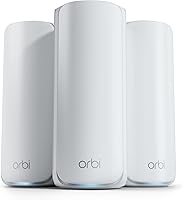
| Netgear Orbi 370 (3-pack) | Wi-Fi 7 | Up to 6,000 sq. ft. | Up to 2.5 Gbps | Expandable with Orbi 370 Series satellites |
Coverage figures are manufacturer estimates, not floor plans. Dense walls, awkward room shapes and the location of your internet connection can change how much space a system serves.
Wi-Fi 7 also doesn't make every connected device faster. Read whether a Wi-Fi 7 router is worth it if most of your phones, laptops and TVs use older Wi-Fi hardware.
Choose eero 6+ for gigabit service and compatible smart devices
The eero 6+ suits households that need better coverage without moving beyond gigabit service. Its built-in hub connects compatible Thread and Zigbee devices with Alexa, which can reduce the need for separate hubs.
It supports 160 MHz channels, providing extra bandwidth for compatible devices. Its app guides setup and allows remote network management, while automatic updates help keep the system secure.
The 3-pack supports 75+ devices, making it worth considering for a household with many connected lights, plugs and everyday screens. The hub matters only if your smart devices use compatible protocols and work with Alexa.
Skip eero 6+ if you expect to use faster internet service or specifically want Wi-Fi 7. For other choices within the brand, use our guide to choosing an eero model.
Choose Orbi 370 for a new network with satellite expansion
The Orbi 370 suits US households starting a new mesh network and planning to add matching satellites later. NETGEAR rates each added Orbi 370 Series satellite for up to 2,000 sq. ft. of extra coverage.
The kit contains a router and 2 satellites, supports up to 70 devices, and works with cable or fiber provider equipment. Its app guides setup and lets you manage connected devices and guest Wi-Fi.
NETGEAR advertises wireless speeds up to 5 Gbps and uses Enhanced Backhaul to help manage traffic between units. That headline speed does not mean a single phone will download from the internet at that rate.
Skip this model outside the US, since it is made for US use only. Existing eero households should also weigh the value of retaining their current units before switching brands; eero vs Orbi covers that broader choice.
How much mesh coverage does your home need?
Choose the number of units around signal paths and room use, rather than square footage alone. A smaller home with dense walls can be harder to cover than a larger home with open rooms.
Mark your modem location, work area, main TV and any rooms where calls drop. Include upstairs rooms, a garage or outdoor seating only if you actually need Wi-Fi there.
Place a mesh unit between the main router and a weak room, where it can still receive a useful signal. A unit deep inside a dead zone has little connection strength to pass along.
Don't assume all 3 units must be spread as far apart as possible. Shorter, clearer paths between them can serve a difficult room better than a long reach through several walls.
Our guide to spacing mesh Wi-Fi nodes explains placement in more detail. If one well-positioned router could cover your space, first consider when a mesh Wi-Fi system is worth it.
Will eero 7 make your internet faster?
eero 7 can address a weak home network, but it cannot raise the speed of your internet plan. First separate poor Wi-Fi coverage from a slow connection coming into the house.
eero rates wireless speeds at up to 1.8 Gbps. That differs from its supported internet plan speed, and actual performance depends on the device, distance, interference and connection path.
If every room slows down at the same time, check your service and provider equipment before buying more mesh units. If nearby devices work well while distant rooms struggle, coverage deserves closer attention.
Also separate device count from active demand. A collection of idle smart plugs creates a different workload from several laptops downloading large files while other people make video calls.
For the main eero unit, one Ethernet port connects upstream, leaving one for a wired device or switch. Count your desk computer, TV, console and other wired equipment before deciding whether you need an additional switch.
Multi-gigabit connections also need suitable ports and cables throughout the wired path. One slower connection can limit the devices behind it, even when the router supports a faster link.
For Xfinity service, read how eero works with Xfinity. With other providers, confirm how their modem or gateway connects to a separate router.
How should you set up eero 7?
Start with the provider connection and the main router, then add mesh units near the rooms that need help. Get the first connection working before changing several parts of the network at once.
- Identify your provider equipment. A modem and a combined modem-router gateway need different setup decisions, so check the provider's instructions before changing its operating mode.
- Plan the first unit's position. Use an open shelf if possible, away from metal cabinets, dense furniture and heat sources.
- Connect the main unit upstream. Follow the setup prompts before adding the remaining units.
- Add one unit at a time. Place each where it has a useful connection back toward the main router.
- Check your important rooms. Make a video call or stream in the work area and other weak spots, then adjust placement if needed.
- Reconnect household equipment. Pay attention to printers, cameras and smart devices, which are easy to overlook during a router change.
Avoid leaving two independent routers managing the same home network without a clear reason. This can create double NAT, which may complicate gaming, remote access and some device connections.
Reusing your old network name and password can reduce reconnection work, though some devices may still need attention. Keep a note of your settings before replacing the old router.
If setup stalls, work through why eero is not working before repeatedly resetting every unit. A clear record of which devices connect and which rooms fail makes troubleshooting easier.
Are eero Plus features required?
eero Plus is optional, so choose the hardware based on coverage and connection needs first. The subscription adds Advanced Security, ad blocking, parental controls, Malwarebytes, 1Password and a VPN powered by Guardian, among other tools.
List the features you would actually use before subscribing. A household that needs parental controls has different priorities from one that already pays for a password manager and VPN.
These services also do not replace strong passwords, device updates or care with suspicious links. Read whether eero Plus is worth it to compare the tools with your existing services.
Orbi 370 includes automatic firmware updates and Advanced Router Protection, plus a 30-day NETGEAR Armor trial. Armor requires a separate subscription, so account for optional services when comparing either brand.
What mistakes should you avoid after installation?
Avoid poor placement and unnecessary changes once the network is working. Keeping the units visible and their connections clear is more useful than moving them every time one device has a problem.
Don't hide a unit in a cupboard to tidy the room. Keep vents clear, leave space around the hardware and remove surface dust with a dry cloth.
If one laptop struggles while nearby devices work, check that laptop before moving the whole mesh network. If several devices fail in the same room, inspect the nearest unit's placement and connection path.
Take a photo of cable connections and label important cables. This makes it easier to restore the setup after cleaning, moving furniture or replacing provider equipment.
eero backs its new Wi-Fi 7 routers with a 3-year warranty and offers phone and email support. Keep your order record and note the problem's location and timing before contacting support.
eero 7 review verdict: which system should you choose?
Choose eero 7 when coverage expansion and a path beyond gigabit service justify the upgrade. Keeping useful older eero units strengthens its case, provided you account for their individual limits.
Choose eero 6+ when gigabit service meets your needs and its compatible smart-home hub solves a real problem. Choose Orbi 370 when you're building a new US network and want its matching satellite expansion path.
Keep your current router if it already serves your rooms and devices well. Before ordering a 3-pack, write down where each unit will go and which problem each one should solve.
For the next step, use how to choose a mesh Wi-Fi system to turn those needs into a shortlist. Our mesh Wi-Fi systems guide explains the wider category.
Related reading
Use these guides to compare nearby eero and Orbi choices if you're still deciding between models.
Frequently asked questions
Is the eero 7 worth buying?
The eero 7 is worth buying if you need wider coverage, want to keep older eero units, or plan to move beyond gigabit internet. If your current network already reaches every room and handles your devices well, a Wi-Fi 7 upgrade alone gives you less reason to replace it.
How many devices can eero 7 support?
The eero 7 3-pack is rated for 120+ devices; that figure describes connection capacity, not a promise that every device can run demanding tasks at once. Count your connected equipment, then consider how many devices stream, download or make video calls at the same time.
Does eero 7 need an eero Plus subscription?
No, eero Plus is optional for eero 7; it adds Advanced Security, ad blocking, parental controls, Malwarebytes, 1Password and a VPN powered by Guardian, among other tools. Decide which features you would use and whether they overlap with services you already have before adding the subscription.
Can eero 7 work with older eero devices?
Yes, eero 7 is backward compatible with all previous eero generations and supports eero Built-in on select Amazon Echo devices; older units can remain useful for coverage, but they retain their own hardware limits. Adding a newer router does not turn an older unit into Wi-Fi 7 equipment.