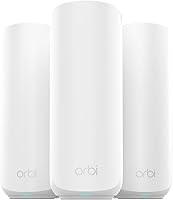
5 Best Mesh WiFi Systems Without a Subscription (October 2026)
The best mesh WiFi systems without a subscription include the eero 6+ (3-pack) for everyday family WiFi, the ASUS ZenWiFi BT6 (3-pack) for families wanting controls, and the Google Nest Wifi (2-pack) for existing Google Wifi.
On this page (9 sections)
- How we chose the best mesh WiFi systems without subscriptions
- Which mesh WiFi systems work without a subscription?
- What does “without a subscription” actually include?
- How should you match mesh coverage to your home?
- Which speed and connection features are worth choosing?
- How do you set up mesh WiFi without creating new problems?
- What mistakes make a subscription-free mesh purchase disappointing?
- How do you keep a mesh network useful without paid extras?
- Which mesh WiFi system without a subscription should you choose?
The eero 6+ (3-pack) is the best mesh WiFi system without a subscription for most homes that want basic connectivity and app-guided setup. Choose an ASUS system instead if avoiding fees also means getting network security and parental controls included.
The key difference is free connectivity versus included extras. A router can work without a monthly mesh fee while still charging for tools you want, so decide what “without subscription” must cover before choosing.
Our picks at a glance
-
1

-
2

-
3

How we chose the best mesh WiFi systems without subscriptions
We compared what works without a paid plan, then considered coverage, node count, wired connections and setup needs. SnappyNotion's recommendations favor a clear fit for the household over the largest advertised speed.
The eero leads for everyday connectivity, but its higher score doesn't make it the right choice for every subscription-averse buyer. The ASUS packages are stronger matches when included security and parental controls are firm requirements.
We also separated coverage estimates from placement needs. A large advertised footprint cannot tell you whether a signal will cross your concrete stairwell, reach a detached room or travel through several brick walls.
| Product | Best for | WiFi | Coverage | Pack | Our score |
|---|---|---|---|---|---|
| eero 6+ (3-pack) | everyday family WiFi | WiFi 6 | Up to 4,500 sq. ft. | 3 units | 8.9 |
| ASUS ZenWiFi BT6 (3-pack) | families wanting controls | WiFi 7, tri-band | Up to 7,600 sq. ft. (3-pack) | 3 units | 7.7 |
| Google Nest Wifi (2-pack) | existing Google Wifi | Dual-band | Up to 4,400 sq. ft. | 2 router units | 7.6 |
| ASUS ZenWiFi BT10 (2-pack) | demanding wired networks | WiFi 7, tri-band | Up to 6,000 sq. ft. | 2 units | 7.4 |
| ASUS ZenWiFi BD4 (3-pack) | wired mesh households | WiFi 7, dual-band | Up to 6,500 sq. ft. | 3 units | 7.1 |
Which mesh WiFi systems work without a subscription?
All 5 packages below support basic mesh WiFi without a recurring mesh plan. The useful distinction is which household each package serves and which extras come with it.
eero 6+ (3-pack): best mesh WiFi without a subscription for everyday use
eero 6+ (3-pack)
- WiFi 6 with 160 MHz channel support
- Supports internet plans up to a gigabit
- Coverage up to 4,500 sq. ft.
- Optional paid security and management tools
Choose eero 6+ for app-guided mesh setup and basic WiFi without a recurring mesh fee. Its optional security and extra management tools require a separate subscription.
Pros
- Supports gigabit internet plans
- App-guided setup and remote management
- Hub for compatible Thread and Zigbee devices with Alexa
Cons
- Some security and management tools cost extra
- WiFi 6 rather than WiFi 7
Choose the eero 6+ if you want to connect the household and manage the network through a guided app. It supports internet plans up to a gigabit, and eero advertises coverage up to 4,500 sq. ft. with connections for 75+ devices.
That combination suits families sharing internet access for work, streaming and video calls. WiFi 6 with 160 MHz channel support gives compatible devices access to wider channels, though it doesn't increase the speed of your internet plan.
The built-in hub connects compatible Thread and Zigbee devices with Alexa. That can remove the need for separate hubs for those devices, making this package useful when networking and smart home plans overlap.
Automatic updates and remote management are included, but online security and additional management tools are separate paid features. Read whether eero Plus is worth it before choosing eero specifically to avoid recurring charges.
Skip it if included advanced controls are essential. It is the better fit when your priority is everyday WiFi and you are comfortable leaving optional paid tools unused.
ASUS ZenWiFi BT6 (3-pack): for families who want included controls
ASUS ZenWiFi BT6 (3-pack)
- Tri-band WiFi 7
- Coverage up to 7,600 sq. ft.
- Subscription-free AiProtection Pro and parental controls
- Smart Home Master custom SSIDs
The BT6 suits families who want network security and parental controls included from the start. Three tri-band nodes and wired backhaul support offer flexibility across a larger floor plan.
Pros
- Included network security and parental controls
- Custom networks for different household uses
- Supports wired or wireless backhaul
Cons
- More settings to manage than a basic network needs
- Three units may be unnecessary in a compact home
Choose the BT6 when your definition of subscription-free includes network security and parental controls. AiProtection Pro, VPN support and Smart Home Master network options make it a stronger fit for households that want more control from the start.
Its tri-band WiFi 7 design comes in a three-unit package, with ASUS advertising coverage up to 7,600 sq. ft. That gives you three placement points, useful when the main router cannot sit near the center of the home.
Smart Home Master supports custom SSIDs and an IoT network. These options suit families who want a clearer separation between smart home devices and other network uses, provided someone is willing to manage the settings.
Wired or wireless backhaul lets you choose how the nodes connect to one another. If you have Ethernet routes between floors, using them can reduce the burden on wireless links through ceilings and walls.
Skip this package for a compact home with modest needs. Our ASUS ZenWiFi BT6 review covers the model in more detail, while our best mesh WiFi systems guide compares other approaches.
Google Nest Wifi (2-pack): for homes extending Google Wifi
Google Nest Wifi (2-pack)
- Two router units with Ethernet ports
- Coverage up to 4,400 sq. ft.
- Guest network and device prioritization
- Compatible with Google Wifi
This Nest Wifi package includes two routers and works with Google Wifi. It suits buyers who want app setup, guest access and controls for children's online time.
Pros
- Ethernet ports on both routers
- Guest network and parental controls
- Compatible with Google Wifi
Cons
- Two units offer fewer placement points than a three-pack
- The 200-device claim assumes at most 1 Mbps per device
Choose this Nest Wifi package if Google Wifi compatibility matters or your layout needs only two router locations. Both included units are routers with Ethernet ports, so this is a specific two-router package rather than a router paired with a different type of point.
Google advertises coverage up to 4,400 sq. ft., with expansion through additional Nest Wifi routers or points. App setup, guest networking, device prioritization and parental controls cover common household management tasks.
Device prioritization is useful when one activity deserves attention, such as a work call during a busy evening. It reallocates the connection you have; it cannot create more internet bandwidth.
Google's claim of up to 200 connected devices assumes a maximum data rate of 1 Mbps per device. That is a connection-capacity figure, not a reason to expect hundreds of demanding activities at once.
Skip it if you need the ASUS packages' included security tools or newer WiFi 7 options. Read how to choose a mesh WiFi system if you are still deciding whether two nodes suit your rooms.
ASUS ZenWiFi BT10 (2-pack): for homes with demanding wired equipment
ASUS ZenWiFi BT10 (2-pack)
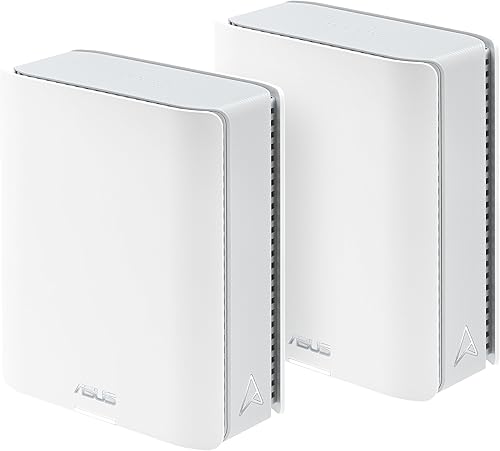
- Tri-band WiFi 7
- Coverage up to 6,000 sq. ft.
- Dual 10G Ethernet ports for WAN and LAN
- Subscription-free security and parental controls
The BT10 fits homes with equipment that can use its 10G wired connections. Included security, parental controls and network segmentation support a more involved home network.
Pros
- Dual 10G WAN and LAN connections
- Wired or wireless backhaul
- Included security, parental controls and VPN support
Cons
- 10G connections add little for basic internet use
- Two nodes require suitable placement across the home
Choose the BT10 if your network has a clear use for dual 10G WAN and LAN connections. Those ports make it the specialist choice here for matching fast internet service or capable wired equipment to the mesh system.
It uses tri-band WiFi 7, and ASUS advertises coverage up to 6,000 sq. ft. across two units. Wired and wireless backhaul options let you plan around existing cabling or available node locations.
Included security, parental controls and VPN support meet the goal of avoiding a separate network security plan. Smart Home Master also supports up to three SSIDs for organizing different network uses.
The reason to buy it is the equipment you can connect, rather than the largest wireless speed number. A slow internet plan, older client device or limited network adapter will still set its own ceiling.
Skip it if your main problem is a distant bedroom and your equipment uses ordinary gigabit links. More capable ports will not solve poor node placement, and two nodes may leave fewer useful positions than your layout needs.
Our WiFi 7 router guide can help if wired capability matters more than a mesh layout.
ASUS ZenWiFi BD4 (3-pack): for homes planning wired node links
ASUS ZenWiFi BD4 (3-pack)
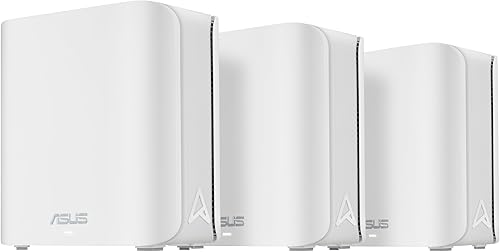
- Dual-band WiFi 7
- Coverage up to 6,500 sq. ft.
- Included AiProtection Pro and parental controls
- Dual 2.5G Ethernet ports
The BD4 suits households planning Ethernet links between three mesh nodes. Its dual-band design comes with included security, parental controls and custom network options.
Pros
- Ethernet backhaul support
- Included security and parental controls
- Expandable with compatible ASUS routers
Cons
- Dual-band rather than tri-band
- Ethernet links need suitable cable routes
Choose the BD4 if you want three nodes with Ethernet backhaul and included household controls. It pairs dual-band WiFi 7 with two 2.5G Ethernet ports, AiProtection Pro, parental controls and VPN options.
ASUS advertises coverage up to 6,500 sq. ft. for the package. AiMesh expansion with compatible ASUS routers gives you another route if your network later needs an additional placement point.
Its dual-band design makes the planned connection between nodes especially relevant. When nodes communicate wirelessly, that traffic shares wireless resources with connected devices; Ethernet backhaul moves the node-to-node connection onto cable.
That makes the BD4 a sensible shortlist choice for a house with usable Ethernet runs. You still need to plan each connection, including which ports serve backhaul and which remain available for nearby equipment.
Skip it if tri-band wireless operation is a priority and you cannot run cable between nodes. The BT6 is the more relevant comparison for that requirement.
If you are buying three units simply because the package seems comprehensive, first read whether a mesh WiFi system is worth it.
What does “without a subscription” actually include?
A subscription-free mesh system should keep providing the functions you need without a recurring mesh fee. Basic connectivity, security extras and internet service are separate parts of that decision.
Separate internet service from the mesh system
Your mesh system distributes your connection around the home; it doesn't replace your internet provider. You still need suitable internet service and any modem or other connection equipment your provider requires.
Keeping these roles separate helps you diagnose the real problem. If the connection fails at the modem, replacing mesh nodes will not restore service from the provider.
Name the controls you expect to use
Write down specific tasks before comparing feature names. You might need to manage children's online time, create guest access, separate smart devices or use a VPN.
Then check each task against what is included. A broad label such as “security” doesn't tell you whether the system handles the exact rule or network arrangement you need.
eero's paid extras matter only if you want those extras. Conversely, included ASUS controls are useful only if they address your needs and you take time to configure them.
Understand what network protection can do
Included router security is one layer of household protection. Keep devices updated, use strong account passwords and remain careful with suspicious messages and downloads.
Parental controls also need household rules behind them. Decide which devices belong to each child and what limits you want before creating schedules or groups.
How should you match mesh coverage to your home?
Choose by floor plan and signal barriers first, then use advertised square footage to narrow the options. A broad, open house and a narrow, multi-floor home can need different node layouts despite similar floor areas.
Map the rooms that need a strong connection
Mark your modem location, work area, main television and rooms with weak WiFi. Include outdoor areas only if they are part of your actual use, rather than choosing extra coverage for space you rarely occupy.
Next, identify practical node locations with power and open shelf space. A kit only helps if you can put its units where they can connect well and serve the rooms that matter.
Treat walls and floors as part of the route
Brick, concrete, metal and dense building materials can weaken a wireless link. A node placed behind several barriers may have a poor connection even when it sits close to your laptop.
For wireless backhaul, work outward from the main router. Position a node where it still receives a useful signal, rather than placing it inside the room that already has no reception.
Choose two or three nodes with a purpose
Two nodes can suit a home where the main router serves one area and a second unit reaches the other. Three can give you another position along a long layout or across separate floors.
Extra nodes are not automatically helpful. Crowding them together can add radio contention without extending coverage, so each unit should solve a clear placement need.
Our guide to spacing mesh WiFi nodes explains how to work through those placement choices.
Which speed and connection features are worth choosing?
Match internet speed, client devices and backhaul before paying attention to headline wireless totals. The slowest relevant part of the route limits the connection you receive.
Internet speed and local network speed are different
Your internet plan limits traffic coming from the internet. Faster router hardware cannot turn a slower service into a faster one.
Local transfers between devices have a different path. If you regularly move large files within your home, compatible network adapters, cables and switches can matter as much as the mesh system.
WiFi generation needs compatible devices
A WiFi 7 system is most relevant when you have compatible devices or a clear upgrade plan. Older phones and laptops do not gain every newer wireless feature simply by connecting to it.
For a household using ordinary internet services, coverage can be the more useful improvement. A strong connection at the desk matters more than unused peak capacity near the router.
Backhaul deserves its own decision
Backhaul is the link between mesh nodes. Wireless backhaul is convenient, while wired backhaul can avoid sending that link through difficult walls or floors.
Tri-band does not automatically mean one band is permanently reserved for backhaul. Compare the supported connection options and your layout instead of assuming every tri-band system handles traffic the same way.
Before choosing wired backhaul, trace the cable route and count the connections you need. Include fixed devices such as computers or televisions, plus any switch required to connect them.
How do you set up mesh WiFi without creating new problems?
Start with the main router and a working internet connection, then add nodes in useful locations. Finish by checking the rooms and activities that caused you to buy mesh in the first place.
- Save your current network details. Note your WiFi name, password and any important device settings before disconnecting the old router.
- Connect the main unit as directed. Use the system's setup guide and app, keeping account credentials available.
- Resolve the provider gateway's role. If it already routes traffic, follow the supported bridge or access-point arrangement rather than accidentally stacking routing functions.
- Add nodes near usable signal. Get them connected before moving them toward their final positions.
- Check everyday activities. Make a call from the office, stream in the television room and connect devices at the far end of the home.
- Configure included controls. Set up guest access, household rules and security features after the basic connection works.
Reusing your old WiFi name and password can simplify reconnecting devices, but switch off the old WiFi network once the new system is ready. Using the same name on two unrelated networks can make connection problems harder to understand.
Keep nodes in the open, away from metal cabinets and with room for ventilation. Do not sacrifice a good location just to hide every unit behind furniture.
If a room remains weak, change one node position at a time. Add another unit only after confirming that placement or a wired link cannot solve the problem.
What mistakes make a subscription-free mesh purchase disappointing?
The biggest mistakes are buying for a headline number and overlooking included features. Check the actual problem you want to solve before treating any package as an upgrade.
Choosing a free network that lacks a required tool
If your main goal is included parental controls or security, choose around that requirement from the start. Buying first and discovering you want a paid add-on defeats your reason for avoiding a subscription.
Also distinguish basic time management from more specific household rules. Write those rules down so you can compare useful functions rather than feature names.
Confusing connected devices with busy devices
A smart plug and a laptop uploading large files put very different demands on a network. Count the activities happening together, rather than choosing solely by the number of devices supported.
If the connection slows only during large uploads, examine your internet plan and traffic load. Extra mesh coverage cannot add upstream bandwidth from your provider.
Expecting placement to fix every kind of delay
Weak WiFi, limited internet service and an overloaded remote service can all make an activity feel slow. Compare behavior near the main router with behavior in the problem room before blaming coverage.
A wired computer can also help separate a wireless issue from a broader connection issue. Use those comparisons to decide whether to move a node or investigate the incoming service.
Adding nodes before considering a single router
Mesh is useful when one router cannot cover the rooms you use. It may be unnecessary if the current router sits in a poor location or only one nearby area needs attention.
Read do you need mesh WiFi? before committing to several units. Our complete mesh WiFi systems guide explains the wider system choices once you know mesh fits.
How do you keep a mesh network useful without paid extras?
Keep updates, placement and device access in good order. A subscription-free network still benefits from a short maintenance routine.
Leave automatic updates enabled where available and review update options during setup. Keep the management app accessible and protect the account used to control the network.
Use a strong WiFi password and review guest access when circumstances change. Remove access that is no longer needed, especially after sharing credentials with temporary visitors.
Recheck placement after moving large furniture, relocating a work area or adding a television. A layout that worked before may need a small adjustment rather than new hardware.
Keep vents clear and avoid stacking equipment on mesh units. For wired links, check loose connectors and damaged cables before assuming a node has failed.
Which mesh WiFi system without a subscription should you choose?
The best mesh WiFi system without a subscription is the one that includes your required functions and fits your node layout. Make the final choice with these rules:
- Choose eero 6+ for everyday household WiFi when you are comfortable skipping optional paid security and management extras.
- Choose ASUS ZenWiFi BT6 when included security and parental controls matter, and three tri-band nodes suit your floor plan.
- Choose Google Nest Wifi when Google Wifi compatibility matters and two router locations cover your needs.
- Choose ASUS ZenWiFi BT10 when you can name the wired equipment or internet connection that will use its 10G ports.
- Choose ASUS ZenWiFi BD4 when three nodes and planned Ethernet backhaul fit your home.
Before ordering, mark each node location and confirm which controls you will use without paying extra. For a broader shortlist, compare our best mesh WiFi systems.
Our top 3 picks at a glance
-
1
-
2
-
3
Frequently asked questions
Can mesh WiFi work without a monthly subscription?
Yes, these mesh systems provide basic WiFi without a monthly mesh subscription, but you still need internet service for online access. Included extras vary: eero offers optional paid security and management tools, while the ASUS systems here include network security and parental controls.
Which mesh WiFi system has security without a subscription?
The ASUS ZenWiFi BT6, BT10 and BD4 packages here include subscription-free network security and parental controls; all three also offer AiProtection Pro and VPN support. Choose by your floor plan, wired connections and preferred node count, then configure the controls to suit your household.
Does eero require eero Plus?
No, eero 6+ provides basic WiFi without eero Plus, along with app-guided setup, remote network management and automatic updates. Online security and additional management features are optional paid extras; our guide to whether eero Plus is worth it helps you decide whether you need those tools.
How many mesh units do I need?
Choose the number of units by your home's layout and signal barriers, rather than floor area alone; each wireless node needs a good connection back toward the main router. Start with useful placement points, then follow our guide to spacing mesh WiFi nodes before adding more units.