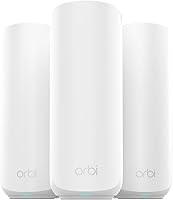
8 Best Mesh WiFi Systems (October 2026)
The best best mesh WiFi systems include the eero 7 (3-pack) for most households, the eero 6+ (3-pack) for gigabit households, and the Netgear Orbi 770 (3-pack) for sprawling homes.
On this page (7 sections)
- How we chose the best mesh WiFi systems
- The best mesh WiFi systems for different needs
- What should you compare before buying a mesh WiFi system?
- How should you set up a mesh WiFi system?
- How do you keep mesh WiFi reliable?
- Which mesh WiFi buying mistakes should you avoid?
- Which mesh WiFi system should you choose?
The best mesh WiFi system for most homes is the eero 7 (3-pack). Choose it for a balanced WiFi 7 upgrade, eero 6+ for affordable gigabit service, or Netgear Orbi 770 for a larger home.
The right choice starts with your floor plan and internet connection. A faster model won't fix a node placed beyond a strong signal, and a larger pack isn't always better for a small home.
For the basics, read our complete guide to mesh WiFi systems. If you're still choosing an approach, our guides to whether mesh WiFi is worth it and how to choose a mesh WiFi system explain the next steps.
Our picks at a glance
-
1

-
2

-
3

How we chose the best mesh WiFi systems
We prioritized coverage needs, useful connections and clear buyer fit, rather than ranking by the largest speed number. SnappyNotion compared the supplied specifications and features, including WiFi bands, plan support, expansion and subscription requirements.
The order reflects broad household usefulness, so a lower-ranked specialist can still be your better choice. Coverage estimates come from the brands and depend on layout, walls and placement.
| Product | Best for | WiFi generation | Coverage | Internet plan support | Our score |
|---|---|---|---|---|---|
| eero 7 (3-pack) | most households | WiFi 7 | Up to 6,000 sq. ft. | Up to 2.5 Gbps | 9.1 |
| eero 6+ (3-pack) | gigabit households | WiFi 6 | Up to 4,500 sq. ft. | Up to a gigabit | 8.9 |
| Netgear Orbi 770 (3-pack) | sprawling homes | WiFi 7 | Up to 8,000 sq. ft. | Up to 2.5 Gbps | 8.8 |
| eero Pro 7 (3-pack) | multi-gigabit households | WiFi 7 | Up to 6,000 sq. ft. | Up to 5 Gbps | 8.7 |
| Netgear Orbi 370 (3-pack) | growing Orbi households | WiFi 7 | Up to 6,000 sq. ft. | Up to 2.5 Gbps | 8.5 |
| eero Pro 6E (3-pack) | existing WiFi 6E households | WiFi 6E | Up to 6,000 sq. ft. | Up to 2.5 Gbps | 7.9 |
| Google Nest Wifi (2-pack) | Google Wifi households | Up to 4,400 sq. ft. | 7.6 | ||
| ASUS ZenWiFi BD4 (3-pack) | experienced network managers | WiFi 7 | Up to 6,500 sq. ft. | 7.1 |
The best mesh WiFi systems for different needs
Start with eero 7 for a general upgrade, then choose another model when a specific need changes the decision. The notes below explain where each system fits and when to skip it.
eero 7 (3-pack)
- Dual-band WiFi 7 with MLO
- Support for 120+ devices
- Earlier eero compatibility
- Three-year warranty
The starting point for households replacing a single router with WiFi 7 mesh. Its wired connections and compatibility with earlier eero generations leave room for future changes.
Pros
- Two auto-sensing 2.5 GbE ports per unit
- Backward compatible with previous eero generations
- eero provides a three-year warranty
Cons
- Dual-band rather than tri-band
- Advanced security and parental controls require optional eero Plus
Choose eero 7 if you're replacing a single router and want room for newer devices without moving to a specialist high-capacity system. Its three-pack supports plans up to 2.5 Gbps, with two auto-sensing 2.5 GbE ports per unit.
Those ports matter if you want wired connections as well as WiFi. Plan the main unit's connections before buying, since the incoming internet cable occupies a port.
The system is compatible with earlier eero generations, which gives existing eero households another reason to consider it. Compatibility lets you reuse equipment, though an older unit still has its own limits.
eero's TrueMesh, TrueRoam and TrueChannel software manages connections, and eero backs the hardware with a three-year warranty. Skip it if your main goal is a tri-band design or service beyond its supported plan speed.
For a broad floor plan, compare its coverage estimate with our mesh WiFi systems for large homes. Don't assume that buying newer radios removes the need for good placement.
eero 6+ (3-pack)
- WiFi 6
- Support for 75+ devices
- 160 MHz channel support
- Built-in Thread and Zigbee hub
A value choice for households keeping gigabit service or slower. Its built-in hub also suits compatible Alexa smart homes.
Pros
- App-guided setup and remote management
- Compatible Thread and Zigbee devices can connect through Alexa
- Automatic updates
Cons
- Less stated coverage than most three-packs here
- Extra security and network tools require a separate subscription
Choose eero 6+ if you plan to keep gigabit service or slower and mainly need better coverage for work, streaming and everyday devices. WiFi 7 isn't necessary to address a weak signal at the other end of the house.
Its built-in hub connects compatible Thread and Zigbee devices through Alexa. That makes it especially relevant when you want to reduce the number of separate smart-home hubs.
The system supports a 160 MHz radio channel, but your devices must support that channel width to use it. A wider channel also isn't a substitute for a strong connection between mesh units.
App-guided setup and remote management suit households that want to manage the network from a phone. Automatic updates help keep maintenance simple.
Skip this model if you're already planning multi-gigabit service or need more coverage than its pack is rated to provide. Our WiFi 6 vs WiFi 7 comparison can help you decide whether newer hardware serves a real need.
Netgear Orbi 770 (3-pack)
- Tri-band WiFi 7
- Enhanced Backhaul
- Support for up to 100 devices
- Orbi 770 satellite expansion
The largest coverage estimate in this group makes it a strong candidate for broad floor plans. Matching satellites offer a path to expand later.
Pros
- Tri-band design with Enhanced Backhaul
- App controls for devices and guest WiFi
- Advanced Router Protection and automatic firmware updates
Cons
- Made for use in the US only
- NETGEAR Armor requires a separate subscription after its trial
Choose Orbi 770 for a large home where wireless links between nodes deserve as much attention as the connection to each phone or laptop. Its tri-band design and Enhanced Backhaul make it the stronger Orbi candidate here for that situation.
NETGEAR rates the router and two satellites for up to 8,000 sq. ft., the largest estimate in this group. That makes it worth considering for broad layouts, but concrete walls and awkward routes still affect placement.
You can add matching Orbi 770 Series satellites as your coverage needs grow. Each additional satellite has a stated coverage increase of up to 2,750 sq. ft., subject to the same layout limits.
Skip it for a small home that one well-placed router can cover. Also skip this US-only model if you need equipment intended for another country.
Before buying extra satellites, read how far apart to place mesh nodes. A relay needs a reliable connection back toward the router, not simply an outlet in the room with no signal.
eero Pro 7 (3-pack)

- Tri-band WiFi 7 with MLO
- Two auto-sensing 5 GbE ports per unit
- Support for 600+ devices
- Three-year warranty
Choose this eero when a faster internet plan and wired devices justify its extra capacity. It serves a different need from simply covering more rooms.
Pros
- Tri-band WiFi 7
- Multi-gigabit wired connections
- Backward compatible with earlier eero generations
Cons
- Same stated coverage as the standard eero 7 three-pack
- Advanced security and parental controls require optional eero Plus
Choose eero Pro 7 when you have a fast connection and devices that can make use of it. It supports plans up to 5 Gbps and provides two auto-sensing 5 GbE ports per unit.
Those connections make it a better match than the standard model for a household moving beyond ordinary gigabit service. The tri-band design also gives wireless traffic another band to use.
eero rates the three-pack for 600+ devices, but a connection count isn't a workload guarantee. A smart sensor and a laptop moving large files place very different demands on the network.
Skip it if your main problem is one weak bedroom on a modest internet plan. Its coverage estimate matches the standard eero 7 pack, so the Pro name shouldn't be your reason to expect greater reach.
The more useful question is whether you'll use its extra capacity. Our eero 7 vs eero Pro 7 comparison helps separate that need from a simple coverage upgrade.
Netgear Orbi 370 (3-pack)

- Dual-band WiFi 7
- Enhanced Backhaul
- Support for up to 70 devices
- Orbi 370 satellite expansion
An Orbi option for households that want guided setup and a clear expansion path without choosing the larger tri-band system.
Pros
- Orbi app manages devices and guest WiFi
- Advanced Router Protection
- Automatic firmware updates
Cons
- Dual-band rather than tri-band
- Made for use in the US only
- NETGEAR Armor requires a separate subscription after its trial
Choose Orbi 370 if you want an Orbi network with room to expand and don't need the 770's tri-band design. It offers dual-band WiFi 7 with Enhanced Backhaul and supports up to 70 connected devices.
The Orbi app guides setup and manages guest WiFi and connected devices. NETGEAR includes Advanced Router Protection and automatic firmware updates, while Armor is a separate service after its trial.
Expansion uses Orbi 370 Series satellites. Each has a stated coverage addition of up to 2,000 sq. ft., so plan around matching hardware rather than assuming any Orbi satellite will work.
This is a sensible shortlist choice for a household that expects to add another coverage area later. Add that satellite to solve a defined weak area, rather than buying more nodes just in case.
Skip it if you specifically want tri-band or need hardware for use outside the US. For the larger system's strengths, read our Orbi 770 review.
eero Pro 6E (3-pack)

- 6 GHz access for compatible devices
- Support for 100+ devices
- 2.5 Gb Ethernet port
- Earlier eero compatibility
A focused choice for households with WiFi 6E devices that can use 6 GHz. Check the wired speed limits if one fast desktop is your main concern.
Pros
- 6 GHz access for WiFi 6E devices
- App-guided setup and remote management
- Automatic updates
Cons
- Not WiFi 7
- Wired speed support differs from its incoming connection capability
- Extra security and network tools require a separate subscription
Choose eero Pro 6E if you already have WiFi 6E devices and want access to 6 GHz without making WiFi 7 the deciding factor. Older devices can still connect, but they can't gain a new radio band through a router upgrade.
Check the wired path carefully if a desktop is your priority. Its 2.5 Gb Ethernet input capability doesn't mean every wired device receives that speed.
eero describes wired speeds up to a gigabit and wireless speeds up to 1.6 Gbps within its network-speed figures. Don't add those numbers together and expect the total on one laptop.
The system remains relevant for an existing eero household because it works with earlier generations. Its app also provides guided setup and remote management.
Skip it if you want WiFi 7 features or a faster wired connection to one demanding device. Our eero model comparison helps you choose around those differences instead of treating every higher model name as a better fit.
Google Nest Wifi (2-pack)

- Two router units
- Ethernet ports on each router
- Guest network and parental controls
- Compatibility with Google Wifi
A two-router option for households that value Google Wifi compatibility and family controls. Both included units have Ethernet connections.
Pros
- Expandable with Nest Wifi routers or points
- Device prioritization
- Automatic updates
Cons
- The 200-device claim assumes a maximum of 1 Mbps per device
- Two placement points may not suit a home with several separate weak areas
Choose Google Nest Wifi if Google Wifi compatibility and family controls matter more than a newer WiFi generation. This pack includes two router units, both with Ethernet ports, rather than one router and one point.
Two units give you two placement locations. That can suit a straightforward layout, while a home with several separate weak areas may need further expansion.
The app supports guest access, parental controls and device prioritization. Prioritizing a work laptop can help manage competing traffic, but it doesn't increase the bandwidth supplied by your internet provider.
Google's up to 200 devices figure assumes a maximum data rate of 1 Mbps per device. Don't use it as evidence that this is the strongest choice for a home full of demanding wireless clients.
Skip it if WiFi 7 or multi-gigabit use is your goal. Also check the pack contents when comparing offers, since the router units described here differ from Nest Wifi points.
ASUS ZenWiFi BD4 (3-pack)
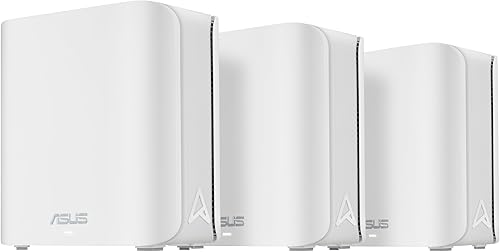
- Dual-band WiFi 7
- AiMesh expansion
- Ethernet backhaul support
- Included security and parental controls
A fit for buyers who want separate smart-home networks, VPN options and expansion with compatible ASUS routers.
Pros
- Two 2.5G Ethernet ports
- Subscription-free network security
- Smart Home Master SSIDs and IoT Network
Cons
- Dual-band rather than tri-band
- Its broader feature set gives you more settings to manage
Choose ASUS ZenWiFi BD4 if you want more control over your home network or want to expand through compatible ASUS AiMesh routers. Its appeal is the set of network tools, not simply its place in the score order.
Smart Home Master SSIDs, IoT Network, VPN options and parental controls let you organize different uses. Separate smart-home access can also make device management easier when you have many connected accessories.
AiProtection Pro provides subscription-free network security. That is useful if included controls matter more to you than optional service bundles.
The BD4 supports Ethernet backhaul, which makes it worth considering in a home where you can run cables between nodes. A wired link can avoid sending the node-to-node connection through difficult walls.
Skip it if you specifically want tri-band or prefer fewer network settings to consider. If you may only need one router, our best WiFi 7 routers roundup gives you a useful alternative starting point.
What should you compare before buying a mesh WiFi system?
Choose around the rooms you need to reach, the connections you use and the controls you need. Use speed and coverage figures to narrow the field, then check whether the system fits your actual home.
Which best mesh WiFi system fits your floor plan?
Map your weak rooms and the location of your modem before choosing a pack. A central router has different coverage needs from one fixed in a front corner behind several walls.
Square footage alone misses long hallways, separate wings and floors divided by dense materials. Think about where each node can receive a strong signal and pass it onward.
If only one room needs help, compare the simpler options in our mesh WiFi vs extender guide. You may not need to replace the whole network.
How much speed will your devices use?
Match the system to both your internet plan and your busiest activity. A faster router doesn't raise the speed of a slower plan, although local transfers between devices have their own requirements.
For video calls, remember that upload capacity matters too. A busy cloud backup can affect a call even when your download plan sounds generous.
Wireless speed figures also differ from internet-plan support and Ethernet-port speed. Follow the full path from provider equipment to router, then to the node and device you care about.
When does tri-band matter?
Give tri-band more weight when several busy devices share wireless nodes. The extra band can offer more room for traffic, but the exact backhaul design still matters.
Backhaul is the connection between mesh units. A weak backhaul limits everything connected through that node, even if your phone shows a strong local WiFi signal.
Ethernet backhaul can be useful where supported, especially across difficult walls. Check model instructions before planning cables, and use our eero vs Orbi comparison for a closer look at those families.
Which controls belong in your budget?
List the features you need before deciding whether a subscription fits. Guest access, child schedules, content controls and added security services are different features, even when grouped together in an app.
Optional subscriptions on these systems cover different tools. Compare the exact controls you want rather than assuming that a security bundle includes every family feature.
If avoiding recurring fees is a priority, read our mesh systems without a subscription guide. Also check which controls you already use on individual devices before paying for overlapping services.
Can your current hardware stay?
Check expansion compatibility before keeping an older node. Matching brand names alone don't establish that two mesh products can work together.
An older compatible unit may be useful in a lightly used room, but its own capabilities still shape the connection there. Put your most capable equipment where demanding devices need it.
Count wired devices as well as wireless ones. A desktop, console and storage device can use available ports quickly once the internet connection occupies one.
How should you set up a mesh WiFi system?
Set up the main router first, then add nodes while they still have a strong connection. Place equipment for radio coverage and airflow rather than hiding every unit beside the nearest outlet.
Keep provider equipment in the right role
Identify whether your provider box is a modem, a router or a combined gateway. Follow the provider's and mesh brand's instructions for connecting the new system.
Running two routers can create double NAT, where both manage the route between your devices and the internet. That can complicate gaming or remote access, so check supported bridge or access-point options when relevant.
Save your provider details and current network settings before making changes. Some connections require specific setup steps, and it's easier to prepare while the old network still works.
Place nodes before the signal disappears
Put a wireless node between the main router and the weak area, where it can still receive a useful signal. Placing it in the dead zone gives it little to relay.
Use open shelves or similar raised locations where practical. Keep units away from metal cabinets, large appliances and enclosed spaces that block signals or trap heat.
Across floors, try positions near an open stairway before forcing the link through dense flooring. Change one position at a time so you can tell which move helped.
Check the rooms you actually use
After setup, make a video call, stream a video and open common work tools in the rooms that matter. Check performance during your household's busy hours as well as when the network is quiet.
If a room is slow, first compare it with a device near the main router. Poor results everywhere point toward a different cause than one slow satellite area.
Reusing your old network name and password can simplify reconnection, but some smart-home devices may still need attention. Keep the old router switched off once the replacement network is ready.
How do you keep mesh WiFi reliable?
Keep nodes open, connected and updated, and investigate changes before buying more hardware. Routine care mainly means protecting the placement and settings that make the network work.
Leave room around each unit for airflow and remove dust from the surrounding shelf. Don't cover vents or use liquid cleaners on powered equipment.
Keep the management app and account recovery details current. Use a strong account password, and enable extra sign-in protection if the service offers it.
Review connected devices occasionally and remove access you no longer need. A guest network gives visitors access without sharing your main network credentials.
If trouble starts after moving furniture or adding a device, check those changes first. For eero-specific problems, our eero troubleshooting guide provides a more focused next step.
Which mesh WiFi buying mistakes should you avoid?
Avoid buying extra nodes before finding the bottleneck. More hardware can't repair a provider outage, a poor incoming connection or a wireless relay placed too far away.
Don't choose by adding up radio speed figures. Those totals aren't a promise of one device's download speed.
Don't treat device capacity as a promise that every connected client can run a demanding task at once. Count active workloads, especially calls, backups and large downloads.
Don't install every included unit automatically in a small home. Start with the coverage you need, then add a node where a useful connection is missing.
Don't pay for a faster system while ignoring the cable or port in its path. One slower link can limit the device you bought the upgrade to serve.
Which mesh WiFi system should you choose?
The best mesh WiFi system for your home is the one that fixes coverage while matching your service and devices. Set your priorities before choosing the highest specification.
- Choose eero 7 for a general WiFi 7 upgrade without a specific need for the Pro model.
- Choose eero 6+ when gigabit service or slower meets your plans.
- Choose Orbi 770 for a broad home where its tri-band design and larger coverage estimate matter.
- Choose eero Pro 7 when faster service and capable devices justify the extra capacity.
- Choose Orbi 370 for an expandable Orbi setup with moderate device needs.
- Choose eero Pro 6E for compatible 6 GHz devices when WiFi 7 isn't a priority.
- Choose Google Nest Wifi for Google Wifi compatibility and family controls.
- Choose ASUS ZenWiFi BD4 for included network tools, wired backhaul and AiMesh expansion.
Before ordering, identify a useful location for every planned node. If you can't yet say why you need multiple units, read do you need mesh WiFi? to make that decision first.
Our top 3 picks at a glance
-
1
-
2
-
3
Frequently asked questions
What is the best mesh WiFi system for most homes?
The eero 7 three-pack is the best starting point for most households replacing a single router. Its WiFi 7 support and multi-gigabit connections cover common upgrade needs.
Choose around your floor plan first, then move to a more specialized system only when faster service, extra coverage or specific controls justify it.
Is a tri-band mesh system better than dual-band?
Tri-band gives traffic another band to use and deserves more attention when nodes connect wirelessly in a busy home. It doesn't overcome poor placement or heavy walls.
Compare the backhaul design, wired connection options and your devices before treating an extra band as a reason to buy.
How many mesh WiFi nodes do I need?
You need enough nodes to connect the rooms you use while keeping a strong link between units. Start with the main router and add nodes where coverage weakens, before the signal disappears.
A small home may need fewer units than a pack includes, while difficult walls can require different placement.
Does a mesh WiFi system replace a modem?
No. A mesh system supplies your home network, while a modem or other provider equipment connects that network to your internet service.
Some provider gateways combine both jobs.
Our modem and WiFi router guide explains the difference so you can identify what stays connected when you install mesh.