WiFi 6 vs WiFi 7: Is the Upgrade Worth It? (October 2026)
For WiFi 6 vs WiFi 7, choose WiFi 7 for compatible devices and features you need; keep WiFi 6 when speed and coverage already meet your needs. Match the router's ports and coverage to your home before choosing by generation.
On this page (8 sections)
- WiFi 6 vs WiFi 7: which should you choose?
- What changes when you move from WiFi 6 to WiFi 7?
- Will WiFi 7 make your internet faster?
- Which is better for a large home or dead zones?
- Which router fits your household?
- How should you set up a replacement router?
- What mistakes should you avoid after upgrading?
- WiFi 6 vs WiFi 7: what is the final choice?
For WiFi 6 vs WiFi 7, keep WiFi 6 when it meets your needs and choose WiFi 7 when compatible devices or specific router features justify the change. Replacing a working network makes sense when you can name the problem it will solve.
Start with your internet plan, the rooms that need coverage and your busiest devices. Those details matter more than the largest speed number on the box.
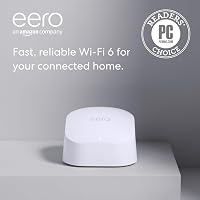
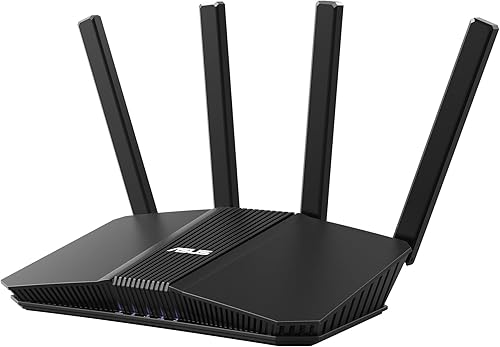
The eero 6 (1-pack) offers an expandable WiFi 6 path, while the ASUS RT-BE58U and Netgear Nighthawk RS100 offer dual-band WiFi 7. Each suits a different upgrade job.

WiFi 6 vs WiFi 7: which should you choose?
Choose WiFi 6 for needs it already handles and WiFi 7 for newer device support or router features you will use. Neither generation fixes every network problem.
Streaming, video calls and browsing don't require the newest WiFi standard by themselves. A household doing those things comfortably has little reason to replace a working router solely for a newer label.
WiFi 7 becomes more useful when a compatible laptop or phone needs a better wireless connection, or when you're replacing an aging router anyway. You can then choose newer hardware without building the decision around a promised speed increase.
Separate weak signal from limited speed. A connection that works near the router but fails upstairs points toward a coverage problem, while slow service everywhere calls for checking the internet connection first.
WiFi 6 vs WiFi 7 for your next device upgrade
Check your main devices before choosing the router. Look up the exact phone or computer model's WiFi support rather than assuming a recent device includes WiFi 7.
If most of your devices will stay on WiFi 6 for several more years, buy for today's coverage and controls. If a new WiFi 7 computer is already part of your plan, the router upgrade has a clearer purpose.
For a closer look at that tradeoff, read whether a WiFi 7 router is worth it. If you're replacing your router now, compare the options in our WiFi 7 router guide.
What changes when you move from WiFi 6 to WiFi 7?
WiFi 7 adds capabilities such as multi-link operation, but the router and client device must support the features you want. The generation name alone doesn't describe the whole connection.
Multi-link operation, or MLO, lets compatible equipment use multiple wireless links. ASUS includes it on the RT-BE58U and says it supports stable connections and efficient data transfers.
That differs from simply having several bands available. With an ordinary connection, your device generally uses one band at a time; MLO provides another way for compatible equipment to communicate.
Don't assume every WiFi 7 router includes every feature associated with the standard. The ASUS and NETGEAR models here are dual-band designs using 2.4 GHz and 5 GHz, without a separate 6 GHz band.
Older smart plugs, televisions and phones won't gain new wireless capabilities from a router swap. Backward compatibility lets them remain useful, but it doesn't change the radio inside each device.
Will WiFi 7 make your internet faster?
WiFi 7 can remove a wireless bottleneck, but your internet plan still limits internet speed. Faster WiFi also serves a different purpose from faster service coming into your home.
The eero 6 supports plans up to 900 Mbps. ASUS and NETGEAR each advertise combined wireless speeds up to 3.6 Gbps for their routers here, which isn't a promise that one device will receive that rate.
Combined-band figures add capacity across bands rather than describing a single download. Don't compare them directly with your internet plan and expect the same number on a laptop.
Local transfers are different because they don't have to pass through your internet provider. Moving files between devices at home depends on the network path, including each device's wireless connection or Ethernet port.
Which ports matter for a faster plan?
Check every wired link in the path, starting with your modem or gateway. A fast router can't overcome a slower port between it and the internet connection.
The RS100 has a 2.5 Gig WAN port and four 1 Gig LAN ports. That supports a faster incoming connection, but a computer attached to one of those LAN ports still has that port's limit.
The ASUS has one 2.5G port and four 1G ports. Don't assume one faster port gives you both a multi-gig internet input and a separate multi-gig wired connection to a computer.
If faster wired transfers are your main goal, sketch the connections before buying. Include any switches, storage devices and adapters so you can identify the slowest link.
Which is better for a large home or dead zones?
Coverage depends on layout and placement, so choose the network shape before the WiFi generation. Several floors or rooms behind thick walls may need more than one access point.
Eero rates this single unit for up to 1,500 sq. ft. ASUS gives a coverage figure of 2,000 sq. ft., while NETGEAR specifies up to 2,000 sq. ft. in open layouts.
Those areas aren't guaranteed footprints in your home. A long hallway, masonry wall or router placed at one end of the building can leave rooms poorly served despite matching the advertised area.
Start by moving the router into an open, raised position closer to where you use WiFi. Avoid floor-level corners, enclosed cabinets and locations behind large appliances.
If dead zones remain, learn how mesh WiFi systems cover a home and how to choose a mesh WiFi system. You can also compare mesh WiFi and extenders for dead zones.
Place a mesh node where it can still receive a useful connection, rather than in the room where the signal has already vanished. Our guide to distance between mesh WiFi nodes explains that placement decision.
Which router fits your household?
Choose eero for expansion, ASUS for network controls, or NETGEAR for a guided router replacement. The differences below give each model a reason to be on your shortlist.
eero 6: for a home that may need more coverage later
The eero 6 suits households that want a manageable WiFi 6 network with room to expand. Compatible eero hardware can extend the system as your home or coverage needs change.
It supports 75+ connected devices and includes a Zigbee hub for compatible smart home devices with Alexa. That hub is useful if it matches your devices, rather than being a reason to replace smart home equipment that already works.
The eero app guides setup and lets you manage the network remotely. Automatic updates also reduce the need to remember routine firmware maintenance.
Skip this model if your planned upgrade specifically requires WiFi 7 features or service beyond its supported plan range. Also remember that the 1-pack is one router, so expansion requires additional hardware.
ASUS RT-BE58U: for separate networks and backup connection options
The ASUS suits households that want more control over how devices connect. Smart Home Master supports up to 3 SSIDs, letting you organize separate network names for different uses.
That can help when you want a dedicated smart home network or convenient VPN connections. Think through which devices need to communicate before separating them, especially phones that control local smart home equipment.
Dual-WAN options, AI WAN detection and USB support for mobile tethering add flexibility. A backup connection still requires a suitable mobile device or connection and service, so plan that part alongside the router.
AiProtection Pro and parental controls are included. Skip this router if you mainly want wider coverage from one box, or if you specifically need a WiFi 7 model with 6 GHz.
Netgear Nighthawk RS100: for replacing a standalone router
The RS100 suits a household replacing its main router while keeping an existing modem or gateway. Setup is available through the Nighthawk app or a web browser.
The app handles guest networks, device pauses and remote management. NETGEAR rates the router for up to 50 connected devices, so count smart home equipment as well as the phones and computers you use directly.
Automatic firmware updates and Advanced Router Protection are included. NETGEAR Armor is a separate service that requires a subscription after its 30-day trial, so distinguish that extra from the router's included protection.
Skip it if you need a modem built into the same box, expect one router to cover a difficult multi-story layout, or live outside the US. This model is made for US use only.
How should you set up a replacement router?
Plan the handoff from your existing equipment before disconnecting it. Keep your provider's connection details and the new router's setup instructions available on your phone.
First, identify whether your current box is a modem, a router or a combined gateway. Our explanation of routers and modems helps you work out which job the new device will take over.
Some provider gateways need bridge mode when a separate router takes over routing. Alternatively, some setups use access point mode on the added equipment; follow the instructions for your exact hardware and provider.
Avoid leaving two devices routing by accident. This can create double NAT, which may complicate online gaming, incoming connections and remote access even when ordinary browsing works.
Use a strong administrator password and complete available firmware updates during setup. Keep remote administration disabled unless you need it, and protect any account used to manage the network.
Reusing your old WiFi name and password can help devices reconnect. If old smart home devices struggle, check their supported security settings rather than weakening protection across the whole network without investigating.
Check the connection near the router and in the rooms you use most. Try a wired device too, so you can separate an internet service issue from a wireless coverage issue.
What mistakes should you avoid after upgrading?
Judge the upgrade by the problem it solves, rather than one speed result. A useful comparison checks the same device, location and task before and after the change.
Don't confuse connected-device capacity with full-speed use by every device at once. An idle thermostat and a computer moving large files place very different demands on the network.
For gaming and calls, a stable connection matters alongside download speed. Try Ethernet for a nearby desk or console before assuming a new wireless generation is the only useful change.
Don't place the replacement router in the same poor location and expect the standard to overcome walls. If the provider cable enters a corner room, consider whether a longer Ethernet run would allow better router placement.
Keep ventilation openings clear and remove surface dust without spraying liquid into the case. Leave automatic updates enabled where available, or check firmware periodically if you manage updates yourself.
Review guest access and connected devices from time to time. Remove access you no longer need, and keep your network credentials somewhere secure so routine changes don't become a household outage.
WiFi 6 vs WiFi 7: what is the final choice?
Keep WiFi 6 if you can't name a current shortfall. In the WiFi 6 vs WiFi 7 decision, a clear need should come before a newer label.
Choose eero 6 when expandable coverage and simple management fit your plans. Choose ASUS when separate networks, MLO or flexible WAN options are the reason for replacing your router.
Choose the RS100 when you want a standalone WiFi 7 replacement with guided setup and a dedicated faster WAN connection. If distant rooms are the problem, settle the coverage plan before choosing any of these models.
Use our guide to WiFi routers for large homes if your next decision is about layout. These related guides address the other upgrade paths:
Frequently asked questions
Is WiFi 7 much faster than WiFi 6?
WiFi 7 can provide faster wireless connections, but your device, router and internet plan determine the benefit; advertised combined-band speeds aren't the speed one laptop will receive. Compare the connection your device supports and the router's wired ports before expecting a large improvement from a newer WiFi label.
Will WiFi 7 work with WiFi 6 devices?
Yes, WiFi 6 devices can connect to a backward-compatible WiFi 7 router, including the Netgear Nighthawk RS100; they continue using their own supported standard rather than gaining WiFi 7 features. You can replace devices gradually, but both ends of a wireless connection must support any newer feature you want.
Should I replace a WiFi 6 router that works well?
Keep a WiFi 6 router when it covers your home and handles your daily use without a clear shortfall; upgrade when you need compatible WiFi 7 features, faster ports or different network controls. If only one distant room has trouble, address placement and coverage before replacing the whole network.
Does a WiFi 7 router improve coverage?
A WiFi 7 router doesn't automatically cover more of your home than a WiFi 6 router; placement, walls, floors and interference still affect the signal. Compare the actual router and your floor plan, then consider mesh if several rooms need coverage beyond what one well-placed unit can provide.
Do all devices need WiFi 7 for a WiFi 7 router to help?
No, you can keep older devices while adding WiFi 7 devices to a backward-compatible network; the newer devices can use supported features, while older ones retain their own limits. A router replacement may also help through better placement, suitable wired ports or useful controls, independently of the WiFi generation.