5 Best WiFi Routers for Large Homes (October 2026)
The best WiFi routers for large homes include the ASUS RT-BE9700 WiFi 7 Router for backup internet users, the ASUS RT-BE88U WiFi 7 Router for wired home offices, and the Netgear Nighthawk RS500 for app-guided households.
On this page (7 sections)
- Which is the best WiFi router for a large home?
- How we compared these large-home routers
- What matters most when choosing a router for a large house?
- How should you set up a router in a large home?
- How do you keep a large-home network working well?
- Which buying mistakes should you avoid?
- Which router should you buy for your large home?
The ASUS RT-BE9700 is our pick for the best WiFi router for a large home when you want tri-band wireless, backup internet options and a path to expand coverage. Choose the ASUS RT-BE88U for a wired home office or the Netgear Nighthawk RS700S for demanding multi-gig connections.
Start with where the router can sit. A central location in an open floor plan gives one unit a better chance than a utility closet at the far end of a brick house.
If you already know one router leaves dead zones, compare our best mesh WiFi systems for large homes. For a broader explanation of nodes, wired connections and coverage, read the complete home guide to mesh WiFi systems.
Our picks at a glance
-
1
-
2

-
3
Which is the best WiFi router for a large home?
The RT-BE9700 is the starting choice, but wired equipment, network controls and your floor plan can point to another model. Each router below fits a different household need, so choose around the problem you want to solve.
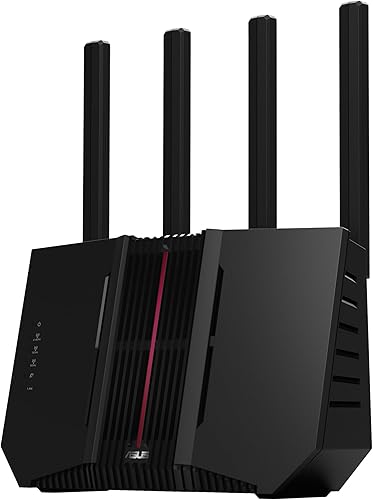
ASUS RT-BE9700 WiFi 7 Router
- Tri-band WiFi 7
- Up to 9.7 Gbps combined wireless speed
- AI WAN detection
- USB mobile tethering
A flexible starting point for a large-home network, with mobile tethering for a backup connection and AiMesh for adding coverage later.
Pros
- Includes 6 GHz WiFi
- USB tethering supports a mobile backup connection
- Subscription-free network security
- AiMesh expansion
Cons
- Coverage claims vary between 2,500 and 2,750 sq. ft.
- One router location may leave distant rooms underserved
Choose the RT-BE9700 if you want to start with one router while keeping a clear expansion route. AiMesh lets you add compatible ASUS routers rather than replace the whole setup when a distant room needs its own access point.
Its tri-band design includes 6 GHz, with ASUS advertising combined wireless speeds up to 9.7 Gbps. That figure describes capacity across bands, rather than the download speed one phone should receive.
The useful extra for remote work is backup connection flexibility. AI WAN detection and USB tethering support for 4G LTE and 5G give you options when your main internet connection fails.
You'll still need a suitable mobile device, service and data allowance. A backup connection also needs power, so tethering alone won't keep your network running during an outage.
Skip this router if you need several demanding wired connections more than wireless flexibility. Also plan beyond one unit if the only available router location is separated from busy rooms by dense walls or several floors.
ASUS RT-BE88U WiFi 7 Router
- Dual-band WiFi 7
- Up to 7.2 Gbps combined wireless speed
- 10G SFP+ and 10G WAN/LAN ports
- Guest Network Pro
Choose this router when desktops, storage and other wired equipment drive the purchase. Its 10G connections matter more here than a third wireless band.
Pros
- 10G SFP+ and 10G Ethernet connections
- Additional 2.5G and gigabit ports
- Guest Network Pro supports up to 5 SSIDs
- AiMesh expansion
Cons
- No 6 GHz band
- SFP+ requires a matching connection or compatible module
Choose the RT-BE88U when your home network centers on wired computers and storage. A desk with a workstation, network storage and a wired connection to another room is a better match than a household shopping mainly for 6 GHz wireless.
It combines a 10G SFP+ port with a 10G Ethernet WAN/LAN port, plus additional 2.5G and gigabit connections. Check which connection your equipment accepts, because SFP+ and a normal Ethernet socket are different.
Fast local transfers can benefit even without a fast internet plan. Moving files between a computer and network storage happens within your home, provided both ends and the connecting path support the required speed.
Guest Network Pro supports up to 5 SSIDs, giving you room to organize device groups. AiMesh also keeps compatible ASUS expansion available.
Skip it if your main goal is access to the 6 GHz band, since this is the dual-band option here. Our best ASUS routers guide can help if you're choosing within ASUS around a different mix of wireless and wired needs.
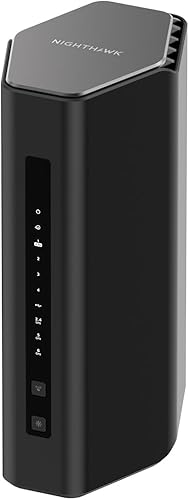
Netgear Nighthawk RS500
- Tri-band WiFi 7
- Up to 12 Gbps combined wireless speed
- Capacity for up to 120 devices
- Nighthawk app setup
A fit for households that want guided setup, device pauses and guest network controls, with 2.5G connections for compatible internet and wired equipment.
Pros
- Nighthawk app provides guided setup
- 2.5G WAN and 2.5G LAN ports
- Automatic firmware updates
Cons
- Requires a separate modem or gateway
- NETGEAR Armor requires a subscription after its 30-day trial
- Difficult layouts may need a separate mesh system
Choose the RS500 if you want guided setup and everyday app controls for a home that can work from one router location. The Nighthawk app guides installation and provides guest networks, device pauses and connection checks.
The tri-band router includes 6 GHz, with NETGEAR advertising up to 12 Gbps across its bands and capacity for up to 120 connected devices. Connected-device capacity is not a promise that every device can run a demanding task at once.
Its 2.5G WAN and LAN ports suit a compatible multi-gig internet connection and one faster wired endpoint. Three gigabit LAN ports can handle other wired equipment without using that faster connection.
Automatic firmware updates are useful for households that want less routine maintenance. The app needs active internet for setup and management as described by NETGEAR.
Skip it if your plan requires faster wired connections or your layout already points to multiple access points. Also separate included security features from NETGEAR Armor: Armor has a 30-day trial, followed by a separate subscription if you continue.
Netgear Nighthawk RS700S

- Tri-band WiFi 7
- Up to 19 Gbps combined wireless speed
- Capacity for up to 200 devices
- 10G WAN and 10G LAN
The most suitable choice here for a busy household pairing a fast fiber plan with a demanding wired connection, provided one central router can serve the layout.
Pros
- Largest stated coverage in this group
- Separate 10G WAN and LAN ports
- Automatic firmware updates
Cons
- Requires a separate modem or gateway
- NETGEAR Armor requires a subscription after its 30-day trial
- Coverage still depends on walls, floors and placement
Choose the RS700S for a busy household with fast fiber and demanding wired equipment. Separate 10G WAN and LAN ports give it a clear role when both the incoming connection and a local device can use that capacity.
NETGEAR advertises up to 19 Gbps across its 3 wireless bands and capacity for up to 200 devices. That headroom is most relevant when several people use the network heavily, rather than simply keeping phones and smart plugs connected.
Its up-to-3,500-sq.-ft. coverage claim is the largest here. NETGEAR also cautions that walls, floors and interference reduce range, so the bigger figure shouldn't override an awkward floor plan.
The Nighthawk app provides guided setup, and automatic firmware updates handle an important maintenance task. As with the RS500, continued NETGEAR Armor protection requires a subscription after the trial.
Skip the RS700S if ordinary browsing and a few streams are your main uses. If weak signal is confined to a distant wing, putting an access point closer to that wing is a more direct solution than buying around headline wireless speed.
ASUS RT-BE92U WiFi 7 Router

- Tri-band WiFi 7 with 6 GHz
- Smart Home Master
- AiMesh support
- Subscription-free network security
Smart Home Master makes this a useful choice for organizing connected home devices, family access and VPN connections, with AiMesh available for expansion.
Pros
- Smart Home Master supports up to 3 SSIDs
- Includes 6 GHz WiFi
- Subscription-free AiProtection Pro
- USB mobile tethering
Cons
- Coverage claims vary between 2,500 and 2,750 sq. ft.
- Separate networks require care with device discovery and sharing
Choose the RT-BE92U if organizing smart home devices is the main reason for replacing your router. Smart Home Master supports up to 3 SSIDs for uses such as IoT access, VPN connections and parental controls.
That can help you build a clearer network plan before adding more cameras, speakers or connected appliances. Decide which devices need to communicate with each other before separating them into groups.
A phone may need access to a speaker or printer on another network. Network separation can change that behavior, so move devices in small groups and check their everyday functions afterward.
The router includes tri-band WiFi with 6 GHz, multi-link operation, USB mobile tethering and subscription-free AiProtection Pro. AiMesh provides an expansion route if one location cannot reach the whole house.
Skip it if you want all equipment on one uncomplicated network and won't use these controls. Choose the RT-BE88U instead when the main challenge is connecting demanding wired equipment, or plan multiple access points when distant-room coverage is the priority.
How we compared these large-home routers
We compared coverage claims, connection options, network controls and expansion paths, keeping the products in their site-wide score order. A higher wireless speed alone does not make a router the best choice for every large house.
Coverage deserves extra care here. ASUS gives figures ranging from 2,500 to 2,750 sq. ft. for both the RT-BE9700 and RT-BE92U, while the RT-BE88U and RS500 have up-to-3,000-sq.-ft. claims.
Use those numbers to narrow the field, then judge your actual layout. None shows how a router will reach through your particular walls.
For a second access point or mesh setup, read how far apart mesh WiFi nodes should be. Our mesh WiFi vs extender guide explains the alternatives when one router leaves weak spots.
| Product | Best for | WiFi bands | Stated coverage | Network expansion | Our score |
|---|---|---|---|---|---|
| ASUS RT-BE9700 WiFi 7 Router | backup internet users | Tri-band, including 6 GHz | ASUS claims range from 2,500 to 2,750 sq. ft. | AiMesh support | 8.0 |
| ASUS RT-BE88U WiFi 7 Router | wired home offices | Dual-band | Up to 3,000 sq. ft. | AiMesh support | 7.8 |
| Netgear Nighthawk RS500 | app-guided households | Tri-band, including 6 GHz | Up to 3,000 sq. ft. | Standalone router; consider a separate mesh system for wider coverage | 7.6 |
| Netgear Nighthawk RS700S | busy fiber households | Tri-band, including 6 GHz | Up to 3,500 sq. ft. | Standalone router; consider a separate mesh system for wider coverage | 7.5 |
| ASUS RT-BE92U WiFi 7 Router | smart home organization | Tri-band, including 6 GHz | ASUS claims range from 2,500 to 2,750 sq. ft. | AiMesh support | 7.4 |
What matters most when choosing a router for a large house?
Choose around layout first, active use second and connection speeds third. This order helps you avoid buying more wireless capacity while leaving the original coverage problem unresolved.
How much coverage does the best large-home WiFi router need?
It needs to reach your important rooms with useful signal, rather than merely match your total square footage. Sketch the floor plan and mark your office, main TV, bedrooms and any outdoor area where you regularly connect.
Then mark where the internet cable enters the house. If that point is near an outside wall, consider whether an Ethernet cable could let you place the router closer to the center.
Pay attention to the path between rooms. A shorter route through concrete or masonry can be harder for WiFi than a longer route through open space.
Include upper floors and distant additions in the sketch. A narrow house spread across several levels presents a different problem from a broad, open single-story home of the same size.
When is mesh the better starting point?
Start with mesh when several important rooms need WiFi from different locations. Existing dead zones across floors, a long wing or a detached work area are reasons to plan multiple access points.
If your connection is good beside the router but weak in those rooms, coverage is the first issue to address. If it is poor everywhere, check the internet connection and gateway before assuming extra nodes will help.
Our guide to whether you need mesh WiFi helps you sort out that choice. Compare mesh systems for large homes when the floor plan already rules out a practical single-router location.
What do WiFi bands and advertised speeds actually change?
Extra bands add connection options and capacity, while advertised combined speeds describe the router's broader wireless capability. Neither tells you the speed one device will receive in a distant bedroom.
The 6 GHz band can be useful for compatible devices close enough to maintain a good connection. It generally passes through obstacles less effectively than lower-frequency bands, so it shouldn't be your main reason for expecting more range.
Multi-link operation can let compatible equipment use multiple bands. Both the router and client need suitable support, and the benefit depends on their implementation and connection conditions.
Keep your current device mix in mind. If most equipment uses older WiFi, placement and wired connections may bring more immediate value than features those devices cannot use.
Which wired connections are worth planning for?
Match ports to the full connection path, including your internet equipment, computers, storage and any network switch. A fast router port cannot make a slower device connection run faster.
WAN is the incoming connection from your internet equipment; LAN serves your local wired devices. For fast internet on a wired computer, both sides of that route need enough capacity.
Count endpoints before you buy, including wired access points you may add later. An Ethernet switch can add connections, but its link back to the router and its own port speeds also matter.
For gaming desks, work computers and fixed TVs, Ethernet can reduce reliance on wireless airtime. That leaves more wireless capacity available to phones, tablets and other devices that move around.
Can you expand without replacing everything?
The ASUS models offer AiMesh expansion with compatible ASUS routers. Check compatibility and decide how the added unit will connect before you buy it.
An Ethernet connection between access points can avoid using a wireless link for that connection. Where cabling is practical, plan the route while deciding where the extra unit should sit.
Treat the Nighthawk models here as standalone-router choices. NETGEAR points buyers toward Orbi for larger or multi-story homes; don't assume an Orbi satellite can simply become an extension of either Nighthawk.
Our guide to choosing a mesh WiFi system covers the decisions that matter when moving to a multi-unit network.
How should you set up a router in a large home?
Place the router carefully before changing advanced settings. A good location and a clean connection to your internet equipment give you a useful starting point for checking coverage.
Confirm what stays connected to your internet service
Keep the modem or other required internet equipment unless your provider confirms you can remove it. A standalone router does not replace a cable modem or fiber termination device.
Both Nighthawk models require a separate modem or gateway with Ethernet. Our explanation of whether a router is the same as a modem helps identify which box does which job.
If your provider supplies a combined modem and router, check its supported setup options. Bridge mode may let the new router manage the network without a second routing layer.
Change one part at a time and keep the provider's connection details available. This makes it easier to identify whether a problem starts with the service, gateway or new router.
Put the router near the rooms that matter
Use an open, raised location with room for airflow. Avoid closed cabinets, metal enclosures, crowded equipment shelves and spots directly behind a large TV.
Move the router toward the center of regular use where possible. A neat location beside the incoming cable is a poor trade if it leaves the home office behind several walls.
Keep power and Ethernet cables secure without blocking ventilation. Follow the manufacturer's orientation and mounting directions rather than improvising a position that traps heat.
Secure the network and reconnect devices in stages
Use a strong admin password and a separate strong WiFi password. Apply available firmware updates during setup, then review automatic update settings.
Start with a phone or laptop, followed by work equipment and entertainment devices. Add smart home devices after the main network behaves as expected.
Reusing an old network name and password can ease reconnection, but it can also bring back every device that knows those details. Use new credentials if you want a clean start.
Choose a security mode compatible with your equipment. If an older device won't connect, check its supported settings before weakening security across the whole network.
Check real tasks in the rooms you use
Check video calls at your desk, streaming at the TV and ordinary browsing in the far bedrooms. A connection measurement beside the router won't show whether those locations have enough signal.
Compare the same device in different rooms to keep the comparison useful. If wired performance is good but one room struggles, focus on placement or another access point.
For a wireless expansion node, choose a place where it still receives a good upstream connection. Putting it inside the dead zone gives it the same connection problem you're trying to solve.
How do you keep a large-home network working well?
Keep airflow clear, updates current and network changes simple. Routine care should make problems easier to spot without turning the router into a weekly project.
Check that vents stay free of dust and that nothing has been stacked against the router. Follow its cleaning instructions and keep liquids away from the equipment.
Review connected devices occasionally and remove access you no longer need. Guest access is useful for visitors because you can change it without reconnecting the household's main devices.
Save your configuration after meaningful changes if the router provides a backup option. Keep a short note of the router location, cable connections and any separate network names.
If slowdowns return, note whether they affect one room, one device or the whole home. That distinction helps you choose between moving equipment, checking a device and contacting the internet provider.
For mobile backup, check the connection before an important workday and understand your plan's data limits. Tethering can keep basic work going, but mobile coverage and service capacity still set its limits.
Which buying mistakes should you avoid?
Avoid paying for a feature that doesn't address your actual bottleneck. Large homes can have coverage, capacity and service problems at the same time, but each needs a different response.
Choosing only by the largest speed number
Combined wireless speed isn't your internet speed or a single device's download speed. Buy enough capacity for your active devices, then give equal attention to location and wired connections.
A faster internet plan also won't repair a weak signal in a back bedroom. First check whether that room improves when you move closer to the router.
Treating device capacity as equal usage
A connected thermostat places very different demands on a network from a computer moving large files. Count the household's simultaneous calls, streams and transfers, rather than just its total connected gadgets.
The number of devices is useful context, but it isn't a substitute for a usage plan. Wire demanding fixed equipment where practical.
Buying expansion equipment without a connection plan
Decide how each extra access point will reach the main router before ordering it. A wireless link needs a suitable location, while Ethernet needs a workable cable route.
Also confirm that the exact models support your intended arrangement. Matching brand names alone does not establish compatibility.
Overlooking optional services and network controls
Separate the functions included with a router from optional subscriptions. For the Nighthawks here, Armor is a separate ongoing service after its trial; included security features and firmware updates are distinct.
Avoid creating extra SSIDs just because the controls allow it. Each network should have a clear purpose, especially when printers, speakers and phones need to communicate.
Which router should you buy for your large home?
The best WiFi router for a large home is the one whose connections and placement solve your household's main problem. Make the final choice with a short plan for where it will sit and what you'll connect.
- Choose the ASUS RT-BE9700 for a flexible starting network, mobile backup options and compatible expansion later.
- Choose the ASUS RT-BE88U when wired workstations and local storage drive the decision.
- Choose the Netgear Nighthawk RS500 for guided app setup and a network built around 2.5G connections.
- Choose the Netgear Nighthawk RS700S when fast fiber and demanding wired equipment justify its connection capacity.
- Choose the ASUS RT-BE92U when organizing smart home access is a priority.
Before ordering, mark the router location and the hardest room to reach. If no practical location serves both ends of the house, compare the best mesh WiFi systems for large homes and plan coverage from more than one point.
Our top 3 picks at a glance
-
1
-
2
-
3
Frequently asked questions
Can one WiFi router cover a large home?
Yes, one router can cover a large home with a suitable layout and a central location; square footage alone is not enough to decide: dense walls, floors and long wings can block useful coverage. Check the rooms where you need reliable connections before committing to a single-router setup.
Is a mesh system better than one router for a large home?
A mesh system is usually the better starting point when weak signal affects several floors or distant rooms; multiple access points put WiFi closer to those spaces. Compare our large-home mesh WiFi picks if your current router works nearby but struggles across the house.
Should I choose a tri-band router for a large home?
Choose tri-band when you have compatible devices that can use the extra band and enough signal where those devices sit. It adds wireless capacity, but it does not guarantee wider coverage; a dual-band router with suitable wired connections can be the better fit for an Ethernet-heavy household.
Do WiFi 7 routers work with older devices?
Yes, WiFi 7 supports connections from older WiFi generations, though those devices retain their own limits; NETGEAR explicitly includes WiFi 6 and earlier compatibility for both Nighthawk models here. Keep older equipment if it meets your needs, and focus your upgrade on coverage, connection capacity and useful wired ports.