7 Best WiFi 7 Routers (October 2026)
The best WiFi 7 routers include the Netgear Nighthawk BE9300 WiFi 7 Router for mixed-device households, the ASUS RT-BE58U WiFi 7 Router for backup internet, and the ASUS RT-BE9700 WiFi 7 Router for future mesh expansion.
On this page (6 sections)
The best WiFi 7 router for most homes is the Netgear Nighthawk BE9300 WiFi 7 Router because it balances a 6 GHz band with useful wired connections. Choose a different model when your main need is backup internet, fast local storage or coverage that requires several access points.
Buy for the devices and rooms you use now, with room for a planned upgrade. A larger speed number won't fix a router trapped in a cabinet or a laptop with an older wireless adapter.
Our guide on whether a WiFi 7 router is worth it helps you decide whether replacement makes sense. Compare WiFi 6 vs WiFi 7 if your current network already covers the house well.
Our picks at a glance
-
1
 Best for mixed-device households
Netgear Nighthawk BE9300 WiFi 7 Router
8.4/10 our score
See it on Amazon -
2
-
3
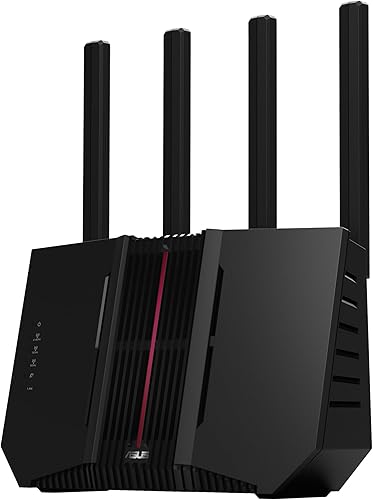
Which WiFi 7 router is best for each setup?
The BE9300 is the strongest general-purpose choice, while the other picks address more specific needs. Choose by the connection you need to improve, rather than assuming every household needs the highest advertised wireless rate.
Netgear Nighthawk BE9300 WiFi 7 Router
- Tri-band WiFi 7
- Up to 9.3 Gbps
- Up to 2,500 sq. ft.
- Up to 100 devices
A balanced choice for a household with newer wireless devices and fast wired equipment. Two multi-gig LAN connections leave room for both a desktop and network storage.
Pros
- 6 GHz band for compatible devices
- Two 2.5 Gig LAN ports
- Nighthawk app setup and guest networks
Cons
- No 10G wired connection
- One router may not reach across several floors
The BE9300 suits a household that divides its network between newer phones, laptops and wired equipment. Its tri-band design includes 6 GHz, and Netgear advertises up to 9.3 Gbps combined wireless capacity.
The useful distinction is its two 2.5 Gig LAN ports, alongside a matching-speed WAN connection and two ordinary Gigabit LAN ports. You could connect a multi-gig desktop and compatible network storage without making either share a single multi-gig router port.
That makes it a better fit than a basic dual-band model when local file transfers matter alongside internet access. Connecting stationary equipment by cable also leaves wireless airtime available for portable devices.
Netgear claims coverage up to 2,500 sq. ft. and support for up to 100 devices. Choose it for a reasonably central location, rather than expecting that figure to cover a long house from one end.
Skip it if your main requirement is 10G wiring or coverage across separated floors. For a larger space, compare the best WiFi routers for large homes before settling on one unit.
ASUS RT-BE58U WiFi 7 Router
- Dual-band WiFi 7
- Up to 3.6 Gbps
- Multi-link operation
- USB tethering support
Choose this ASUS model for USB mobile tethering and separate networks for different household needs. It suits buyers who value connection options more than a third wireless band.
Pros
- USB tethering for 4G LTE or 5G
- Smart Home Master supports up to three SSIDs
- AiProtection Pro and VPN support
Cons
- No 6 GHz band
- Only one multi-gig Ethernet port
The RT-BE58U is the practical choice when you want another route to the internet during a fixed-line outage. Its USB port supports 4G LTE or 5G mobile tethering, alongside AI WAN detection and flexible WAN options.
Before relying on that feature, check your phone or mobile equipment's tethering support and your carrier's data allowance. Mobile service also needs a usable signal where the router sits.
Its dual-band wireless design has a combined advertised rate up to 3.6 Gbps. That suits buyers who want WiFi 7 features but don't need a separate 6 GHz band.
Smart Home Master supports up to three network names, also called SSIDs, for needs such as IoT devices, VPN access and parental controls. This is useful when household devices need different access rules.
Choose it for connection flexibility and household network management. Skip it if you need simultaneous multi-gig Ethernet connections on both sides of the router, since it has only one 2.5G port.
For other models with different port layouts, see our guide to the best ASUS routers.
ASUS RT-BE9700 WiFi 7 Router
- Tri-band WiFi 7
- Up to 9.7 Gbps
- 320 MHz channels in 6 GHz
- AiMesh support
A tri-band choice for buyers who want to start with one router and retain an AiMesh expansion path. It also includes mobile tethering, VPN tools and subscription-free network security.
Pros
- 6 GHz band with 320 MHz channels
- Four 2.5G ports
- Subscription-free network security
Cons
- No 10G connection
- AiMesh expansion requires additional compatible equipment
The RT-BE9700 suits buyers who want 6 GHz now and an AiMesh expansion path later. Start with one router if your layout permits, then add compatible ASUS equipment if a distant room needs another access point.
Its wireless features include 320 MHz channels in the 6 GHz band, multi-link operation and an advertised combined rate up to 9.7 Gbps. Compatible client hardware is needed to use those features.
Four 2.5G ports make this a candidate for a network with several multi-gig connections. Map which port will serve the internet connection before counting how many remain for local devices.
It also supports USB mobile tethering, site-to-site VPN and Instant Guard for access over public WiFi. Subscription-free network security is another reason to consider it when you want those functions together.
Choose it if you expect to manage an ASUS network as your home or needs change. Skip it if you want a ready-planned multi-node package from the outset.
For that situation, compare a dedicated mesh WiFi system before buying separate routers.
ASUS RT-BE88U WiFi 7 Router

- Dual-band WiFi 7
- 10G SFP+ port
- 10G WAN/LAN port
- AiMesh compatible
The wired-network specialist for fast storage, desktops and compatible switches. Its Ethernet options matter more than its wireless speed headline.
Pros
- Two different 10G connection types
- Four 2.5G ports
- Guest Network Pro supports up to five SSIDs
Cons
- No 6 GHz band
- SFP+ connections need suitable cables or modules
The RT-BE88U is the specialist choice for fast wired storage and workstations. Its connections include a 10G SFP+ port, a 10G WAN/LAN port, four 2.5G ports and four Gigabit ports.
Those connections matter when moving large files between local devices, even if your internet plan is much slower. A fast storage server and desktop can benefit from local network capacity without involving your provider.
Check the connection type carefully before buying cables. SFP+ is different from a standard Ethernet socket, and the right cable or module depends on the equipment at both ends.
Wireless service is dual-band, with an advertised combined rate up to 7.2 Gbps. ASUS claims coverage up to 3,000 sq. ft., but this model's clearest advantage is its wired layout.
Guest Network Pro supports up to five SSIDs, and AiMesh gives you an expansion option. These features suit buyers willing to plan several network roles.
Skip it if your devices connect mainly over WiFi and your priority is 6 GHz access. Its wired capacity offers little benefit when the rest of your equipment cannot use it.
Netgear Nighthawk RS500
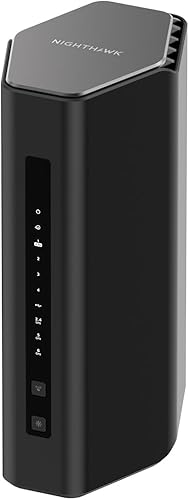
- Tri-band WiFi 7
- Up to 12 Gbps
- Up to 3,000 sq. ft.
- Up to 120 devices
A candidate for a busy household with many wireless devices and a central router location. Its higher stated device capacity comes with fewer multi-gig LAN connections than the BE9300.
Pros
- Supports up to 120 devices
- 6 GHz band
- Automatic firmware updates
Cons
- Only one multi-gig LAN port
- NETGEAR Armor requires a subscription after its trial
The RS500 is worth considering for a busy household with many wireless clients. Netgear claims support for up to 120 devices and coverage up to 3,000 sq. ft.
Its tri-band design has an advertised combined wireless rate up to 12 Gbps. That gives it a different emphasis from the BE9300: higher stated wireless capacity, but only one multi-gig LAN connection.
The wired layout includes a 2.5 Gig WAN port, one 2.5 Gig LAN port and three Gigabit LAN ports. Choose it when most demanding devices use WiFi and only one wired device needs a faster local connection.
MU-MIMO and OFDMA help manage wireless traffic, but device count alone doesn't describe the load. Several active video calls and downloads ask more of a network than many idle smart plugs.
Skip this model if your main problem is a weak signal behind several floors or dense walls. Higher capacity at the router doesn't remove those obstacles.
For that layout, see our guide to mesh WiFi systems for large homes.
Netgear Nighthawk RS150
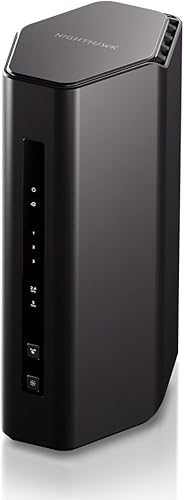
- Dual-band WiFi 7
- Up to 5 Gbps
- Up to 2,250 sq. ft.
- Up to 80 devices
A middle-ground option for streaming, calls and smart devices without a need for 6 GHz. Check its wired limits before pairing it with a multi-gig desktop.
Pros
- Higher stated device capacity than RS100
- 2.5 Gig WAN port
- App controls for guest access and device pausing
Cons
- No 6 GHz band
- All LAN ports are limited to 1 Gig
The RS150 suits a family that needs ordinary streaming, calls and smart-home access without a third wireless band. Netgear claims support for up to 80 devices, coverage up to 2,250 sq. ft. and a combined wireless rate up to 5 Gbps.
Its 2.5 Gig WAN connection can accept a compatible multi-gig internet service. The three LAN connections are Gigabit, so an individual wired computer won't receive multi-gig throughput through those ports.
That distinction matters if your upgrade is driven by a faster internet plan. A router can accept more bandwidth than a single wired client connection can carry.
The Nighthawk app supports guided setup, device pausing and guest networks. It fits a household that wants those controls without a need for 6 GHz-capable phones or laptops.
Choose it when its capacity matches your expected device count and your wired devices are content with Gigabit connections. Skip it for a multi-gig workstation or a planned 6 GHz upgrade.
If coverage is the concern, our guide to mesh WiFi vs extenders explains the expansion choices.
Netgear Nighthawk RS100

- Dual-band WiFi 7
- Up to 3.6 Gbps
- Up to 2,000 sq. ft.
- Up to 50 devices
A straightforward replacement router for a smaller US household with ordinary wired devices. It offers app or browser setup without adding a third wireless band.
Pros
- Four 1 Gig LAN ports
- App or browser setup
- Works with WiFi 6 and earlier devices
Cons
- No multi-gig LAN connection
- Made for use in the US only
The RS100 is a straightforward replacement for a smaller US household with a modest device load. Netgear claims coverage up to 2,000 sq. ft. in open layouts and support for up to 50 devices.
Its dual-band design has an advertised combined wireless rate up to 3.6 Gbps. Four Gigabit LAN ports make it useful when a TV, console and desktop sit close enough for cables.
The WAN port supports 2.5 Gig connections, but the LAN ports don't provide multi-gig speeds to individual wired devices. Check that limit if a faster desktop connection is the reason you're replacing your router.
Setup is available through the Nighthawk app or a web browser. Compatibility with WiFi 6 and earlier devices lets you keep existing clients while replacing the router.
Choose it when your layout is compact and your device count leaves some room for additions. Skip it for use outside the US, a crowded household or a network built around newer 6 GHz devices.
If your current router already meets these needs, revisit our WiFi 7 upgrade guide before replacing it.
How do these WiFi 7 routers differ?
The main differences are wireless bands, Ethernet connections and expansion options. We compared those features with stated coverage and device capacity to identify the household each router suits.
| Product | Best for | WiFi bands | Coverage | Wired ports | Our score |
|---|---|---|---|---|---|
| Netgear Nighthawk BE9300 WiFi 7 Router | mixed-device households | Tri-band, including 6 GHz | Up to 2,500 sq. ft. | 2.5 Gig WAN, two 2.5 Gig LAN, two 1 Gig LAN | 8.4 |
| ASUS RT-BE58U WiFi 7 Router | backup internet | Dual-band, 2.4 and 5 GHz | Up to 2,000 sq. ft. | One 2.5G port, four 1G ports | 8.1 |
| ASUS RT-BE9700 WiFi 7 Router | future mesh expansion | Tri-band, including 6 GHz | Check placement and home layout | Four 2.5G ports | 8.0 |
| ASUS RT-BE88U WiFi 7 Router | home storage networks | Dual-band, 2.4 and 5 GHz | Up to 3,000 sq. ft. | One 10G SFP+, one 10G WAN/LAN, four 2.5G, four 1G | 7.8 |
| Netgear Nighthawk RS500 | device-heavy homes | Tri-band, including 6 GHz | Up to 3,000 sq. ft. | One 2.5 Gig WAN, one 2.5 Gig LAN, three 1 Gig LAN | 7.6 |
| Netgear Nighthawk RS150 | everyday family use | Dual-band, 2.4 and 5 GHz | Up to 2,250 sq. ft. | 2.5 Gig WAN and three 1 Gig LAN | 7.3 |
| Netgear Nighthawk RS100 | smaller households | Dual-band, 2.4 and 5 GHz | Up to 2,000 sq. ft. in open layouts | 2.5 Gig WAN and four 1 Gig LAN | 7.0 |
Combined wireless figures describe capacity across bands, rather than a promised download speed for one laptop. A phone connects according to its own radio, channel support and signal conditions.
Coverage claims help narrow the options, but a floor plan matters more than total area alone. A compact open home and a long home with masonry walls can need very different layouts.
How do you choose the best WiFi 7 router for your home?
Start with the connection that currently limits you: internet service, wireless coverage, client hardware or wired ports. Replace the router only after you know which of those needs improvement.
Which WiFi 7 router matches your internet plan?
Match the WAN connection to your service, then check the path from the router to your devices. The modem or gateway, router ports, cables and client adapters all need to support the speed you want.
For a slower plan, moving from a working router to a model with a much larger wireless headline may change little. Better placement or wiring a stationary device may address the actual bottleneck.
Local traffic is a separate decision. Copying files between a desktop and network storage can justify faster LAN connections even when your internet service is modest.
Do you need a 6 GHz WiFi 7 router?
Choose 6 GHz when your important devices support it and you'll use them within a suitable distance of the router. It adds wireless space for compatible clients without moving older devices off their supported bands.
Don't confuse WiFi 7 support with 6 GHz support. Several routers here are dual-band, so the generation name alone doesn't tell you which bands are available.
Also check the exact wireless adapter in your laptop or desktop. A device advertised with a newer operating system doesn't automatically have newer WiFi hardware.
Will wider channels and MLO help your devices?
Wider channels and multi-link operation can help compatible equipment, but both ends of the connection must support the relevant features. MLO allows supported devices to use multiple links rather than relying on only one.
Don't choose a router solely because it offers the widest channel. Nearby networks, device support and signal conditions can make a narrower setting more practical.
Leave automatic channel settings in place initially. Change them only to address a specific issue, and compare the result in the same room with the same device.
How much coverage does your WiFi 7 router need?
Plan around your hardest-to-reach occupied room, not just the home's square footage. Consider where the internet connection enters, which floors need service and whether you can move the router centrally.
A router at the front of a long home must send its signal farther than one near the middle. Dense walls, metal and large appliances can further weaken the path.
For several distant rooms, consider multiple access points rather than buying a larger single-router claim. Our guide to choosing a mesh WiFi system explains how layout changes that decision.
Which wired connections should you count?
Count the internet connection separately from the devices you want to wire. A configurable WAN/LAN port cannot serve both roles at the same time.
List each desktop, console, TV, storage device and switch, then note which genuinely needs more than Gigabit. This avoids paying for fast ports that connect only to slower equipment.
If you plan to add a switch, check its uplink as well as its client ports. Several fast devices sharing one slower uplink can still face a bottleneck.
Can you replace your modem with a WiFi 7 router?
A standalone router doesn't replace the equipment that connects you to your provider. The NETGEAR models here require an Ethernet connection from a separate modem or gateway.
Some combined modem-router gateways need bridge mode when you install another router. Follow your provider's instructions, especially if its equipment also supports phone service or other bundled functions.
For a plain explanation of each role, see whether a WiFi router is the same as a modem.
How should you set up a new WiFi 7 router?
Connect the router in a useful location, update its software and check your important devices before changing advanced settings. A clean basic setup makes later problems easier to identify.
Prepare before disconnecting the old router
Save your provider's setup instructions and any required connection details before taking the existing network offline. Keep the old router available until the replacement works throughout the home.
You can reuse the old network name and password to reduce reconnection work. Devices may still need attention if security settings differ, so check cameras, printers and other less visible clients afterward.
Place the router where people use WiFi
Use an open, raised location near the center of the rooms that need service. Avoid enclosed cabinets, floor-level corners and spaces directly behind large metal objects.
Leave the ventilation openings clear and keep the router away from heat sources. Don't stack other electronics on it or cover it with decorative storage.
A longer Ethernet run from the modem or gateway may allow a much better router position. That can be more useful than leaving a capable router beside the provider's entry point.
Set security and guest access
Use a strong administrator password and the strongest wireless security mode your devices support. If an older smart device won't connect, check its supported band and security requirements before weakening the whole network.
Create guest access for visitors rather than sharing the main household credentials. If you use separate IoT networks, confirm that phones can still reach devices that need local control.
The NETGEAR models include automatic firmware updates and built-in security features. Their Armor service has a 30-day trial and requires a separate subscription to continue, so distinguish that optional service from the router's included functions.
Check the rooms and devices that matter
Check a wired connection first, then compare wireless performance near the router and in your usual work or viewing spots. Use the same device when comparing locations so hardware differences don't confuse the result.
Include a video call, a stream and access to any local printer or storage. A fast download beside the router doesn't confirm that the back bedroom or home office has a usable connection.
What mistakes should you avoid after installation?
Avoid changing several settings at once or buying more equipment before identifying the weak link. One change at a time makes it easier to tell what helped.
Don't leave the old gateway and new router creating overlapping networks by accident. Confirm which device handles routing, and use the provider's recommended bridge or other setup when needed.
Don't assume every slow application points to WiFi. Compare another device or service, since a remote server, VPN connection or busy internet upload can cause delays too.
Keep firmware current and review connected devices occasionally. Remove access for equipment you no longer use, and save a configuration backup if your router offers that option.
Dust the outside with a dry cloth and keep vents unobstructed. If problems recur, note the affected device, room and time before rebooting so you have something useful to investigate.
Which WiFi 7 router should you choose?
Choose the best WiFi 7 router for your specific bottleneck. The BE9300 is the default for mixed wired and wireless needs; the RT-BE58U makes more sense when mobile tethering is a priority.
Pick the RT-BE9700 for a tri-band ASUS network with room to expand, or the RT-BE88U when compatible wired storage and workstations drive the purchase. Choose the RS500 when its higher stated wireless device capacity matches your household.
The RS150 fits ordinary family use without a need for 6 GHz, while the RS100 suits a smaller US setup. Neither is the right route to multi-gig speeds for an individual wired desktop.
If weak rooms are the real problem, plan coverage before choosing a speed tier. Our best mesh WiFi systems guide can help you decide whether multiple nodes suit your layout better.
Our top 3 picks at a glance
-
1
Best for mixed-device households
Netgear Nighthawk BE9300 WiFi 7 Router
8.4/10 our score
See it on Amazon -
2
-
3
Frequently asked questions
What is the best WiFi 7 router for most homes?
The Netgear Nighthawk BE9300 WiFi 7 Router is our top pick for its balance of tri-band wireless and two multi-gig LAN connections; it suits homes with both newer wireless devices and fast wired equipment. Choose a different model when backup internet, 10G networking or mesh expansion is your main need.
Do you need a modem with a WiFi 7 router?
You still need equipment that connects to your internet provider, such as a cable modem, fiber terminal or gateway; a standalone router handles your home network rather than replacing that equipment. The NETGEAR models here connect over Ethernet, and some combined modem-router gateways may need bridge mode.
Will WiFi 7 work with older devices?
Yes, older WiFi devices can join a compatible WiFi 7 network, and the NETGEAR models here support WiFi 6 and earlier devices; those clients retain their own wireless limits. Replacing the router does not give an older phone a 6 GHz radio or support for newer WiFi features.
Should you choose dual-band or tri-band WiFi 7?
Choose tri-band when you have 6 GHz-capable devices and can place the router near the rooms where you use them; dual-band can meet ordinary streaming, browsing and smart-home needs. Compare Ethernet ports and network controls too, since an extra wireless band cannot replace a wired connection your equipment needs.
Can one WiFi 7 router cover a large or multistory home?
One router can work with a central location and a favorable layout, but floors, dense walls and long distances can leave weak areas. For persistent dead zones, compare a mesh WiFi system or read how far apart to place mesh WiFi nodes before choosing additional equipment.