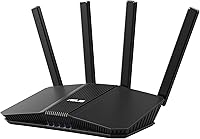
ASUS ZenWiFi BT6 Review: Worth It? (October 2026)
Our ASUS ZenWiFi BT6 review recommends it for larger homes needing three mesh nodes and included network controls. Choose it for coverage planning and ASUS AiMesh expansion; choose the BT10 when high-speed wired connections matter more.
On this page (8 sections)
- ASUS ZenWiFi BT6 review: who should buy it?
- How does the BT6 compare with the BT10 and eero Pro 6E?
- Will three BT6 nodes cover your home?
- What will WiFi 7 change for your devices?
- How should you set up the BT6?
- Are the BT6 security and parental controls useful?
- Which mistakes should you avoid after installation?
- ASUS ZenWiFi BT6 review: which system should you choose?
The ASUS ZenWiFi BT6 is worth considering for a home that needs three mesh locations, especially if you want included security and parental controls. This ASUS ZenWiFi BT6 review favors it for spreading coverage across rooms and floors, rather than chasing a headline speed.
Its main buying question is simple: can you place all three units where they will help? The BT10 suits a different need, with faster wired connections, while the eero Pro 6E offers guided setup for households happy with WiFi 6E.
ASUS ZenWiFi BT6 review: who should buy it?
Buy the BT6 if you need several coverage points and ASUS network controls in one system. Skip the three-pack if your current router already reaches every important room or a better router location would solve the problem.
ASUS ZenWiFi BT6 (3-pack)

- Tri-band WiFi 7
- Up to 7,600 sq ft coverage
- AiProtection Pro
- Parental controls
Choose the BT6 when your floor plan calls for three mesh locations and you want ASUS network controls included. Compatible AiMesh routers offer a path to expand later.
Pros
- Three nodes for separate coverage areas
- Supports wired or wireless backhaul
- Subscription-free network security and included parental controls
- Expansion with compatible ASUS AiMesh routers
Cons
- Three nodes may be unnecessary in a smaller home
- Walls and placement limit actual coverage
- Confirm exact Ethernet port speeds before planning a multi-gig wired network
The strongest case is a long house, a multi-floor layout or a home with an office far from the internet entry point. Three units give you more placement choices, but they still need good connections to one another.
The BT6 also makes sense if you want to expand with compatible ASUS AiMesh routers later. Check compatibility before reusing an older ASUS router, since the brand name alone doesn't establish that it will work.
ASUS ZenWiFi BT6 review for smaller homes
A smaller home should start with the coverage problem, not the pack size. Adding nodes where you already have a strong signal can add complexity without improving the rooms you use.
Map the weak spots before buying. If only one distant room struggles, our guide to whether you need mesh WiFi can help you decide if a whole mesh system is warranted.
How does the BT6 compare with the BT10 and eero Pro 6E?
Choose the BT6 for three-node ASUS coverage, the BT10 for demanding wired connections, or the eero Pro 6E for its guided setup. None is the right choice for every floor plan.
| System | Nodes | WiFi | Manufacturer's claimed coverage | Main reason to choose |
|---|---|---|---|---|
| ASUS ZenWiFi BT6 (3-pack) | 3 | Tri-band WiFi 7 | Up to 7,600 sq ft | Three coverage points with included ASUS network tools |
| ASUS ZenWiFi BT10 (2-pack) | 2 | Tri-band WiFi 7 | Up to 6,000 sq ft | Dual 10G WAN and LAN ports |
| eero Pro 6E (3-pack) | 3 | WiFi 6E | Up to 6,000 sq ft | App-guided setup and remote management |
Coverage figures describe each pack, not a guaranteed service area. A smaller home with dense walls can be harder to cover than a larger, more open space.
Choose the BT10 for a clear wired networking need
The BT10 suits buyers with compatible high-speed wired equipment or internet service that can benefit from its ports. It also supports USB tethering through 4G LTE and 5G mobile connections.
Skip it if you mainly need another coverage location and have no plan to use those wired features. Two well-placed nodes can be enough, but a faster port won't carry WiFi through a difficult wall.
ASUS Smart Home Master supports up to three SSIDs on the BT10 for organizing connected devices. Our best ASUS router guide covers other options if neither pack matches your layout.
Choose the eero Pro 6E for guided installation
The eero Pro 6E suits households that want app-guided setup and remote management without making WiFi 7 a requirement. It supports 100+ connected devices and works with previous-generation eero devices.
Its automatic updates help keep the network current. Online security and additional management features are available through a separate subscription, so decide which tools you need before comparing overall value.
Skip it if WiFi 7 support or included advanced security tools are central to your choice. Device capacity also doesn't mean every connected device can transfer large files at full speed at once.
Will three BT6 nodes cover your home?
Three BT6 nodes are useful when they create a strong path to the rooms that need coverage. Their locations matter more than dividing your floor area into three equal sections.
Start with a rough floor plan that marks the modem, workspaces, televisions and existing dead zones. Include floors and major walls, since distance alone doesn't explain signal loss.
Place the main unit in an open position near the internet connection. Avoid hiding it in a cabinet, behind a television or beside large metal objects.
Put a wireless satellite between the main unit and the weak area, where it can still receive a useful signal. A node placed deep inside the dead zone may simply pass along a poor connection.
In a multi-floor home, try positions near an open stairway or another less obstructed route between floors. Adjust one unit at a time so you can tell which move helps.
Our mesh WiFi distance guide explains spacing in more detail. For the wider picture, see how mesh WiFi systems work.
Use Ethernet backhaul when walls are the main obstacle
The BT6 supports wired or wireless backhaul, meaning the connection between mesh units can use Ethernet or WiFi. Ethernet is worth considering where dense walls weaken the wireless link.
A wired connection between nodes reduces reliance on a radio signal crossing that obstacle. It doesn't remove the need to place each node where nearby phones and laptops can reach it.
Before buying switches or planning a multi-gig wired network, confirm the exact BT6 port layout and speeds with ASUS. Match the entire wired path, including ports and cables, to the speed you need.
What will WiFi 7 change for your devices?
WiFi 7 is most useful when your devices support its features and your network has a need for them. Older hardware won't gain every benefit just because you replace the router.
The BT6 supports Multi-Link Operation, or MLO, which allows compatible devices to use multiple wireless links. It also supports 4K-QAM, which can carry more data under suitable signal conditions.
ASUS gives a combined wireless speed claim of up to 9.4 Gbps. That total is not the download speed to expect on one laptop, and it doesn't raise the speed of your internet plan.
Separate internet use from traffic inside your home. Downloads from a website depend on your service and the remote server, while transfers between local devices also depend on those devices and their connections.
A household with older phones and a modest internet plan should prioritize coverage over the newest standard. Reliable service at a desk is more useful than a higher wireless ceiling in the room beside the router.
Read our WiFi 6 vs WiFi 7 guide to judge the upgrade around your devices. The WiFi 7 router guide offers alternatives if you need a newer router but not three mesh units.
How should you set up the BT6?
Set up the BT6 by establishing the main connection first, then adding and placing the other nodes. Follow ASUS's setup instructions for the exact app steps and connection order.
Sort out your modem or provider gateway first
Identify which box supplies your internet and whether it already acts as a router. A standalone modem and a combined modem-router gateway need different planning.
If both the provider gateway and your new system route traffic, you may create double NAT. That can complicate gaming, remote access and some VPN tasks.
Choose which device will handle routing, then follow the provider's and ASUS's supported instructions for that arrangement. Don't change gateway settings at random if your service also carries phone or television features.
Add nodes before moving them to their final rooms
Complete the initial pairing in the locations recommended by the setup guide. Once the system is connected, move the satellites into the coverage positions you planned.
Use the connection information available in the app to assess their links. Then check ordinary tasks in important rooms, such as a video call at your desk or streaming on the main television.
Keep a short note of each node's location and the rooms it serves. If a change makes one area worse, you'll know which placement to restore.
Choose your network name with smart devices in mind
Reusing an existing network name and password can reduce reconnection work, though some devices may still need attention. A new name makes the change easier to identify but requires reconnecting your equipment.
Check smart plugs, cameras, printers and other less visible devices before considering setup finished. A working phone connection doesn't confirm that every household device is back online.
Are the BT6 security and parental controls useful?
The BT6's included controls are useful if you want central tools for network protection and household access rules. AiProtection Pro is subscription-free, and parental controls are included.
Smart Home Master SSIDs let you organize networks for uses such as smart home devices and VPN connections. Separate network names can make device management clearer, but choose settings based on what each device must reach.
For example, moving equipment onto separate networks can affect local discovery. Check that phones can still reach the printers, speakers or other devices they need after making changes.
Before choosing the BT6 for parental controls, write down the rules you want to enforce. Confirm the specific functions you need, rather than assuming every content filter or scheduling option works the same across router brands.
Use a strong administrator password and keep device software current. Network protection adds a layer of security, while account passwords and settings on individual devices still matter.
If avoiding recurring charges is a priority, compare our mesh WiFi systems without a subscription guide. Focus on the included functions you will actually use.
Which mistakes should you avoid after installation?
Avoid adding more nodes before checking placement and the source of the slowdown. More hardware won't fix every connection problem.
Don't confuse a slow internet service with weak WiFi
If every room slows down at the same time, check the internet connection before moving satellites. A provider issue or a busy connection can affect the whole house.
Compare behavior near the main unit with behavior in the problem room. A problem limited to one area points you toward placement, obstacles or the link between nodes.
Don't put every device on a special network
Start with a simple network arrangement, then add separate SSIDs where they solve a clear need. Too many changes at once make connection problems harder to trace.
If a smart device won't connect, check its supported WiFi bands and security requirements. Replacing the whole mesh system is rarely the first useful step for one device.
Don't neglect ventilation and software updates
Keep units upright in open spaces with ventilation paths clear. Dust them with a dry cloth and avoid placing them beside heat sources or covering them with household items.
Check for firmware updates through the supported controls and follow ASUS's instructions when applying them. After a major change, confirm that important devices and any parental rules still work as intended.
ASUS ZenWiFi BT6 review: which system should you choose?
Choose the BT6 when three useful node locations and included ASUS controls match your household. Before ordering, identify those locations and decide whether Ethernet will be needed between any of them.
Choose the BT10 when two nodes fit the home and you have a specific need for its high-speed wired connections. Choose the eero Pro 6E when guided setup matters more than WiFi 7 and its subscription options fit your needs.
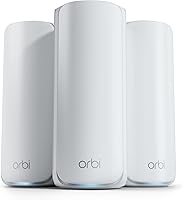
The decision from this ASUS ZenWiFi BT6 review is to buy around the weak rooms you need to serve. If you're still weighing another mesh approach, our Netgear Orbi 770 review gives you another system to compare.
Frequently asked questions
Is the ASUS ZenWiFi BT6 a WiFi 7 mesh system?
Yes, the ASUS ZenWiFi BT6 is a tri-band WiFi 7 mesh system with Multi-Link Operation and 4K-QAM. Compatible devices can use those features, while older devices remain limited by their own WiFi hardware; buy around the devices you use most, rather than expecting every connection to gain the same benefit.
How much area can the ASUS ZenWiFi BT6 cover?
ASUS claims coverage up to 7,600 sq ft for the BT6 three-pack. Actual coverage depends on walls, floors, interference and node placement; plan around the rooms where you need reliable service, and place wireless satellites before the signal becomes weak rather than inside an existing dead zone.
Does the ASUS ZenWiFi BT6 include parental controls?
Yes, parental controls and subscription-free AiProtection Pro network security are included with the BT6. It also offers VPN support and Smart Home Master SSIDs for organizing devices into separate networks; check that its controls cover your specific household rules, then pair them with suitable settings on each child's devices.
Should I choose the BT6 or BT10?
Choose the BT6 when three node locations make sense for your home and you want included ASUS network controls. Choose the BT10 when two nodes are enough and you need dual 10G WAN and LAN ports; extra port speed matters only when your internet service or local equipment can use it.