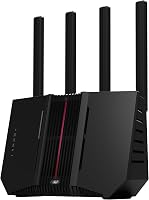
6 Best ASUS Routers (October 2026)
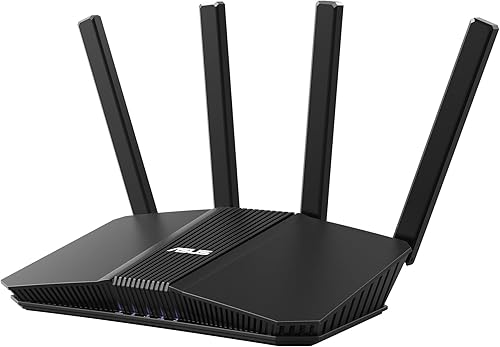
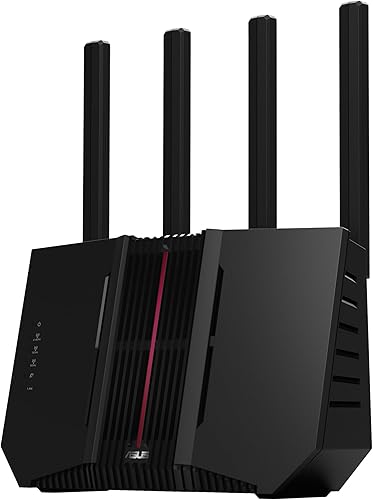
The best best ASUS routers include the ASUS RT-BE58U WiFi 7 Router for everyday households, the ASUS RT-BE9700 WiFi 7 Router for newer wireless devices, and the ASUS RT-BE88U WiFi 7 Router for wired home offices.
On this page (6 sections)
The ASUS RT-BE58U WiFi 7 Router is the best ASUS router for most homes here because its network controls and connection options cover everyday needs. Choose a different model when you have a clear reason: compatible 6 GHz devices, fast wired equipment or rooms that need mesh coverage.
Start with the problem your current network leaves unsolved. Slow file transfers at a desk, weak bedroom coverage and a crowded wireless connection call for different upgrades.
If you also want to compare brands, our WiFi 7 router comparison covers other options. For long floor plans and several floors, the large-home WiFi router guide helps you decide whether one router is enough.
Our picks at a glance
-
1
-
2
-
3

Which is the best ASUS router for your household?
The RT-BE58U is the starting point, while the other picks solve more specific needs. Choose by the devices you connect and the rooms you need to reach before comparing headline speeds.
We compared wireless bands, wired ports, coverage options and network controls. The recommendations below explain where each model earns its place and when another choice makes more sense.
Combined wireless speeds add together capacity across bands. They are not the internet speed one phone or laptop will receive.
| Product | Best for | WiFi | Maximum speed | Network | Our score |
|---|---|---|---|---|---|
| ASUS RT-BE58U WiFi 7 Router | everyday households | Dual-band WiFi 7 | Up to 3.6 Gbps combined | Mesh compatible | 8.1 |
| ASUS RT-BE9700 WiFi 7 Router | newer wireless devices | Tri-band WiFi 7 with 6 GHz | Up to 9.7 Gbps combined | AiMesh compatible | 8.0 |
| ASUS RT-BE88U WiFi 7 Router | wired home offices | Dual-band WiFi 7 | Up to 7.2 Gbps combined | 7.8 | |
| ASUS ZenWiFi BT6 (3-pack) | homes with dead zones | Tri-band WiFi 7 mesh | AiMesh extendable | 7.7 | |
| ASUS RT-BE82U WiFi 7 Router | several wired devices | Dual-band WiFi 7 | Up to 6.5 Gbps combined | 7.6 | |
| ASUS RT-BE92U WiFi 7 Router | divided household networks | Tri-band WiFi 7 with 6 GHz | Up to 9.7 Gbps combined | AiMesh compatible | 7.4 |
ASUS RT-BE58U WiFi 7 Router
- Dual-band WiFi 7
- Up to 3.6 Gbps combined
- Mesh compatible
- USB mobile tethering support
The first choice for a household that wants WiFi 7, separate networks and a mobile backup option without needing 6 GHz or several multi-gig wired connections.
Pros
- MLO for compatible devices
- USB mobile tethering support
- Smart Home Master supports up to 3 SSIDs
Cons
- No 6 GHz band
- Only one 2.5G port
The RT-BE58U suits a household that needs everyday WiFi and useful network controls from one router. Its dual-band design has a combined wireless speed of up to 3.6 Gbps, with MLO available for compatible devices.
Smart Home Master supports up to 3 SSIDs, which are separate WiFi network names. That helps you organize smart home devices, VPN connections and parental controls without putting every device on the same network.
USB mobile tethering gives you a backup connection option during a broadband outage. Check your mobile carrier's tethering allowance before relying on it for work calls or a long interruption.
Its one 2.5G port and four 1G ports suit a network without several fast wired devices. AiProtection Pro, Safe Browsing and security scanning add tools for managing the household connection.
Skip it for a 6 GHz upgrade or a desk full of multi-gig equipment. It is the sensible first choice when those needs do not apply and your main goal is replacing an older router.
ASUS RT-BE9700 WiFi 7 Router
- Tri-band WiFi 7
- 6 GHz with 320 MHz channels
- Four 2.5G ports
- AiMesh support
Choose this for compatible 6 GHz laptops and phones, with multi-gig wired connections and AiMesh available as your network grows.
Pros
- 6 GHz band with 320 MHz channels
- Subscription-free network security
- Site-to-site VPN and Instant Guard
Cons
- Older devices cannot use 6 GHz
- Placement matters for reaching the added band
The RT-BE9700 is the stronger fit for a household buying around newer wireless laptops and phones. Its tri-band design adds 6 GHz, including 320 MHz channels, with a combined wireless speed of up to 9.7 Gbps.
That extra band is useful only when the device supports it. A household using mostly older phones, streaming boxes and basic smart home equipment has less reason to choose this model over the first pick.
Four 2.5G ports also give it a role in a mixed wired and wireless network. You can connect compatible desk equipment while keeping wireless devices on the added band.
Its VPN tools include site-to-site connections and Instant Guard for connecting securely over public WiFi. Those features suit people who want to manage connections beyond the living room.
Choose it when newer wireless devices drive the upgrade and you may add AiMesh coverage later. Skip it if distant rooms are the main problem and you cannot improve placement or add another access point.
ASUS RT-BE88U WiFi 7 Router
- Dual-band WiFi 7
- One 10G SFP+ port
- One 10G WAN/LAN port
- Guest Network Pro
A focused choice for a wired office or home network with equipment that can use 10G connections, including an SFP+ connection.
Pros
- Two 10G connections
- Up to 5 SSIDs with Guest Network Pro
- AiMesh support
Cons
- No 6 GHz band
- 10G equipment and suitable cabling are needed to use faster links
The RT-BE88U is the pick for a wired home office or fast local network. It combines one 10G SFP+ port with one 10G WAN/LAN port, alongside dual-band wireless speeds of up to 7.2 Gbps combined.
Those connections matter for compatible network storage, computers or other wired equipment. Fast local transfers can be useful even when your internet plan is slower, because traffic between devices inside your home does not need to leave it.
SFP+ and standard Ethernet connections need different connection hardware. Map the ports on both ends before buying cables or adapters, especially if you intend to connect existing storage equipment.
Guest Network Pro supports up to 5 SSIDs for organizing devices and network rules. That gives a busy office and household more room to separate their connections.
Skip it for a mainly wireless household that lacks equipment to use the ports. It also lacks 6 GHz, so it serves a different buyer from the tri-band models despite its wired capacity.
ASUS ZenWiFi BT6 (3-pack)

- Tri-band WiFi 7 mesh
- Three units
- ASUS claims up to 7,600 sq ft
- Wired or wireless backhaul
Choose the three-unit system when WiFi must reach across separate floors or distant rooms, with Ethernet backhaul available for difficult layouts.
Pros
- Three units spread coverage
- Wired or wireless backhaul
- Smart Home Master network controls
Cons
- Three units can be unnecessary in a smaller home
- Walls and placement affect coverage
The ZenWiFi BT6 is the right direction when coverage gaps span several rooms or floors. This three-unit mesh system lets you place connection points around the home instead of asking one router to reach every corner.
ASUS claims coverage up to 7,600 sq ft for the pack. Treat that as a planning estimate, since dense walls, floor materials and the route between units affect usable reach.
Wired or wireless backhaul gives you 2 ways to link the units. Ethernet backhaul is especially helpful when a wall blocks the wireless path between a satellite and the main router.
Read our ASUS ZenWiFi BT6 review for more on its connection options. Our mesh WiFi systems guide explains how nodes share coverage and why their placement matters.
Skip the three-unit pack if one central router already covers your home. Extra units need suitable locations, power outlets and sensible spacing, so plan where each will go before choosing the system.
ASUS RT-BE82U WiFi 7 Router

- Dual-band WiFi 7
- Up to 6.5 Gbps combined
- Five 2.5GbE ports
- AiMesh compatible
A useful match for homes with several multi-gig wired devices that do not need 10G connections or a 6 GHz wireless band.
Pros
- Five 2.5GbE ports
- MLO for compatible devices
- AiProtection Pro and Safe Browsing
Cons
- No 6 GHz band
- No 10G wired connection
The RT-BE82U suits a household with several wired devices ready for multi-gig connections. Its five 2.5GbE ports make it a focused alternative to choosing a router mainly for its wireless bands.
Count the internet uplink as part of your port plan. A router's total port count does not mean every connection remains available for computers, storage and other local devices after you connect the broadband equipment.
This model makes sense when your desk equipment supports faster Ethernet but does not need the RT-BE88U's specialist connections. Standard gigabit devices still set their own connection limit when attached to faster ports.
The dual-band WiFi design supports MLO, and AiMesh provides an expansion route. AiProtection Pro and Safe Browsing supply network protection tools without making wireless speed the only reason to buy.
Skip it if 6 GHz is your main goal or if all your equipment uses ordinary gigabit connections. Buy around the ports you will use now, rather than filling them with slower devices and expecting a speed increase.
ASUS RT-BE92U WiFi 7 Router

- Tri-band WiFi 7
- 6 GHz with 320 MHz channels
- Smart Home Master
- USB mobile tethering support
An alternative for households that want 6 GHz WiFi alongside separate SSIDs for IoT devices, VPN connections and parental controls.
Pros
- 6 GHz band with 320 MHz channels
- Smart Home Master supports up to 3 SSIDs
- USB mobile tethering support
Cons
- Substantial feature overlap with the RT-BE9700
- Older devices cannot use the added band
The RT-BE92U suits households that want separate network roles alongside 6 GHz WiFi. Smart Home Master supports up to 3 SSIDs for IoT devices, VPN connections and parental controls.
A dedicated smart home network can make device management easier to follow. Keep its settings compatible with your sensors and appliances, and check that phones can still reach any devices they need to control.
USB mobile tethering gives this router another connection option during an outage. Configure the backup before you need it, since an unprepared mobile connection is little help during a work deadline.
Its tri-band design shares several headline features with the RT-BE9700, including wide channels and MLO. There is no clear reason here to replace a working RT-BE9700 with this model based on those features alone.
Choose it when its network controls match a specific household plan. Skip it if you only need basic WiFi coverage, or if you expect the added wireless band to solve weak connections through several walls.
How do you choose ASUS bands, ports and coverage?
Choose the coverage approach first, connection types second and extra controls third. A router with the right features can still disappoint when it sits in the wrong room or connects to slower equipment.
Does the best ASUS router need WiFi 7?
WiFi 7 is most useful when you have compatible devices or plan to add them during the router's working life. Replacing a reliable network solely for the generation number is less urgent than fixing a coverage or connection limit.
Older devices can connect using standards they support, but they do not gain every newer feature. Check the exact wireless capabilities of your main laptop or phone rather than assuming a recent purchase supports them all.
Our WiFi 6 vs WiFi 7 guide explains the generation changes. For the buying decision, read whether a WiFi 7 router is worth it before building a network around features you may rarely use.
Should you choose dual-band or tri-band?
Choose dual-band when your devices mostly use 2.4 GHz and 5 GHz. Choose a model with 6 GHz when compatible devices will use it within a suitable distance of the router.
The added band can provide another place for supported devices to connect, but it is not a long-range coverage fix. Higher-frequency signals generally have more trouble passing through walls than lower-frequency signals.
Wide channels can increase capacity under suitable conditions, but the widest setting is not always the best choice in every location. Start with sensible automatic settings and adjust only when a specific connection problem needs attention.
When do wired ports matter?
Wired ports matter when you want a steady connection for a fixed desk, console, television or storage device. The slowest link sets the limit, including the device port, cable, switch and router connection.
Separate internet use from local transfers when choosing a speed. A faster broadband plan affects downloads from outside your home, while faster local links can help move files between compatible computers and storage.
Draw a simple connection map before ordering. Include the broadband uplink, each wired device and any mesh backhaul cables so you know both the port speeds and the number of ports you need.
Is one router enough for a large home?
One router is enough when a good central location reaches your occupied rooms reliably. Choose mesh when distance, floors or dense walls leave persistent gaps after you improve placement.
Square footage alone is a weak guide to the choice. A smaller home divided by masonry can be harder to cover than a larger open-plan space.
Our guides to choosing a mesh WiFi system and mesh WiFi vs an extender explain the coverage options. For wireless nodes, plan a chain of good connections rather than placing units directly in the weakest rooms.
Which network controls will you actually use?
Prioritize separate device groups, parental controls or VPN access only when they solve a real household need. More controls also mean more settings to understand and maintain.
An SSID is a network name, while a VPN changes how selected traffic reaches another network or service. Decide what you want each network to do before creating several names that make connection choices confusing.
Security tools add protection, but strong passwords and current firmware still matter. Parental controls also work best alongside device settings and clear household rules.
How should you set up an ASUS router or mesh system?
Start with correct broadband connections and good placement, then add optional features after the main network works. Changing several settings at once makes it harder to identify the cause of a problem.
Prepare the modem or provider gateway
Find out whether your broadband box is a modem, a router or a combined gateway. A new router normally connects to the broadband equipment; it does not replace every type of modem.
If the provider gateway also routes traffic, decide which device will handle routing. Using the gateway's bridge mode or a supported access point mode can avoid 2 layers of routing, but follow your provider's connection requirements.
Keep the existing network name and password handy before disconnecting anything. Also save any connection details your provider requires so setup does not stop while you search for them.
Put the router where people use WiFi
Place the router in an open, raised location near the center of the area you need to cover. A cupboard beside the incoming broadband cable may be convenient, but it can be a poor wireless location.
Avoid placing it behind a television, against large metal objects or under a pile of equipment. If the broadband connection enters at one end of the home, consider an Ethernet run to a better router position.
Leave space around vents and keep the unit away from direct heat. Good placement helps both signal reach and ordinary care.
Establish the main network before adding extras
Install available firmware updates, choose a unique administrator password and create a strong WiFi password. Use current security settings that your devices support.
Connect a phone and your main computer first, then check internet access in the rooms you use most. Confirm ordinary browsing, calls and streaming before adding VPN rules, extra SSIDs or other custom settings.
If you reuse an old network name and password, many devices may reconnect automatically. Check each important device anyway, especially smart home equipment that has been offline during the change.
Place mesh units within a useful connection path
Put wireless satellites where they can still receive a good signal from the main unit or another suitable node. A satellite inside a dead zone may simply repeat a weak connection.
Start between the main router and the area with poor coverage, then adjust based on the system's connection guidance. Our mesh node spacing guide explains how walls and distance change the placement plan.
Use Ethernet backhaul where practical in difficult layouts. It gives the nodes a wired path instead of requiring their connection to cross the same obstacle that weakened room coverage.
What mistakes waste an ASUS router upgrade?
The biggest mistakes are buying for headline speed, ignoring placement and changing settings without a clear reason. Check the source of the problem before replacing hardware or adding more units.
Expecting the combined speed on one device
Combined speed describes capacity across the router's bands, rather than a promise for one connection. Your internet plan and client device can impose much lower limits.
If downloads remain slow, compare a wired connection with WiFi in the same period. A slow wired connection points toward a different problem from a fast wired connection paired with weak WiFi.
Buying mesh units without planning locations
Extra nodes need useful spacing and a strong route back to the main network. Packing them together or hiding them behind furniture does not make coverage more reliable.
Begin with the units required to reach your rooms and check the result before expanding. Use real activity, such as a video call from the office, to judge whether the placement meets your needs.
Treating mobile tethering as unlimited broadband
Mobile backup depends on cellular reception, the tethering device and your carrier plan. Data allowances and connection limits can matter during a long outage.
For models with tethering support, configure the connection in advance and confirm that essential devices can get online. Limit large downloads during an outage so background activity does not consume the available mobile data.
Changing several wireless settings together
Adjust one setting at a time and note what changed. If a device stops connecting, you can return to the previous setup without guessing which change caused it.
Give older smart home devices particular attention when changing security or network rules. Some need a compatible setup path, and overly strict separation can prevent a phone from discovering or controlling them.
How do you keep an ASUS network reliable?
Keep firmware current, vents clear and network changes documented. Routine care is more useful than repeatedly restarting the router without finding what went wrong.
Check periodically for firmware updates through the router's supported management tools. Review connected devices and remove old access that guests or retired equipment no longer need.
Wipe dust from the exterior with a dry cloth and keep ventilation openings clear. Avoid stacking other warm devices on the router or moving it into a closed cabinet to hide it.
Save a configuration backup after the network is working well, and store it securely. Record which network names serve guests, smart home equipment or VPN use so future changes stay manageable.
If problems return, note whether they affect one device, one room or the entire network. That pattern helps separate a client issue, coverage gap and broadband interruption before you change hardware.
Which ASUS router should you buy?
The best ASUS router is the one that fixes your current limit without adding features you have no plan to use. Start with your floor plan and connected equipment, then make the final choice.
Choose the RT-BE58U when one router can cover your home and you want an everyday upgrade with useful controls. Move to the RT-BE9700 when supported wireless devices give you a clear reason to add 6 GHz.
Choose the RT-BE88U for a wired network built around 10G equipment. Pick the RT-BE82U when several devices need multi-gig wired links without those specialist connections.
Choose the ZenWiFi BT6 when rooms or floors need several connection points. Consider the RT-BE92U when its combination of tri-band WiFi and separate network controls matches your household plan.
Before ordering, confirm where the router or nodes will sit and which ports each cable will use. If you are still comparing mesh brands, our eero vs Orbi comparison is a useful next step.
Our top 3 picks at a glance
-
1
-
2
-
3
Frequently asked questions
Which ASUS router is best for most homes?
The ASUS RT-BE58U is the best ASUS router for most homes in this comparison when one router can cover the rooms you use. Its network controls and mobile tethering support suit everyday needs.
Choose another model if you need 6 GHz, several multi-gig wired connections or a multi-unit mesh system.
Is a tri-band ASUS router worth it?
A tri-band ASUS router is worth considering when your devices support its added band and you can place the router within useful reach. The RT-BE9700 and RT-BE92U include 6 GHz.
If your household mainly uses older devices, prioritize coverage and wired connections before paying for wireless features they cannot use.
Should I choose an ASUS router or mesh system?
Choose a standalone router when a central location provides reliable WiFi in your main rooms. Choose mesh when distance, walls or floors leave persistent gaps.
The ZenWiFi BT6 spreads connections across three units, but each wireless node still needs a good connection back toward the main router.
What should I check before buying a WiFi 7 router?
Check your devices' WiFi support, your modem or gateway connection, and the wired speeds your equipment can use. WiFi 7 does not automatically include 6 GHz, and MLO needs compatible devices.
Our WiFi 7 router guide helps you compare these features before choosing a model.