5 Best Mesh WiFi Systems for Xfinity (October 2026)
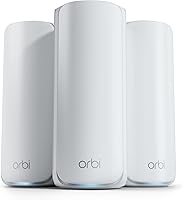
The best mesh WiFi systems for Xfinity include the eero 7 (3-pack) for most Xfinity homes, the eero 6+ (3-pack) for gigabit households, and the Netgear Orbi 770 (3-pack) for sprawling homes.
On this page (7 sections)
- How we chose mesh WiFi systems for Xfinity
- The best mesh WiFi systems for Xfinity
- What to check before buying mesh WiFi for Xfinity
- How to set up mesh WiFi with your Xfinity equipment
- Common mistakes that leave Xfinity mesh WiFi slow
- How to keep your mesh network working well
- Which mesh WiFi system should you choose for Xfinity?
The eero 7 (3-pack) is the best mesh WiFi system for Xfinity for most homes because it combines WiFi 7 with multi-gigabit Ethernet connections. Choose Orbi 770 for a larger floor plan, or eero 6+ if you plan to stay at gigabit speeds.
The right choice depends as much on your home's layout as your internet package. A faster mesh system cannot repair an unreliable cable connection, and a larger coverage figure cannot overcome poor node placement.
You still need a compatible modem or gateway between Xfinity's cable connection and your mesh router. These systems replace or extend the home-network side of that setup.
If you're unsure whether mesh fits your home, start with how mesh WiFi systems work and whether you need mesh WiFi. For gateway setup details, see using eero with Xfinity.
Our picks at a glance
-
1

-
2

-
3

How we chose mesh WiFi systems for Xfinity
We prioritized plan support, useful coverage and household needs over headline wireless speeds. Each pick offers a different reason to buy, from a built-in smart home hub to a tri-band design.
SnappyNotion compared the supplied specifications and features, including Ethernet connections, WiFi generation, device capacity and setup tools. The order reflects overall fit for this search, so a lower-ranked model can still be the better match for your home.
Coverage and device counts are brand estimates, not guarantees for every floor plan. Walls, neighboring networks and the amount of traffic each device generates can change the result.
| Product | Best for | WiFi generation | Plan support | Coverage | Our score |
|---|---|---|---|---|---|
| eero 7 (3-pack) | most Xfinity homes | WiFi 7 | Up to 2.5 Gbps | Up to 6,000 sq. ft. | 9.1 |
| eero 6+ (3-pack) | gigabit households | WiFi 6 | Up to a gigabit | Up to 4,500 sq. ft. | 8.9 |
| Netgear Orbi 770 (3-pack) | sprawling homes | WiFi 7 | Up to 2.5 Gbps | Up to 8,000 sq. ft. | 8.8 |
| Netgear Orbi 370 (3-pack) | everyday Orbi households | WiFi 7 | Up to 2.5 Gbps | Up to 6,000 sq. ft. | 8.5 |
| eero Pro 6E (3-pack) | WiFi 6E households | WiFi 6E | Up to 2.5 Gbps | Up to 6,000 sq. ft. | 7.9 |
The best mesh WiFi systems for Xfinity
Start with eero 7, then move to another pick when you have a specific reason: a gigabit-only plan, a sprawling home, a preference for Orbi or compatible WiFi 6E devices.
All five options are three-packs, but you should choose the number of active nodes by signal needs. Having three units in the box does not mean every home needs all three running.
eero 7 (3-pack)
- WiFi 7
- Plans up to 2.5 Gbps
- Coverage up to 6,000 sq. ft.
- Two auto-sensing 2.5 GbE ports
The default choice for Xfinity households that want WiFi 7 and room for a faster internet plan. Its multi-gigabit Ethernet connections also suit homes adding wired devices.
Pros
- WiFi 7 with multi-link operation
- Two auto-sensing 2.5 GbE ports
- Supports 120+ devices across the three-pack
Cons
- Dual-band design
- Advanced security and parental controls require optional eero Plus
Choose eero 7 if you want a current WiFi generation and room for a faster Xfinity plan. It supports plans up to 2.5 Gbps, and eero rates the three-pack for up to 6,000 sq. ft. and 120+ devices.
Each unit has two auto-sensing 2.5 GbE ports. That matters if you want to connect wired equipment, although the main unit uses one connection for the modem or gateway.
This is a dual-band WiFi 7 system with multi-link operation. eero specifies wireless speeds up to 1.8 Gbps, so its internet-plan support should not be read as the speed one wireless laptop will receive.
Backward compatibility with earlier eero generations helps if you already have eero equipment. Older units can still impose their own limits, so compatibility alone is not a reason to keep every old node active.
Skip it if access to the 6 GHz band is your main goal. For a larger coverage target and a tri-band alternative, read the Orbi 770 review.
eero 6+ (3-pack)
- WiFi 6
- Supports speeds up to a gigabit
- Coverage up to 4,500 sq. ft.
- Built-in Thread and Zigbee smart home hub
A sensible fit for households keeping their Xfinity plan at a gigabit or below. The built-in hub adds value when you have compatible Thread or Zigbee devices.
Pros
- Supports gigabit speeds
- Built-in Thread and Zigbee smart home hub
- App-guided setup
Cons
- Less rated coverage than the other three-packs here
- Additional security and network management features require a separate subscription
Choose eero 6+ when you expect to keep an Xfinity plan at a gigabit or below. Its three-pack has a rated coverage area of up to 4,500 sq. ft. and support for 75+ devices.
The WiFi 6 system supports 160 MHz channels, which can provide more bandwidth with compatible devices and suitable conditions. A phone that cannot use that channel width will not gain the same benefit.
Its built-in hub connects compatible Thread and Zigbee devices with Alexa. That gives smart-home buyers a clear reason to consider this model beyond internet speed.
The eero app guides setup and supports remote management, while automatic updates help with routine upkeep. Extra online security and network management features require a separate subscription.
Skip this pick if a multi-gigabit upgrade is already planned or your layout needs a larger coverage target. If newer eero hardware is on your shortlist, eero 7 vs eero Pro 7 explains another choice within the range.
Netgear Orbi 770 (3-pack)
- WiFi 7
- Tri-band with Enhanced Backhaul
- Coverage up to 8,000 sq. ft.
- Supports up to 100 devices
Choose this system for a large floor plan where both coverage and traffic between mesh units matter. Its tri-band design makes it the stronger Orbi choice here for busy households.
Pros
- Largest rated coverage in this roundup
- Tri-band WiFi 7 with Enhanced Backhaul
- Can expand with Orbi 770 Series satellites
Cons
- Made for use in the US only
- NETGEAR Armor requires a separate subscription after its 30-day trial
Choose Orbi 770 for a sprawling floor plan where several people use distant rooms at once. NETGEAR rates this router-and-two-satellite package for up to 8,000 sq. ft. and 100 devices.
Its tri-band WiFi 7 design includes Enhanced Backhaul, which concerns communication between mesh units. A strong link between units matters because a device can show a strong nearby WiFi signal while its satellite has a weak path back to the router.
NETGEAR advertises aggregate wireless speeds up to 11 Gbps, while internet-plan support reaches 2.5 Gbps. Those figures describe different limits; the larger number is not your Xfinity download speed.
The Orbi app handles guided setup, connected devices and guest WiFi. You can expand with an Orbi 770 Series satellite, rated to add up to 2,750 sq. ft., subject to layout and placement.
Skip it for a compact home with only one weak room. Its larger coverage target and tri-band design make more sense when your floor plan and traffic justify them.
Netgear Orbi 370 (3-pack)

- WiFi 7
- Dual-band with Enhanced Backhaul
- Coverage up to 6,000 sq. ft.
- Supports up to 70 devices
An Orbi option for everyday streaming, work and connected devices without the 770's larger coverage target. Choose it when you want the Orbi app and a dual-band WiFi 7 system.
Pros
- WiFi 7 with Enhanced Backhaul
- Supports plans up to 2.5 Gbps
- Can expand with Orbi 370 Series satellites
Cons
- Dual-band rather than tri-band
- Made for use in the US only
Choose Orbi 370 if you want the Orbi app and WiFi 7 for an everyday household. NETGEAR rates the three-pack for up to 6,000 sq. ft., 70 devices and internet plans up to 2.5 Gbps.
This model uses dual-band WiFi with Enhanced Backhaul. It does not share the 770's tri-band design, so treat it as a different network option rather than a smaller coverage version of the same hardware.
It suits a mix of work laptops, TVs, phones and connected home devices when your needs fit those limits. Device count alone is not enough to choose it, since several active downloads create more demand than many idle smart plugs.
Setup and guest-network management use the Orbi app. Expansion requires an Orbi 370 Series satellite, with each additional unit rated for up to 2,000 sq. ft.
Skip it if your main reason for choosing Orbi is the 770's extra band. Both Orbi picks are made for US use, and Armor requires a separate subscription after its trial.
eero Pro 6E (3-pack)

- WiFi 6E with 6 GHz band for compatible devices
- Coverage up to 6,000 sq. ft.
- Supports 100+ devices
- 2.5 Gb Ethernet port
A focused choice for homes with WiFi 6E devices that can use the 6 GHz band. Compare its Ethernet limits with your wired needs before choosing it for a faster plan.
Pros
- 6 GHz band for compatible WiFi 6E devices
- Supports 100+ devices
- App-guided setup and automatic updates
Cons
- No WiFi 7 support
- Additional security and network management features require a separate subscription
Choose eero Pro 6E when you have compatible devices and specifically want access to the 6 GHz band. That extra band is its clearest reason to buy within this group.
eero rates the three-pack for up to 6,000 sq. ft. and 100+ devices. It supports gigabit-plus plans through a 2.5 Gb Ethernet port, but that connection should not be confused with every wired device's speed.
eero specifies wired speeds up to a gigabit and wireless speeds up to 1.6 Gbps. If you want a multi-gigabit wired connection to one computer, examine those limits before choosing this model.
The app guides setup and allows remote network management, while automatic updates cover routine software upkeep. It also works with previous-generation eero devices.
Skip it if you have no use for 6 GHz and mainly want WiFi 7. Compare the eero Pro 7 review and Orbi 770 review if those are your priorities.
What to check before buying mesh WiFi for Xfinity
Confirm your modem arrangement, plan speed and weak rooms before comparing mesh systems. Those checks prevent you from paying for capabilities that do not address the actual problem.
Which mesh WiFi system matches your Xfinity plan?
Match supported plan speed first, then consider how your household uses the connection. A gigabit household with several video calls has different needs from someone moving large files to a wired computer.
Check your current Xfinity plan rather than relying on an old order confirmation. Buy headroom for an upgrade you expect to make, but do not choose a larger system solely because a faster plan might exist later.
Also check the wired path: modem or gateway, Ethernet cable, mesh router and computer. A slower connection anywhere along that path can limit the result even when the internet plan is faster.
Do you have a modem or a gateway?
A standalone modem needs a router to share the internet connection with your home. A gateway combines those jobs, so adding mesh requires a decision about which device handles routing.
A common setup puts the gateway in bridge mode and lets the mesh router manage the home network. Follow the instructions for your exact equipment before changing modes, especially if you rely on other gateway features.
Disabling gateway WiFi only stops its wireless network; it does not disable routing. For a clearer explanation of those roles, read whether a WiFi router is the same as a modem.
How much coverage does your layout require?
Map the rooms that need service, including the office, upstairs bedrooms and any nearby outdoor area. Note thick walls, floors and where the modem connection enters the home.
A long, narrow house may need different placement from a square home with the same floor area. Masonry and multiple floors can make a simple square-foot comparison misleading.
Choose a system with some coverage margin, then plan realistic node locations. The guide to mesh WiFi systems for large homes helps if your layout is the main challenge.
Do bands and backhaul matter more than device count?
For busy wireless mesh networks, the connection between nodes matters alongside client capacity. Backhaul is the path that carries traffic between those nodes.
Dual-band and tri-band systems have different radio resources, but neither label promises a certain speed in every room. WiFi 7 also does not automatically mean a system includes 6 GHz, as the dual-band choices here show.
Count active uses, not just connected devices. A home with several simultaneous streams and large downloads can place more demand on the mesh than a home with many low-traffic sensors.
Which features require a subscription?
Separate basic networking from optional services before comparing long-term value. Decide which parental controls, security tools or management features you actually need.
eero Plus is optional on eero 7 and includes advanced security and parental controls. The other eero picks also offer extra security and management features through separate subscriptions.
Both Orbi systems include Advanced Router Protection and automatic firmware updates, while Armor is a separate service after its 30-day trial. Read the included feature set carefully rather than assuming all security tools have the same terms.
If avoiding recurring extras matters most, compare mesh WiFi systems without a subscription.
How to set up mesh WiFi with your Xfinity equipment
Set up the main router first, confirm internet access, then add the other nodes. Keeping that order makes it easier to locate a connection problem.
1. Record your current network details
Save your WiFi name and password, and make sure you can access the accounts needed to manage your equipment. Download the mesh app before disconnecting the current network.
Choose a time when nobody needs a work call or online exam. Keep cellular service available on your phone so you can read setup help if the home connection is temporarily unavailable.
2. Choose one routing arrangement
With a standalone modem, connect its Ethernet output to the mesh router's internet connection. With a gateway, follow the gateway and mesh instructions for the routing arrangement you chose.
Running two routers in sequence can create double NAT, which may complicate gaming, port forwarding or remote access. Avoid changing several gateway settings at once, since that makes mistakes harder to trace.
3. Bring the main mesh unit online
Use the app to create the network and allow any required software updates to finish. If the connection does not come up, follow the modem or gateway instructions for reconnecting after a router change.
You can reuse the old WiFi name and password to reduce reconnecting work. Some devices may still need manual attention, so check cameras, printers and other equipment you depend on.
4. Add nodes along the signal path
Put the first extra node between the main router and the weak area, where it can still receive a useful signal. Placing it inside the dead zone gives it little signal to pass along.
Keep nodes in the open, away from large metal objects, enclosed cabinets and dense furniture. Use the app's placement feedback, then move a node if its connection is weak.
For more layout help, read how far apart to place mesh WiFi nodes.
5. Check the rooms that matter
Check ordinary tasks in your office, bedroom and other regular-use spaces. Compare performance near the main router with performance beside each satellite to identify where the connection weakens.
Change one node location at a time and check again. If the main router works well but a distant satellite struggles, focus on its placement and backhaul before changing your Xfinity plan.
Common mistakes that leave Xfinity mesh WiFi slow
Fix the weakest link before adding more hardware. Many disappointing mesh setups come from placement or connection limits rather than the wrong WiFi generation.
Buying mesh for a service problem
Mesh helps distribute a working connection around your home. It cannot repair an outage or a poor connection between Xfinity and your modem.
If performance is poor beside the main router and through a wired connection, investigate the service, modem and cables first. Adding satellites is unlikely to solve that pattern.
Treating headline speed as a per-device promise
Aggregate wireless figures do not describe the internet speed available to one phone. Your Xfinity plan, that phone's radio and its signal path all set limits.
Judge the result against the task you need to complete. Stable video calls in the office are more useful than a large speed number measured beside the router.
Installing every node immediately
More nodes are not always better. Crowding units together can add overlapping signals without improving the rooms that need help.
Start with a sensible layout, then add the remaining unit where it solves a clear gap. Avoid placing nodes merely to create equal spacing on a floor plan.
Expecting newer WiFi to change older devices
Older phones and laptops remain limited by their own wireless hardware. A new mesh system can improve coverage without giving those devices every feature of the newer standard.
Check the capabilities of your busiest devices before paying extra for a particular band or WiFi generation. This matters most when the upgrade is aimed at one computer rather than the whole home.
How to keep your mesh network working well
Keep software current and nodes in open spaces, then check placement when your household changes. Routine upkeep should support the layout rather than involve constant setting changes.
Leave automatic updates enabled where available and keep the management app current. Secure the account that controls the network, since remote management makes that account especially useful.
Keep vents clear and follow the manufacturer's cleaning guidance. Move a node if new furniture blocks it, and check its connection after changing shelves or room layouts.
Use guest WiFi for visitors where available, and save a simple note showing where each node belongs. That helps after cleaning, moving furniture or an accidental unplugging.
A wired connection can be useful for a fixed desktop or console when the mesh unit has a suitable port. Remember that wiring a device to a satellite does not remove a weak wireless link between that satellite and the main router.
Which mesh WiFi system should you choose for Xfinity?
The best mesh WiFi system for Xfinity is the one that fits your plan and reaches your important rooms with well-placed nodes. Make the final choice around your clearest need:
- Choose eero 7 for a general-purpose WiFi 7 upgrade with multi-gigabit Ethernet connections.
- Choose eero 6+ if you are staying on a gigabit plan and can use its compatible smart home hub.
- Choose Orbi 770 for a sprawling layout and a busy household that can benefit from its tri-band design.
- Choose Orbi 370 if you prefer Orbi for everyday use and do not need the 770's extra band.
- Choose eero Pro 6E when access to 6 GHz for compatible devices is a specific goal.
Before ordering, identify a useful location for each node. If you cannot place a satellite between the router and the weak room, solve that layout problem before choosing by coverage figures.
If you only need to reach one nearby room, compare mesh WiFi versus an extender. For choices beyond these Xfinity-focused picks, see the best mesh WiFi systems.
Our top 3 picks at a glance
-
1
-
2
-
3
Frequently asked questions
Will a mesh WiFi system work with Xfinity?
Yes, a mesh WiFi system can work with Xfinity through a compatible modem or gateway. Connect the main mesh router by Ethernet, then follow the setup instructions for both devices; the mesh system provides your home network, but it does not replace the modem needed for cable internet service.
Do I need to keep the Xfinity router?
You need a compatible modem connection, but the mesh system can take over routing and WiFi. If your Xfinity equipment combines a modem and router, you can keep that gateway and use an appropriate bridge-mode setup; turning off its WiFi alone does not turn off its routing functions.
How fast should a mesh system be for Xfinity?
Choose a mesh system whose supported internet plan speed meets your Xfinity plan, then check its Ethernet connections and wireless limits. A multi-gigabit internet connection does not give every phone that speed; device hardware, distance, walls and traffic between mesh nodes all affect what reaches a single device.
Where should I place mesh WiFi nodes?
Place each wireless node where it still receives a useful signal from the rest of the mesh, rather than inside the dead zone. Start between the main router and the weak room, using open shelves or tables; follow the app's placement guidance and check the rooms you use most.
Can I use an Xfinity gateway and mesh WiFi together?
Yes, but decide which device will handle routing before you finish setup. A common arrangement uses gateway bridge mode with the mesh system acting as the router; follow the instructions for your exact gateway and mesh model, since disabling gateway WiFi and enabling bridge mode change different functions.